Repository navigation
Updating
New releases are installed through Recovery. You do not need to repeat step 1 of the Installation unless a release says so.
-
Download the
.OSCfile for your model from the releases. Each release lists SHA-256 checksums if you want to verify the download. -
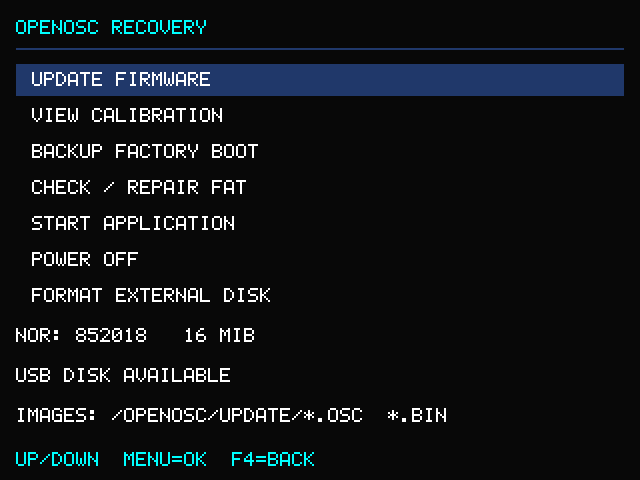
Hold F2 while the device starts to open Recovery.
-
Connect USB and copy the file into
/openosc/UPDATE/. -
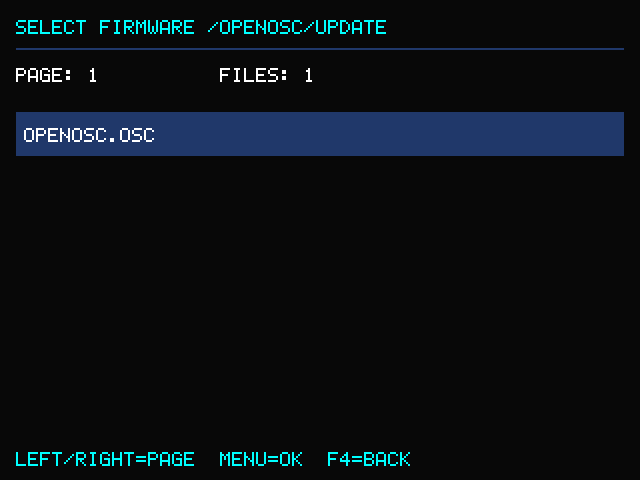
Select UPDATE FIRMWARE and choose the file.
-
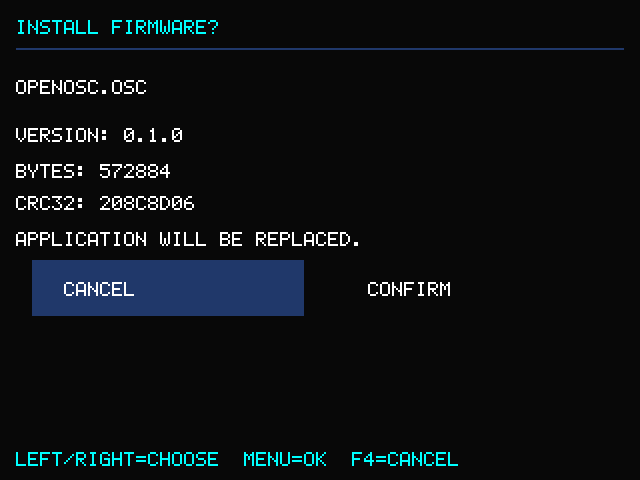
Check the version on the confirmation screen, select CONFIRM with → and press MENU.
-
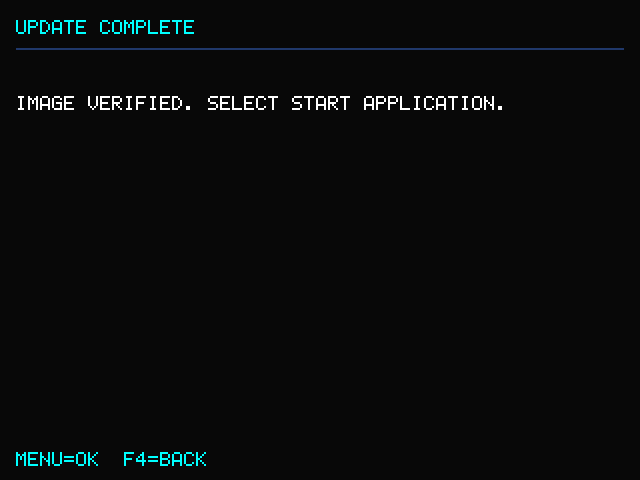
Wait for UPDATE COMPLETE, press MENU and select START APPLICATION.
You can also enter Recovery from the running firmware: Settings → Files & USB → Recovery / USB files, or the SCPI command SYST:REC.
Settings, themes and calibration files live on the device storage, and an update keeps them. New options start with their defaults. A file that the new version cannot read is renamed to .bad and replaced with defaults.
Release notes say when a new Recovery (.ZTK) is available and whether installing it is required or optional. It is installed like step 1 of the Installation.