
   ░ ░ ░       ▄▄▄▄  ▄▄   ▄▄  ▄▄▄▄   ▄▄▄▄▄  ▄▄▄▄▄ ▄▄  ▄▄ ▄▄  ▄▄▄▄  ▄▄▄▄▄▄  ▄▄▄▄
 ▗▄▒▒▒▒▒▄▖    ██  ██ ██▀▄▀██ ██  ██ ██     ██     ██  ██ ██ ██  ██   ██   ██  ██
 ▐███████▌▜▖  ██  ██ ██ ▀ ██ ██▀▀██ ██     ██     ██▀▀██ ██ ██▀▀██   ██   ██  ██
  ▜█████▛▗▘   ▀█▄▄█▀ ██   ██ ██  ██ ▀█▄▄▄▄ ▀█▄▄▄▄ ██  ██ ██ ██  ██   ██   ▀█▄▄█▀
 ▀▀▀▀▀▀▀▀▀       omakase + macOS + macchiato
omakase + macOS + macchiato. An omarchy-style tiling
desktop for macOS 26 and 27, built around the
OmniWM window manager. One
install.sh gives you a Super key on Caps Lock, niri columns and
Hyprland's dwindle layout, a status bar that draws its pills, popups,
sliders and screen dimming from one process, one gauge for the battery
and the wi-fi, trackpad swipes, a
workspace overview with live window previews, and a theme switch that
recolours the bar, the focus border, the terminal and the wallpaper in
one command.
A one-minute tour: tiling, workspaces, the bar's popups, themes and the shortcuts.
Omacchiato is a fork of omacosy
by Paul Spende, under the same MIT licence. On a Mac with omacosy
installed, install.sh moves that install to the new names. macOS then
asks again for the permissions of the bar and the gesture daemon.

Numbers from this repo, measured on the author's desk:
- The whole environment idles at about 293MB across OmniWM, the bar, the overview, the gesture daemon and Karabiner's two user processes. Per-process figures are under Memory use.
- A workspace switch repaints the bar in 2.5 ms, because the bar holds the window model in memory and asks no one anything. The shell bar it replaced took 164 ms for the same event.
- The bar makes one network call by default, the weather fetch. Delete that pill and nothing leaves the machine. There is no telemetry and no background update check.
- Omacchiato's own binaries never run as root. Karabiner-Elements does, and What it does not do says what that means.
- Five small binaries, Swift and C, built by the installer: the bar, the overview, the gesture daemon, a system helper and an IPC client for OmniWM that launches in about 3 ms.
Built for macOS 26 (Tahoe) and in daily use on macOS 27, on one desk: a MacBook Pro plus two external displays. It uses display roles instead of hardware names and detects the notch per display, but so far it has run on this machine. The permission setup is real work. Issues and PRs are welcome; support promises are not made.
git clone https://github.com/wicksipedia/omacchiato.git ~/.local/share/omacchiato &&
cd ~/.local/share/omacchiato && ./install.sh
The clone location matters. Configs are symlinked into the repo, and
macOS privacy (TCC) blocks launchd services from reading ~/Documents,
~/Desktop and ~/Downloads. If you clone there anyway, the installer
copies the configs instead; edits then need an install.sh re-run.
install.sh compiles the helper binaries, except at a release tag,
where it downloads the signed binaries of that release instead. It
needs Apple's Command Line Tools (xcode-select --install). Homebrew requires them too, so a
Mac with Homebrew already has them, and install.sh stops with that
command when they are missing. Full Xcode is not needed. A free Apple
Development certificate, which you make in Xcode under Settings >
Accounts, keeps the permission grants across rebuilds; see
Permissions.
install.sh is idempotent. It installs Homebrew if missing, runs
brew bundle, compiles the helper binaries, symlinks configs (backing
up anything it would replace), copies OmniWM's settings template once,
adds Karabiner rules for your app choices, hides the native menu bar,
applies the default theme (tokyo-night) and starts the services. It
also checks app versions against config/requirements.conf: OmniWM,
and herdr if it is installed. It prints the brew command that fixes
one that is too old.
Permissions lists every grant it asks for, what each one is used for, and what breaks without it. Karabiner-Elements also asks you to approve its driver extension.
To update:
omacchiato-update          # move to the newest release, then re-run the installer
omacchiato-update --check  # only say whether there is anything new
omacchiato-update --edge   # take the newest commit instead, and build it
A release is a date tag, such as v2026.09.28, with a GitHub release
that holds the signed binaries. At a release tag, install.sh
downloads them with curl, checks the checksum and the signature, and
builds nothing. If a check fails, it builds from source. Do not
download a release in a browser: the browser marks the files, and
macOS then refuses to run them. OMACCHIATO_BUILD=1 ./install.sh
always builds from source.
omacchiato-update refuses a clone with local edits and a branch that
has diverged, and follows the branch that yours tracks, so a clone of a
fork updates from the fork. A branch with no release tags updates to its
newest commit. Nothing contacts the network unless you
run it.
OmniWM tiles the windows. Workspaces start in its niri layout, a row
of columns that scrolls sideways, and Option+Shift+L switches a
workspace to dwindle, where each new window splits the focused one
along its longer edge. That is the omarchy feel, and on a 3440-wide
display it is the difference between a usable third window and three
narrow strips. omacchiato-spawn, which the terminal chord runs,
preselects omarchy's insertion side (right of a wide window, below a
tall one) and serialises spawns, so a burst of Super+Enter becomes a
clean staircase instead of splitting the same cell again and again.
Nine workspaces in total, not a set per display: 1 to 5 on the main
display and 6 to 9 on the secondary one. Super+N reaches workspace N
from anywhere. Unplug a display and its workspaces move to the nearest
one; plug it back in and each window goes home, so anything you opened
while undocked stays put.
OmniWM draws the focus border, and each theme sets its colour, a gradient and a glow.
Karabiner remaps Caps Lock to cmd+ctrl+alt, a combination macOS
never uses, so omarchy's scheme works letter for letter without
breaking typing or app shortcuts. Caps Lock tapped alone is Escape.
OmniWM's hotkeys cannot run shell commands, so the chords that open
apps, switch themes, lock the screen and show the cheatsheet are
Karabiner rules that install.sh writes for you. The full map is
under Keybindings, and Super+K draws it on screen
from the live config.
One process draws all of it: the bar, its popups, the sliders and the
gamma shade are surfaces of helper/bar/. The bar is
transparent, and each item is a flat radius-4 pill. It subscribes to
the system's own publishers (SkyLight for window churn, CoreAudio for
volume, IOPS for battery, DisplayServices for brightness,
SCDynamicStore for the network, IOBluetooth for devices, Apple Music's
own broadcast for the track) and polls for nothing macOS announces;
its only timers are the weather fetch and the clock. OmniWM keeps a
42-point strip at the top of each display free for it, and fullscreen
windows keep out of the strip too.

The status pill puts the battery and the wi-fi in one icon, after the battery and signal gauge on the iPhone Duo. The ring fills with the charge. It turns green on AC power and red at 20% or less. The four dots that close the ring show the wi-fi signal, and a slash through the glyph means wi-fi is off. On Ethernet the glyph is the Ethernet mark and every dot is lit. On a phone's hotspot the glyph is the chain link. A click opens a panel with the gauge drawn large, tiles for power, battery health, signal, link and channel, a wi-fi switch, and the networks and phones to join. A middle click turns wi-fi on or off.
The gauge replaces the separate wi-fi and battery pills by default.
wifi = icon or battery = time in bar-pills.conf brings either one
back, and status = hide removes the gauge.

Left to right:
- Apple menu: the real one, read over Accessibility. About This
Mac, System Settings, Recent Items (with app and file-type icons
resolved locally, because AX exposes none), Force Quit and the power
verbs, plus Omacchiato Settings at the bottom. The settings window
opens on the Bar page, where you drag the right-hand pills into any
order, built-in and plugin alike, and show or hide each one. The
sidebar lists the pills in bar order, then Features (Quit on Close,
Keep Awake, HUDs & Sounds) and Advanced (Config Files, Debug). Each
pill and plugin has a page, and each popup ends with "Customize
Pill", which opens that page. The icon picker searches every Nerd
Font icon by name, and Config Files can insert one at the cursor.
The Debug page logs the bar's memory once a minute. There is also a
Theme page. The Theme page
shows each theme on a small desktop with its wallpaper, bar and
window borders. Pick one theme, or one for the day and one for the
night, and Apply saves the choice to
theme.conf. - Workspaces: one capsule per display, showing only that display's workspaces. A chip shows the icons of up to three apps on the workspace, fanned like a hand of cards, or the workspace's digit when it is empty. A dot marks the workspace on show, and on it the focused app wears a ring in the theme accent. Click a chip to jump. Scroll on the chips to step to the next or previous workspace.
- App menus: click the front app's name and its menu bar drops into a popup. File, Edit and the rest open their real items to the side, as macOS menus do, nested submenus included. Hover or click to open a submenu, or use the arrow keys. Clicking an item performs it over AX without a native menu appearing. Shortcuts sit right-aligned, and a menu taller than the screen scrolls.
- Media: album art with artist and track from Apple Music. A title too long for the pill scrolls, moved by Core Animation so the bar redraws nothing. It sits in the centre on a flat display, joins the left cluster on a notched one, and hides when Music is not running. Click the title to open Music. Scroll on it to skip to the next or previous track.


- Menu bar apps: the grid pill lists the third-party apps that have an icon in the hidden macOS menu bar, with each app's own icon. Clicking a row gives that icon a real click: the pointer moves to the top edge so the menu bar slides in (about 0.25 s), the bar clicks the icon, and the pointer moves back. macOS hides an icon that does not fit next to the camera notch, so its row carries an open-app mark and a click opens the app instead.
- Plugin pills: anything you add in
bar-plugins.conf. The repo ships an AI usage pill, a GitHub pull requests pill, a keep-awake pill and an AirPods pill; see Plugin pills. - Weather: wttr.in. The popup looks like the iOS Weather app: the temperature now, the next 24 hours in 3-hour steps, three days with their range, and tiles for wind, humidity, UV and sunrise.
- Status: the battery and wi-fi gauge; see One gauge for the battery and the wi-fi.
- Wi-fi: the pill is the icon alone. The popup names the network and adds the IP and router, signal with a verdict, link rate and security generation, and the channel with its band and width. Under those, it lists the networks in range, strongest first, with a tick on the one you are on. Click another to join it. Your own iPhones follow, with the battery each one has left. Click a phone to turn its Personal Hotspot on.
- Bluetooth: a device menu (click to connect or disconnect) and a power toggle.
- Brightness: scroll adjusts, click opens a slider. Scrolling past zero keeps going: a shade dims the display below its hardware minimum by scaling gamma, so there is no overlay window and screenshots come out normal. It survives sleep and reaches external displays, which have no backlight API, and gamma resets when the process exits, so a crash restores the screen by itself.
- Microphone: a struck-through microphone while the default input
is muted, nothing otherwise. It follows a CoreAudio property
listener, so it changes the moment the microphone does.
Super+Mmutes or unmutes the default input, throughomacchiato-helper mic toggle. A glass HUD at the top right shows each change, from any source.mic_hud = offturns the HUD off. - Volume: scroll adjusts, click opens a slider and the output
device menu. The bar takes the volume keys and shows its own HUD at
the top right, in place of the macOS one. Shift+Option steps by a
quarter step. An output with no volume control, such as some HDMI
displays, still gets the macOS HUD. The bar clicks when a volume key
goes up, as macOS does. The Sound page in Settings turns off the HUD
(
volume_hud = off) or the click (volume_click = off). - Battery: charge and state, live draw in watts, the adapter's wattage, time to full or empty once the rate settles, and health as the ratio of full charge to design capacity, which keeps moving after Apple's own figure has rounded to 100%. A leaf or a speedometer joins the cell in low or high power mode, and a thermal row appears when the system reports anything above nominal.
- Clock: a calendar popup. By default it shows the month and the
rest of today on an hour scale, like the iOS Calendar day view, with a
red line at the current time;
clock_panelinbar-pills.confpicks another design. Click a week to open it in Calendar, and click an event to open it in Calendar. From 10 minutes before an event until 5 minutes after it starts, the pill's text slides up between the date and the event in yellow, such as "Standup in 5m", and keeps its width. If the event has a call link, a click on the pill then joins the call and does not open the popup. - Activity: a popup with the CPU load of the last minute, the
memory in use and its pressure, the network rates, and the apps and
commands that use the most CPU. It samples every 1.5 s, and only
while it is open. A row opens Activity Monitor, and another opens btop
in your terminal.
activity_panelinbar-pills.confpicks another design.
The popup screenshots show sample data: demo = on in bar-pills.conf
swaps the popups that show private data for it.
 |
 |
 |
 |

A popup stays open while the pointer is anywhere in the bar or the popup, and closes when it is in neither. While it is open, its pill has a soft fill, as a macOS menu bar item has. Click paths never touch the network: each pill fetches on a timer into the model and renders from that.
With no window manager running, the bar hides itself when a window takes the whole display and comes back when you put the pointer on the very top edge, so brightness and volume stay reachable mid-film.
~/.config/omacchiato/bar-plugins.conf adds pills without a rebuild. A
command prints a label, or a JSON object with a colour, an icon and
popup rows, and the bar draws the result. The format is under
Adding pills. Three plugins ship in bin/:
- AI usage (
omacchiato-ai-usage): the plan usage of Claude, Codex or Copilot, from tokscale. By default the pill shows how much of Claude's five-hour window you used and the time until it resets. The popup shows each usage window of each provider you choose, the status of that provider's service with any open incident, and the last seven days: tokens per day and per model at API prices, sessions, active days and active hours. - GitHub pull requests (
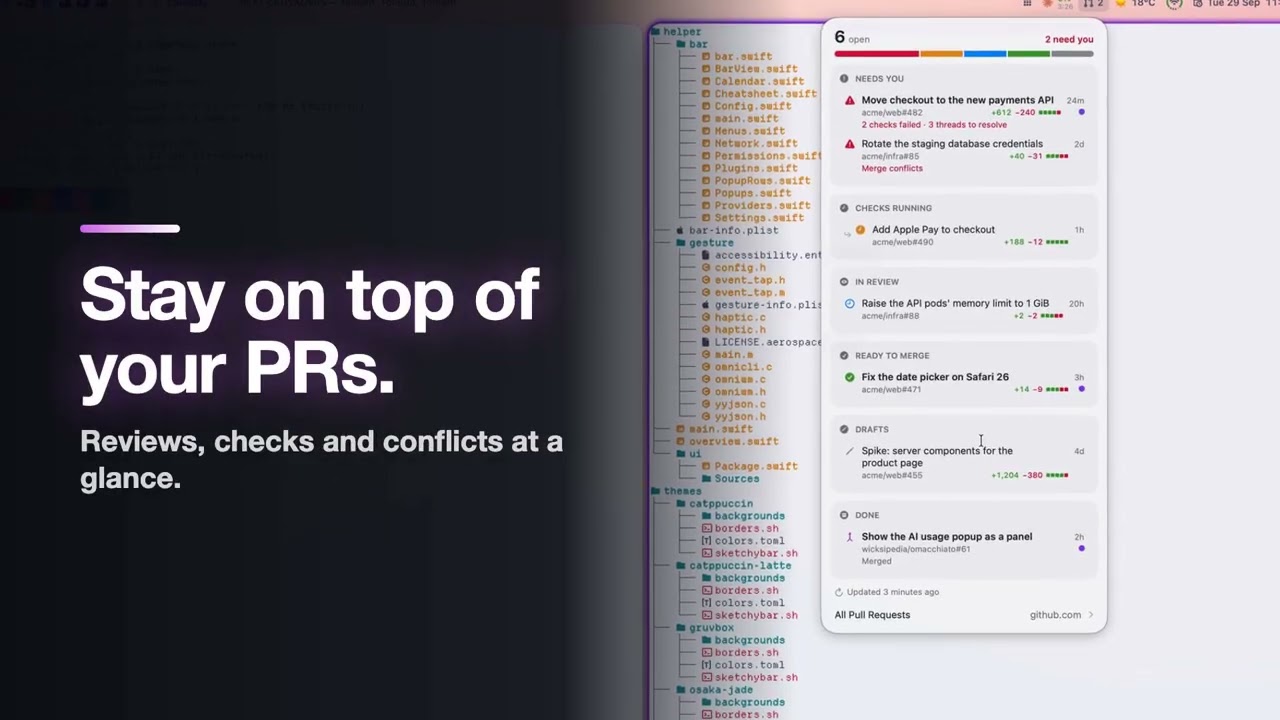
omacchiato-github-prs): the pill counts your open PRs and adds!when one has an unread notification. The popup groups them by what they wait for: Needs You, Checks Running, In Review, Ready to Merge, Drafts and Done. A bar at the top counts each group. A red line under a PR that needs you says why, such as a failed check or a thread to resolve. Each row also shows the lines added and removed, and a blue dot marks an unread update. A PR based on another PR in the list sits under it, indented. To mark a PR read, swipe left on it with two fingers, or click its blue dot. It leaves the list until GitHub updates it again, and its notification is marked read. - Keep awake (
omacchiato-keep-awake): a cup, dimmed while the Mac may sleep, in the accent colour while Omacchiato or another app keeps it awake. While Omacchiato keeps it awake, the pill shows the time left, or ∞ with no timer. A right-click orSuper+Escturns keep awake on or off, for the time chosen last. The popup has the switch, buttons for 30 minutes, 1 hour, 2 hours and until turned off, a custom time in 15-minute steps, and the other apps that hold the Mac awake, read from the power assertions.omacchiato-keep-awake on | off | toggle | for <minutes>does the same from a shell. While it is on, the bar holds the Mac awake and lets the display sleep (keep_awake_display = onkeeps the display on too), moves the mouse without moving the pointer every minute so chat apps do not show Away (keep_awake_jiggle = <minutes>oroff), and turns off on battery at 20 % (keep_awake_battery = <percent>oroff). It also keeps the Mac awake with the lid closed (keep_awake_lid = offturns that off), through a sudoers rule thatinstall.shadds withomacchiato-lid-rule: it allows onlypmset -a disablesleep 0and1, and asks for the admin password once. A HUD shows each change (keep_awake_hud = offturns it off). - CPU, memory and disk (
omacchiato-stats): the percentage in use, in yellow from 75 % and red from 90 %. The popups list the processes that use the most CPU or memory, and the free space on the disk. - Updates (
omacchiato-updates): shows only when a newer release is out, with the number of new commits. The popup lists them, and a row runsomacchiato-updatein a terminal. A menu in the popup switches between the latest release and Edge, the newest commit. - AirPods (
omacchiato-airpods): shows only while AirPods Pro or AirPods Max are connected, with the lowest battery level. The popup lists the battery of each earbud and the case, lists the noise control modes with a check on the current one, and links to Sound settings. Click a mode to switch to it.
 |
 |

A 4-finger swipe up, or Super+O, dims the wallpaper and gives every
non-empty workspace of the pointer's display a card with live window
previews (ScreenCaptureKit, composed into the tile layout), app icons
and an accent ring on the focused workspace. Click a card or press its
digit to jump; empty workspaces show as small chips, and digits work
for them too. Swipe down, press Escape or click the backdrop to
dismiss. It is a resident daemon, so it opens at once.
Type while it is open and a search pill filters the cards to matching
window titles and apps; Enter jumps to the first hit. Drag a card to
reorder the workspaces, or drop it on an empty chip to move the
workspace there.
omacchiato-gesture serves the 4-finger swipes: up opens the overview,
down closes it, and left or right steps through the workspaces. It
reads raw trackpad contacts, because macOS 26 stopped carrying touch
data in normal events, and it commits earlier than the swipe of OmniWM
does. So workspaceSwipeEnabled is false in settings.toml, and
OmniWM keeps the 3-finger swipe that scrolls the niri columns and
focuses the column it stops on. A fast flick can pass more than one
column. The trackpad taps once when a swipe fires; set
"haptic": false in ~/.config/omacchiato/gesture.json to stop it. macos-defaults.sh turns off the system's 4-finger
gestures and its 3-finger swipe between full-screen apps, so Mission
Control never fights them, and uninstall.sh restores them.
theme-set <name> switches everything at once: the bar, OmniWM's
focus border (colour, gradient and glow), the wallpaper on every
display, Ghostty, herdr, and any terminal that follows omarchy's
~/.config/omarchy/current/theme convention. Super+Shift+T cycles
the themes and Super+Shift+B cycles the current theme's wallpapers.
Set a pair once and the desktop follows the macOS appearance:
theme-set light:catppuccin-latte,dark:catppuccinThe bar watches the system appearance and runs theme-set with the
pair again when it changes, so the bar, the border, the terminal and
the wallpaper switch together. Five themes ship, each with omarchy's
wallpaper set: tokyo-night, catppuccin, catppuccin-latte,
gruvbox and osaka-jade. Copy a directory under themes/ to add
one.
With quit_on_close = on in bar-pills.conf, the bar quits an app when
its last window closes, as on Windows. It counts standard windows and
dialogs, minimized ones and the ones OmniWM parks on other workspaces,
and it asks the app to quit normally, so unsaved work still gets its
prompt. The apps in ~/.config/omacchiato/quit-on-close.conf, one
bundle ID a line, stay open. Finder, Omacchiato, OmniWM, menu bar apps
and apps with a menu bar icon always do.
The first install.sh run copies the list and the on/off setting from
Vorssaint if it finds them. Settings has a Quit on Close page for both,
where "Add an App" lists the running apps and "Other…" picks any app.
The Activity popup has a Quit Apps on Close switch, with a link to that
page.
omacchiato-toggle off returns to a vanilla Mac in one command (OmniWM
quits, and the gesture daemon and the bar stop) without uninstalling.
omacchiato-toggle on brings everything back, and no argument flips.
./uninstall.sh removes what the install manifest lists and restores
what it displaced; see Back to a normal Mac.
Everything the Brewfile installs, everything install.sh fetches, and
the code this repo absorbed, with what Omacchiato uses each for.
| Tool | Used for | Source |
|---|---|---|
| OmniWM | The window manager: niri and dwindle layouts, the focus border, the command palette, the quake terminal and the horizontal swipes | BarutSRB/OmniWM |
| Karabiner-Elements | Caps Lock as Super, and the chords that run commands | pqrs-org/Karabiner-Elements |
| Ghostty | The default terminal, with a hidden titlebar and colours from the theme. The activity popup opens btop in your terminal | ghostty-org/ghostty |
| Raycast | The launcher on Cmd+Space, a hotkey you set in Raycast itself |
raycast.com |
| starship | The shell prompt, from config/starship.toml |
starship/starship |
| fzf | Fuzzy finding in the shell, and the branch picker in omacchiato-herdr-worktree |
junegunn/fzf |
| eza | ls, ll, la and lt in zsh/zshrc |
eza-community/eza |
| zoxide | Directory jumping in the shell | ajeetdsouza/zoxide |
| ripgrep | Search in the shell | BurntSushi/ripgrep |
| bat | cat with highlighting in zsh/zshrc |
sharkdp/bat |
| lazygit | The lg alias |
jesseduffield/lazygit |
| btop | The full monitor that the activity popup opens | aristocratos/btop |
| jq | JSON handling in the GitHub pull requests pill | jqlang/jq |
| gh | The GitHub pull requests pill's API calls | cli/cli |
| JetBrains Mono Nerd Font | The bar's font, and the glyphs the pills and plugins use | ryanoasis/nerd-fonts |
| Tool | Used for | Source |
|---|---|---|
| Homebrew | Installed if missing, then brew bundle |
Homebrew/brew |
| airpods-control | The AirPods pill's noise control modes. It ships source only, so install.sh builds the tagged release with the Command Line Tools, pinned by version and checksum. It uses a private Apple API; see The AirPods pill |
raulgg/airpods-control |
| tokscale | The AI usage pill: plan usage for each provider, and the last seven days of tokens, sessions and cost. Homebrew has no formula, so install.sh takes the macOS binary from the npm package, pinned by version and checksum |
junhoyeo/tokscale |
| herdr | Optional, 0.9.5 or newer. If herdr is installed, install.sh adds the keys in config/herdr/keys.toml, theme-set sets its theme, and Ctrl+Alt+G opens a worktree off a branch you pick |
herdrdev/herdr |
| Script | What it does | Talks to |
|---|---|---|
omacchiato-ai-usage |
The AI usage pill | tokscale, and the status page of each provider it shows |
omacchiato-airpods |
The AirPods pill | system_profiler, omacchiato-helper, airpods-control |
omacchiato-github-prs |
The GitHub pull requests pill | api.github.com through gh |
omacchiato-keep-awake |
The keep-awake pill | pmset |
omacchiato-updates |
The update pill | git |
omacchiato-stats |
The CPU, memory and disk pills | ps, vm_stat, sysctl |
omacchiato-herdr-worktree |
herdr's Ctrl+Alt+G worktree picker |
git, herdr |
theme-set, theme-next, theme-bg-next |
Themes and wallpapers | Ghostty, OmniWM, herdr |
omacchiato-ws, omacchiato-ws-collapse, omacchiato-spawn |
Workspace cycling, undocking, and spawning on the omarchy side | OmniWM over IPC |
omacchiato-toggle, omacchiato-update, omacchiato-requirements |
Parking, updating and the version check | launchd, git, Homebrew |
| Project | What Omacchiato took | Source |
|---|---|---|
| omarchy | The idea, the 22-colour theme format, the palettes and the MIT-licensed wallpapers | omacom/omarchy |
| aerospace-swipe | The gesture engine, which lives on as omacchiato-gesture (MIT, notice kept in helper/gesture/) |
acsandmann/aerospace-swipe |
| yyjson | The JSON parser inside omacchiato-gesture and omacchiato-omni (MIT) |
ibireme/yyjson |
| wttr.in | The weather pill's one request | chubin/wttr.in |
| Catppuccin, Gruvbox, Tokyo Night | The palettes behind three of the themes, by way of omarchy's packs | catppuccin/catppuccin, morhetz/gruvbox, tokyo-night/tokyo-night-vscode-theme |
Super is Caps Lock held. Karabiner sends it as cmd+ctrl+alt, and a
tap alone is Escape. Chords marked Karabiner come from
bin/omacchiato-karabiner-omniwm; the rest are OmniWM hotkeys from
config/omniwm/settings.toml. Super+K draws the same map on screen
from the live config, and you can type to filter it.
| Chord | Action |
|---|---|
Super+1..9 |
switch to workspace N, resolved on the display under the pointer (Karabiner) |
Super+Shift+1..9 |
move the focused window to workspace N (Karabiner) |
Super+Tab / Super+Shift+Tab |
next / previous workspace of the display under the pointer (Karabiner) |
Super+B |
back and forth between the last two workspaces |
Super+O |
workspace overview (Karabiner) |
Super+Shift+O |
throw the focused window to the workspace on show on the next display (Karabiner) |
Super+Shift+Space |
throw every window of the workspace to the next display (Karabiner) |
Ctrl+Alt+Tab / Ctrl+Alt+Shift+Tab |
focus the next / previous display; the pointer moves with focus (Karabiner) |
Ctrl+Cmd+`` `` |
focus the display you came from |
Ctrl+Alt+Shift+Page Up / Page Down |
move the column to the workspace up / down |
| Chord | Action |
|---|---|
Super+Arrows |
focus the window in that direction |
Ctrl+Alt+1..9 |
focus column N |
Alt+Home / Alt+End |
focus the first / last column |
| Chord | Action |
|---|---|
Super+Shift+Arrows |
swap with the neighbour under dwindle; move the column under niri |
Ctrl+Alt+Shift+Arrows |
stack the window into the neighbour as a group |
Ctrl+Alt+Home / Ctrl+Alt+End |
move the column to the first / last position |
| Chord | Action |
|---|---|
Super+W |
close the window (Karabiner sends Cmd+W, or Cmd+Shift+W in Ghostty, where herdr takes Cmd+W) |
Super+T |
toggle floating |
Super+S |
raise every floating window |
Super+F |
fullscreen inside the workspace; the bar strip stays |
Super+N |
native macOS fullscreen, a separate Space outside the workspace model |
Super+J |
toggle the split direction (dwindle) |
Alt+Shift+L |
switch the workspace between niri and dwindle |
Alt+T |
tabbed column on or off |
Super+`` / `Super+Shift+ ` `` |
show or hide scratchpad 1 / send the window to scratchpad 1 |
Super+- / Super+= |
narrower / wider: the column under niri, the split under dwindle (Karabiner) |
Super+Shift+- / Super+Shift+= |
shorter / taller, in either layout (Karabiner) |
Alt+, / Alt+. |
cycle the preset sizes backward / forward |
Alt+Shift+F |
toggle the column's full width |
Ctrl+Alt+F |
expand the column into the free space |
Ctrl+Alt+R |
reset the window's height in its column |
Alt+Shift+B |
balance sizes |
| Chord | Action |
|---|---|
Super+Enter |
terminal, spawned on the omarchy side of the focused tile (Karabiner) |
Super+Shift+Enter |
browser (Karabiner) |
Super+A |
Orca: open it, or bring it forward if it runs (Karabiner) |
Super+Space |
OmniWM's command palette (Karabiner) |
Alt+`` `` |
OmniWM's quake terminal, which reads the Ghostty config |
Ctrl+Alt+M |
the front app's menu bar as a menu at the pointer |
Super+Shift+F / +M / +G |
Finder / music / messenger, from apps.conf (Karabiner) |
Super+Shift+E / +C / +Y |
Outlook / Teams / a YouTube web app in ~/Applications (Karabiner) |
Super+Shift+T |
next theme; one name, so a light/dark pair stops (Karabiner) |
Super+Shift+B |
next wallpaper of the current theme (Karabiner) |
Super+Shift+L |
lock the screen (Karabiner) |
Super+M |
mute or unmute the microphone (Karabiner) |
Super+Esc |
keep awake on or off (Karabiner) |
Super+K |
keybinding cheatsheet (Karabiner) |
Cmd+Space |
Raycast, once you give it that hotkey in Raycast's settings |
Screenshots, clipboard and app switching stay macOS's own
(Cmd+Shift+3/4/5, Cmd+C/V, Cmd+Tab). Alt+Tab above works on
windows, which macOS's own switcher does not.
| Gesture | Action |
|---|---|
| 4-finger swipe left / right | switch workspace (omacchiato-gesture) |
| 3-finger swipe left / right | scroll the niri columns; focus lands on the column it stops on (OmniWM) |
| 4-finger swipe up / down | open / close the overview (omacchiato-gesture) |
| Click a workspace chip | jump to it |
| Click a pill | open its popup; click a plugin pill without rows to re-run it |
| Scroll on the volume or brightness pill | adjust in 5% steps; brightness keeps going past zero into the shade |
| Scroll on the workspace chips | step to the next or previous workspace, the way the volume goes up or down |
| Scroll on the media title | next or previous track |
| Middle-click the volume pill | mute or unmute |
| Middle-click the wi-fi pill | turn wi-fi off or on |
| Middle-click the media title | play or pause |
| ↑ / ↓, Return, Esc in an open popup | select a row, click it, close the popup |
| Click the activity pill | CPU, memory, network and the busiest processes |
| Click the media title | open Music |
If herdr is installed and ~/.config/herdr/config.toml has no
[keys] table, install.sh adds these. They need no ctrl+b prefix,
and the prefix keys still work. If the config holds the Ctrl+Alt keys
of an older install, unchanged, install.sh replaces them.
Ghostty gives these keys to herdr, so Ghostty's own tabs have no keys.
| Chord | Action |
|---|---|
Cmd+T / Cmd+W |
new tab / close tab |
Cmd+N |
new workspace |
Cmd+1..9 |
go to tab 1–9 |
Ctrl+Tab / Ctrl+Shift+Tab |
next / previous tab |
Alt+Tab / Alt+Shift+Tab |
next / previous workspace |
Ctrl+Alt+G |
new worktree off a branch you pick; herdr's own dialog branches off HEAD |
Alt+Tab reaches herdr only if OmniWM does not take it. An install from
before this change has an Option+Tab hotkey in
~/.config/omniwm/settings.toml. Delete that [[hotkeys]] table.
omarchy layers Super+Ctrl and Super+Alt on top of Super. This
setup cannot: Super is cmd+ctrl+alt, so those modifiers are spent
and Shift is the only layer left, two against omarchy's four. Bindings
that would collide moved by mnemonic (lock is Super+Shift+L, not
Super+Ctrl+L), and the overflow lives on Option chords, such as
Option+Shift+L for the layout toggle.
A window manager needs broad permissions, so here is the whole list: every grant, which binary asks, what it is used for, and what you lose by refusing it. Everything is refusable; the parts that depend on a grant hide themselves rather than half-work.
omacchiato-permissions checks the grants of omacchiato-bar and
omacchiato-gesture. For each one that is off, it opens the page in
System Settings, waits for you to switch it on, and checks again.
install.sh runs it at the end. It does not check the grants of
Karabiner-Elements or OmniWM.
macOS gives a grant to the app that starts a program, not to the program
itself. So a swipe opens the overview with the gesture daemon's Screen
Recording grant, and Super+O opens it with Karabiner's.
| Grant | Who asks | What it does | Without it |
|---|---|---|---|
| Accessibility | OmniWM, omacchiato-gesture, omacchiato-bar (reads the focused app's menus for the app-pill popup, and reads and clicks other apps' menu bar icons for the menu bar apps pill) |
Move, resize and focus other apps' windows. This is the tiling itself, and it is the broadest permission here. | Nothing tiles. Not optional in practice. |
| Input Monitoring | Karabiner-Elements and OmniWM; omacchiato-gesture on macOS 26 |
Karabiner reads keys to remap Caps Lock; omacchiato-gesture reads raw trackpad contacts, because macOS 26 stopped carrying touch data in normal events. On macOS 27 it reads them without this grant. |
No Super key, no swipe gestures. |
| Screen Recording | omacchiato-gesture for a swipe, Karabiner-Elements for Super+O; OmniWM (optional) |
Captures a thumbnail per window for the overview cards, including windows the window manager has stashed offscreen. OmniWM uses it for its own overview thumbnails, the image of a window you drag, and Hidden Bar icons. | Cards fall back to app icons and titles. OmniWM starts without it. |
| Bluetooth | omacchiato-bar |
Reads adapter power and the paired-device list for the bluetooth pill and its menu. A plugin pill runs as a child of the bar, so it reads Bluetooth with this grant: the AirPods pill needs it. | The bluetooth pill hides itself, and the AirPods pill shows no battery. |
| Calendar | omacchiato-bar |
Reads the events of the current day for the clock popup. It never writes to a calendar. | The clock popup shows a row that opens the setting instead of your day. |
| Location | omacchiato-bar |
Reads the wi-fi network's name and the names of the networks in range, which macOS classes as location data. The weather pill also reads your position once per fetch, rounds it to about a kilometre, and sends that to wttr.in. | The wi-fi popup's title row reads "wi-fi" instead of your network's name, and it lists no networks to join. The weather comes from the place that wttr.in guesses from your IP address. |
| Automation | omacchiato-bar, theme-set, and the terminal that runs install.sh |
Apple Events to Music (the current track and its artwork), to Ghostty (reloading its colours after a theme change) to Calendar (opening the week you click in the clock popup) and to System Events (sleep, lock and restart from the Apple menu; setting the wallpaper; adding OmniWM as a login item). | The media pill has no artwork; a week click does nothing; those menu rows do nothing; OmniWM does not start at login until you add it under System Settings > General > Login Items. |
| Files and Folders | omacchiato-bar |
Only if your clone lives in ~/Documents, ~/Desktop or ~/Downloads. The bar reads its palette from the theme directory inside the repo, and macOS walls launchd agents off from those folders. |
The bar hangs at startup waiting on the prompt. Clone to ~/.local/share/omacchiato and this never comes up. |
| Keychain | tokscale, when the AI usage pill shows Claude | Reads the Claude Code sign-in token from your login keychain with security, to ask Anthropic for your usage. It never writes to the keychain and never refreshes the token. |
The Claude section has no usage windows. |
| Allow in the Background | install.sh (launch agents for the bar and the gesture daemon) |
macOS lists the agents under System Settings > General > Login Items & Extensions. They start at login and restart if they quit. | The parts whose switch is off do not run. |
On Location: the wi-fi rows read ssid(), which needs the grant
but no position. The weather pill asks for one position at kilometre
accuracy every 30 minutes, and starts no continuous updates. It rounds
the position to two decimal places, about a kilometre, before it goes
to wttr.in. weather = hide stops it. Measured on macOS 26.3, an
unbundled binary reads nil however it is authorised, which is why
the bar ships inside a minimal .app.
Grants are tied to a binary's code signature. With an Apple
Development identity present, install.sh signs every helper with a
stable identifier so rebuilds keep their grants; without one, macOS
treats each rebuild as a new app and you re-grant after every install.
- No telemetry, no analytics, no crash reporting. Nothing is sent anywhere about you or this machine.
- One network call by default:
https://wttr.in/<lat>,<lon>?format=j1every 30 minutes, for the weather pill. The position is rounded to about a kilometre. Without the Location grant, the request carries no position and wttr.in guesses your city from your IP address. Hide the weather pill and nothing leaves the machine. The plugin pills contact more hosts: the AI usage pill calls each provider's usage API through tokscale and each provider's status page, and the GitHub pill callsapi.github.comthroughgh. - Omacchiato's own binaries never run as root.
install.shuses no sudo, installs no LaunchDaemon, and every helper it builds runs as you, in your login session. - Karabiner-Elements does run as root, and you should know that
before installing. It is a Homebrew dependency here to turn Caps
Lock into Super. It ships a DriverKit system extension plus daemons
that run as root (
Karabiner-VirtualHIDDevice-Daemon,Karabiner-Core-Service); that is what the driver-extension approval during install is. It is the most privileged thing this repo puts on your Mac, and it is third-party. Skip it if that trade is wrong for you; you lose the Super key and keep everything else. - Nothing here reads your keystrokes. No Omacchiato binary opens a
keyboard event tap. Only Karabiner sees keys, which is inherent to
remapping one.
omacchiato-gesture's event tap is gesture-only and listen-only (1 << NSEventTypeGesture,kCGEventTapOptionListenOnly), so it cannot see or alter a keystroke. Debug logs (/tmp/omacchiato-*.log) carry window titles, app names and workspace numbers, never input. The menu bar apps pill posts mouse clicks and reads no keys.
Keybindings launch apps defined in config/apps.conf. The defaults
are Ghostty, Safari, Spotify and Slack (terminal, browser, music,
messenger). Override any of them in config/apps.local.conf
(gitignored), then re-run install.sh:
# config/apps.local.conf: your picks win over apps.conf
TERMINAL=WezTerm
BROWSER=Arc
The music app only sets what Super+Shift+M opens. The media pill
reads Apple Music whichever app you pick.
Your personal shell config belongs in ~/.zshrc.local; the repo's
zshrc wires the CLI stack and sources it. Put an alias or setting
that must override the CLI stack in ~/.zshrc.after, which zshrc
sources last.
The bar reads three files in ~/.config/omacchiato: bar-pills.conf
chooses which pills show and what each one says, bar-plugins.conf
adds pills of your own from any command that prints a label or JSON,
and workspace-icons.conf sets an icon per workspace.
docs/bar.md is the reference for all three, with the rows and keys a plugin can return and a section on each pill that ships: AI usage, AirPods, GitHub pull requests and keep awake.
Each themes/<name>/ holds colors.toml (omarchy's 22-colour
palette), sketchybar.sh and borders.sh (bar and focus-border
colours; the files keep their omarchy names and format), and
backgrounds/ (wallpapers from omarchy's MIT-licensed theme packs;
catppuccin-latte's is drawn for this repo). Palettes compatible with
omarchy's scheme drop straight in.
theme-bg-next <path> sets any image you like as the wallpaper.
Switching themes restarts at the theme's first wallpaper.
OmniWM's focus border comes from borders.sh. ACTIVE_COLOR is the
border colour, an optional GRADIENT_COLOR turns the border into a
gradient from ACTIVE_COLOR to that colour, and GLOW=1 adds
OmniWM's glow in the border's colours. With a light/dark pair,
theme-set also writes the dark theme's colours as OmniWM's dark-mode
border colours, so the border changes with the macOS appearance at
once. The theme owns the colours and turns the gradient and glow on or
off; OmniWM's border on/off and width, the glow's radius and opacity,
and the gradient's direction stay yours, so set those in OmniWM's
Settings.
Every colour in sketchybar.sh is 0xAARRGGBB, so the leading byte
sets opacity. ITEM_BG fills the pills on the bar and ROW_BG fills
a highlighted row or a slider track inside a popup. They are separate
because a pill that reads well at half opacity over a wallpaper is too
faint for a track inside a solid popup. A theme that names only
ITEM_BG gets it for both.
theme-set also writes [appearance] mode in OmniWM's
settings.toml from the luminance of the theme's background colour,
so a light theme gets light chrome without extra configuration.
theme-set writes ~/.config/omacchiato/ghostty-theme from the palette
and asks Ghostty to reload. The Ghostty config includes that file, so
the terminal follows the desktop theme. Do not set theme in
~/Library/Application Support/com.mitchellh.ghostty/config: macOS
config files load after the XDG one, so it would win. The reload goes
through omacchiato-helper ghostty-reload, not SIGUSR2, which Ghostty
accepts and ignores on macOS. The helper aims one Apple Event at each
Ghostty process, because Omacchiato opens an instance per window and
AppleScript addresses an app by bundle. OmniWM's quake terminal reads
the same Ghostty config files but is not a Ghostty process; it
re-reads them when OmniWM reloads settings.toml, which theme-set
edits for the focus border, so theme-set writes the Ghostty file
first.
herdr follows too. theme-set writes [theme] name in
~/.config/herdr/config.toml and runs herdr server reload-config.
An unknown name comes back as a reload diagnostic, and theme-set
then falls back to herdr's terminal theme, which takes the host
palette.
Raycast keeps its own themes and a script cannot set one, but Raycast follows the macOS appearance, so it can track a light/dark pair by itself. Import the Catppuccin Latte and Catppuccin Mocha themes once from themes.ray.so, then choose them as the Light and Dark theme under Settings > General > Appearance. Themes need Raycast Pro.
theme-set takes a light/dark pair in the same syntax as Ghostty's
theme key:
theme-set light:catppuccin-latte,dark:catppuccin
theme-set stores the pair in ~/.config/omacchiato/theme.conf and
applies the half that matches the current appearance. The bar watches
the system appearance and runs theme-set with the pair again when it
changes, and once when it starts. A pair sets OmniWM's
[appearance] mode to automatic, so OmniWM's own chrome follows the
system directly.
theme-set with one name stores that name instead, and so does
Super+Shift+T, which runs theme-next. Either one stops the
following until you set a pair again. On the first switch, macOS asks
whether omacchiato-bar can control Ghostty; refuse and the terminal keeps
its old colours.
docs/omniwm.md covers how windows behave under the niri and dwindle layouts, what a new window does to the column it joins, and the OmniWM settings Omacchiato writes or leaves to you.
About 347MB of physical footprint (what Activity Monitor calls Memory) on average across OmniWM, the bar, the overview daemon, the gesture daemon and Karabiner's two user processes. The figures below are averages of 30 samples taken 10 seconds apart, on 2026-09-30, on a MacBook with only its built-in display. An earlier measurement, on 2026-09-14 and docked to two external displays, came to 293MB. Footprint is the number to compare: resident set size counts each process's share of the shared system frameworks more than once. Karabiner's three root processes need root to measure, so they are not in the total; their resident size is about 39MB. Largest first:
| average | |
|---|---|
| OmniWM | 184MB |
omacchiato-overview |
54MB |
| Karabiner (2 user processes) | 52MB |
omacchiato-bar |
47MB |
omacchiato-gesture |
10MB |
The figures move with uptime. omacchiato-overview caches a
half-resolution capture per window shown, so it starts near 9MB and
settles between about 25MB and 55MB. It plateaus there because it
filters the cache to the visible set on each open. Packaging the bar
as an .app, which is what unlocks the wi-fi network name, cost about
1MB.
The bar starts near 25MB and settles near 40MB once its popups have
opened. The Settings window adds about 80MB while it is open, and the
bar gives it back when the window closes. To watch it, set
debug = on in bar-pills.conf (or use the Debug page in Settings):
the bar then writes its footprint to /tmp/omacchiato-bar.log once a
minute.
./uninstall.shManifest-driven: install.sh records what this machine gained
(Homebrew packages that were not already present, every defaults
key's prior value, displaced symlinks and the wallpaper), and
uninstall.sh removes and restores exactly that. Tools and settings
you had before Omacchiato are never touched. Pre-manifest installs fall
back to a conservative teardown that leaves all Homebrew packages in
place.
MIT (see LICENSE). Standing on omarchy (the
whole idea, plus MIT-licensed theme palettes and wallpapers),
OmniWM,
Karabiner-Elements and
aerospace-swipe
(MIT; its gesture engine lives on here as omacchiato-gesture, notice
kept in helper/gesture/). The full list, with what each is used for,
is under Bundled tools and plugins.