It is fork of Auto Theme plugin for figma to automatically switch theme from light to dark or vice versa
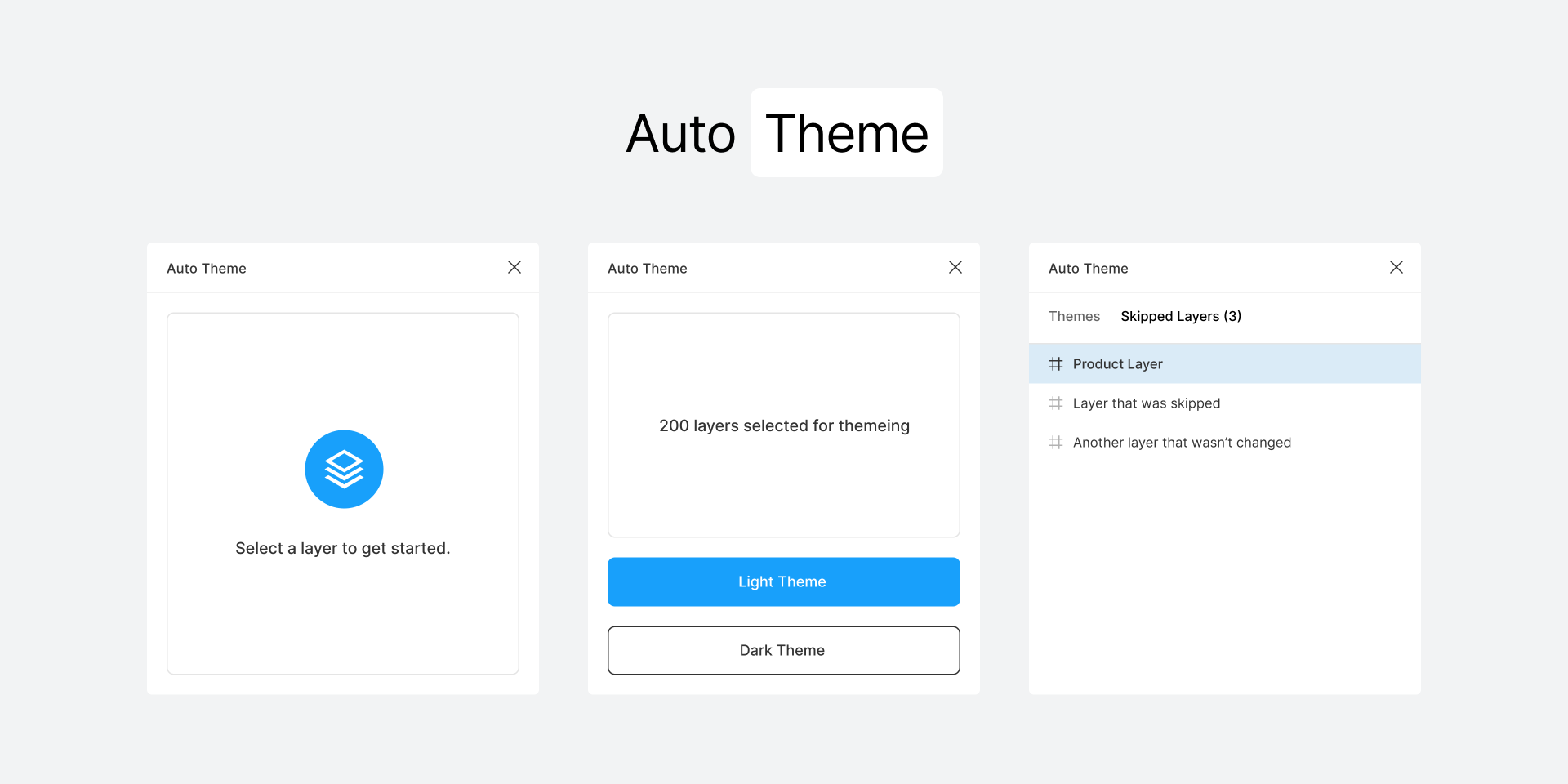
A figma plugin for automatically theming your designs from one color mapping to another. This was built specifically for use by the Discord design team.
- Git
- Node 14 — 16
-
Download the
latestversion from "Relases" page -
Extract zip somewhere
-
Add plugin to Figma
- Open Figma -> Plugins -> Development -> Import plugin from manifest...
- Choose
manifest.jsonfile insan-ui-themefolder
-
To update plugin repeat steps above. You can now delete previous version folder
To add new colors follow this steps:
- Follow the instructions for running locally
- To add new color modify files
dark-to-light-theme.tsandlight-to-dark-theme.tslocated insrc/pluginfolder- Add new
Theme Objectentry using the following syntax:
  "style_key": {
    name: "",
    mapsToKey: "style_key_to_switch_with",
    mapsToName: "",
  },
- Add new
To remove old color simply delete corresponding Theme Object from light-to-dark-theme.ts and dark-to-light-theme.ts files
More on what the Theme Object is will be discussed further in the corresponding section.
For example, you are modifying light-to-dark-theme.ts file first. You should add Theme Object entry with style_key equal to key of light theme color, mapToKey value should be key of corresponding dark theme color to switch with. name field is name of light theme color from figma and mapsToName is name of corresponding dark theme color. name and mapsToName are optional but they are here for your convenience and to help recognize what is what.
Then you should add same mapping (but reversed) to dark-to-light-theme.ts file
//light-to-dark-theme.ts file
const lightTheme = {
  //previously added colors go here
  //...

  "b37a1395599e9f28384809fd793137b65b4b6518": {
    name: "Athens [day]",
    mapsToName: "Athens [night]",
    mapsToKey: "d5cb46e92bc138393e469e4c075d50d6f5469322"
  },
}

//dark-to-light-theme.ts file
const darkTheme = {
  //previously added colors go here
  //...

  "d5cb46e92bc138393e469e4c075d50d6f5469322": {
    name: "Athens [night]",
    mapsToName: "Athens [day]",
    mapsToKey: "b37a1395599e9f28384809fd793137b65b4b6518"
  },
}Color keys can be obtained through Inspector Plugin
- Add plugin to figma with button
try it - Select component that uses style you want key of
- Open inspector plugin (right mouse click -> plugins -> inspector)
- Find
Style Keyfor desirable color
- Commit your changes:
  git add .
  git commit -m "Describe your changes here"
  git push
- Update release version of plugin
- Run
npm ito install all packages if you changespackage.jsonfile - Run
npm run build - Compress plugin directory to
zipand upload to github as new release
- Run
-
Open terminal
-
Clone this git repo:
Run
git clone git@github.com:santiment/san-ui-theme.git -
Run
cd san-ui-themeto navigate to plugin folder -
Run
npm installto install dependencies. -
Run
npm run build:watchto start webpack in watch mode.
⭐ To change the UI of your plugin (the react code), start editing App.tsx.
⭐ To interact with the Figma API edit controller.ts.
⭐ Read more on the Figma API Overview.
- When a frame or multiple frames are selected the code loops through each layer.
- During the loop, the layer checks to see what "type" the layer is (text, vector, rectangle etc). This allows us to skip certain nodes and handle mappings different for text and shapes.
- If the layer has a fill, it fetches that nodes Style ID using
figma.getStyleById. - It then imports that style from our main library using
figma.importStyleByKeyAsync - Once we have that styles
keythen we check to see if it has a match in one of our theme objects, if it has a match we update that node with a new color.
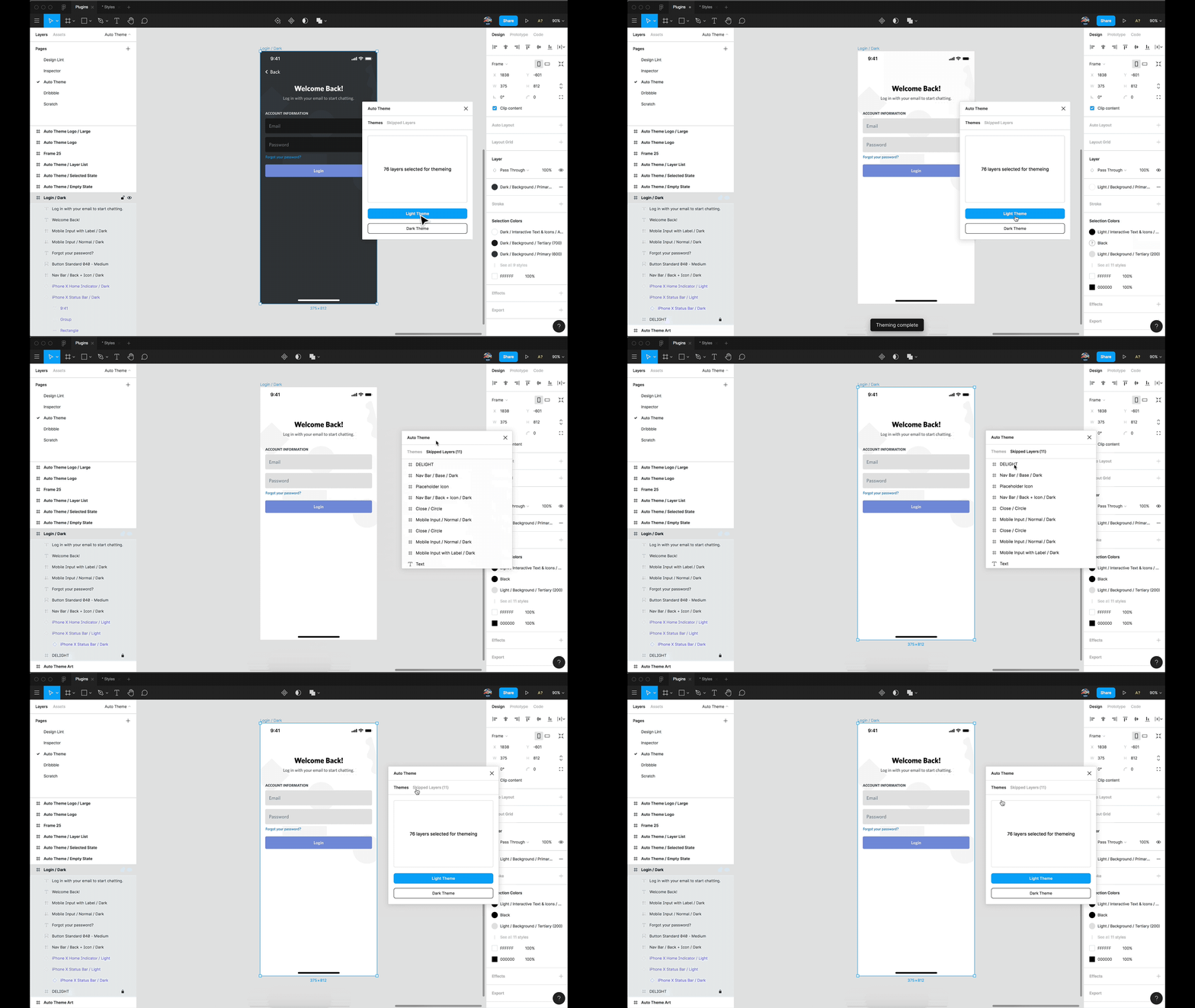
Themes are objects with key value pairs to handle how we map each color to another corresponding color. See example theme.
'4b93d40f61be15e255e87948a715521c3ae957e6': {
  name: "Dark / Header / Primary (White)",
  mapsToName: "Light / Header / Primary (900)",
  mapsToKey: '3eddc15e90bbd7064aea7cc13dc13e23a712f0b0',
},
The first string of numbers is our style.key which in our design system is called "Dark / Header / Primary (White)". This color in light theme is "Light / Header / Primary (900)", so we replace our first key with the mapsToKey string. Swapping one style key for another.
"style_key_goes_here": {
  name: "",
  mapsToKey: "style_key_to_switch_with_goes_here",
  mapsToName: "",
},
This does mean you'll need to know the keys of each of your styles.
Some of your designs may use components like the status bar on iOS. In order to solve for this, the plugin allows you to swap instances of components.
  "component_key_goes_here": {
    name: "",
    mapsToKey: "component_key_to_switch_with_goes_here",
    mapsToName: "",
  },
This way if you'd like to switch iPhone X Status Bar / Dark with iPhone X Status Bar / Light rather than try and theme them, you can. Only instances will check to see if it's parent component is listed in the themes you've declared, otherwise it will be treated normally.
Yes, create a new theme and import it, then hook up a button in the UI to send a message to the controller.ts to call that theme. There are two examples of this in the code already.
This repo is using:
- React + Webpack
- TypeScript
- TSLint
- Prettier precommit hook