Let cardo update app manage Smartpack device
CardoUpdate 4.6 is not correctly managing the Smartpack device, and identifies it wrongly as a Packtalk Neo Louis. I've reach Cardo Systems about this issue, explaining them the root cause and how to fix it. Meantime, I've updated some devices to the latest 5.11 firmware version using the CardoUpdate application, and some HTTP interception.
- CardoUpdate 4.6 (know as today the latest version)
- HTTP Toolkit available here.
- Your Smartpack device
- a USB data cable
Install the HTTP Toolkit application, and execute it.
We will use the "Anything" module for this interception:
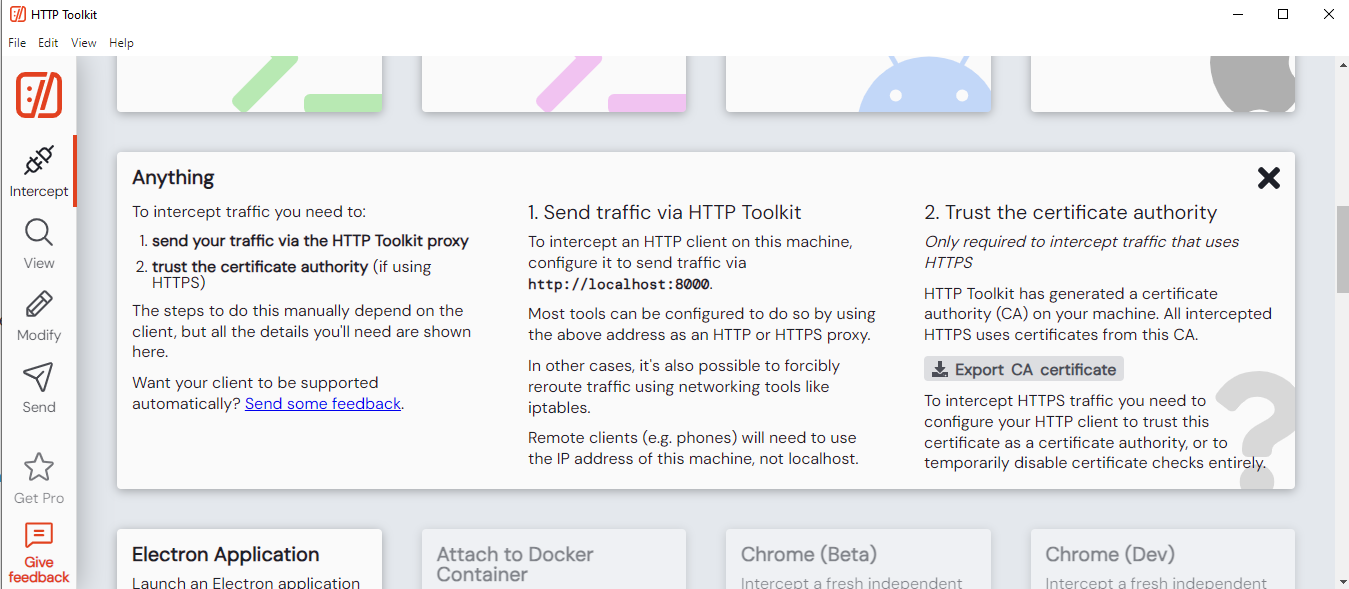 The proxy is there setup to listen at http://localhost:8000 . The port (8000) may change on your installation. Just note what is your, and we will go on.
The CardoUpdate application is called an electron app. This is in fact a web application running on your desktop, so you can use some native chrome arguments while running it. We will use this to do http interception, and let us modify the traffic between application and cardo server.
Open a terminal (powershell is preferable) as administrator, and browse to the folder where Cardo Update app is installed
cd  'C:\Program Files (x86)\Cardo Update\'
&  '.\Cardo Update.exe'  --args  --proxy-server=localhost:8000  --ignore-certificate-errors
The application should start normally, and you will get logs available in your terminal window.
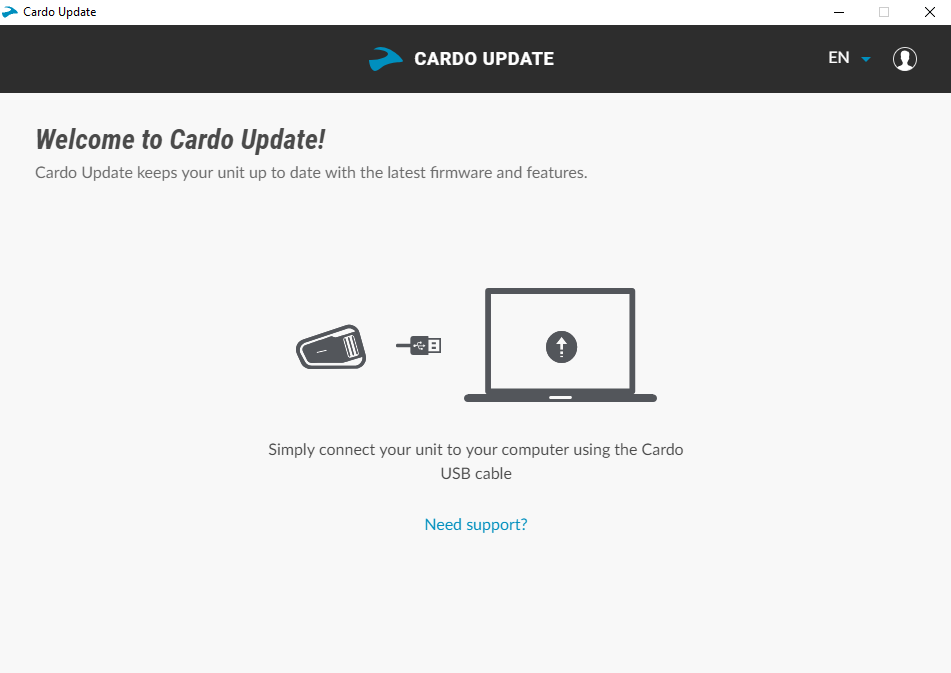
After few seconds, the app will be there, waiting for USB connection.
In HTTP Toolkit, click on Modify on the left toolbar, and setup a rule as available on the screenshot:
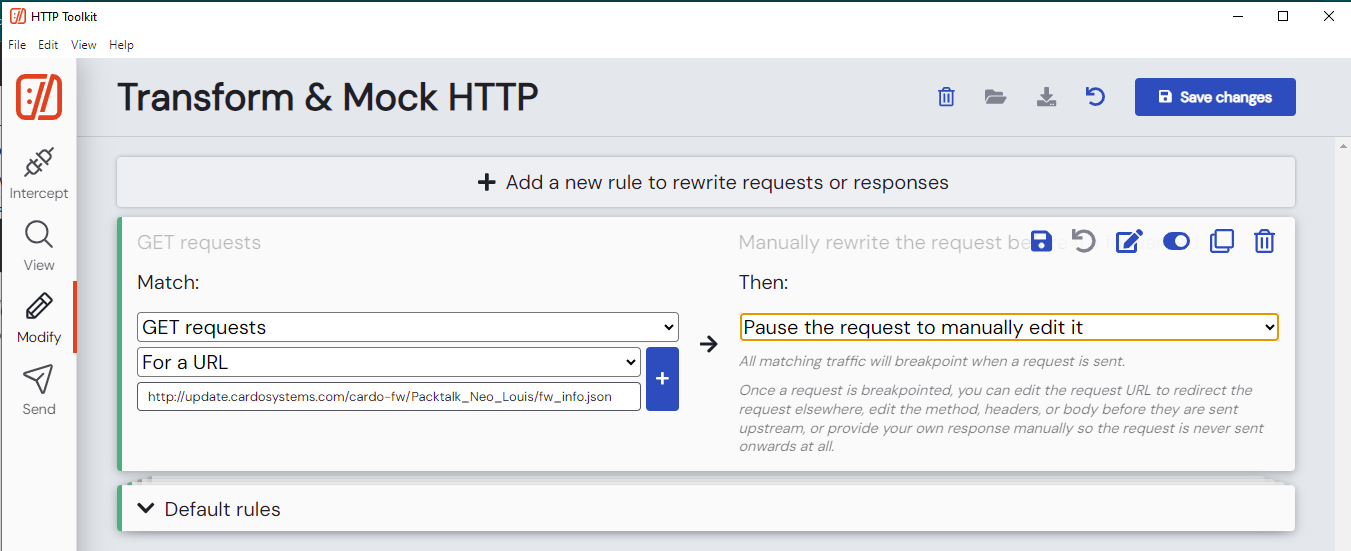
The URL to be setup is :
http://update.cardosystems.com/cardo-fw/Packtalk_Neo_Louis/fw_info.json
Do not forget to click on the "Save changes"
The HTTP Toolkit is now correctly setup to catch this request from Cardo Update app, and will let you modify it to the correct device, which is Smartpack in our case.
You can now plug your Smartpack device. It will be detected and the HTTP Toolkit app will pause the query, so you will be able to modify the query. In HTTP Toolkit, click on View in the left toolbar. The app should quite fast be paused, letting you modify the string, and the Resume In the text field, replace the "Packtalk_Neo_Louis" with "Smartpack" and hit Resume as many time as needed. The Cardo Update will then let you know that an update it available. Click on update, and back on HTTP Toolkit, stay on View, modify the string if needed, and continue to hit Resume
Your device will be updated to the latest 5.11 release. Please note you may need to remove it from your phone Bluetooth and add it again. Once done, you will gain access to Cardo Connect mobile app.