
Real-time solar, battery, grid & home power monitoring. Energy Dashboard ready. Two modes: official API or real-time app connection.



- In the HACS default store - installable from HACS directly, no custom repository to add
- Up to 241 sensors on one device - power, energy, battery packs, temperature, diagnostics
- Energy Dashboard ready - local Riemann-sum kWh with gap detection
- Real-time out of the box - Enhanced Mode: ~2-4 s updates for most devices
- Full PowerOcean control - Backup Reserve, Solar Surplus Threshold, Work Mode (Self-use / AI Schedule)
- Delta switches & numbers - AC/DC output, charge speed, backup reserve, screen settings
- Auto-discovery - all devices bound to your EcoFlow account
- 4-tier reconnect - never gives up on the connection
- Automatic fallback - MQTT stale? Transparent switch to HTTP polling (Standard Mode)
- Offline tolerance - mobile devices offline = expected, not an error
| Device | Serial prefix | Connection | Sensors | Controls | Energy Dashboard | Update |
|---|---|---|---|---|---|---|
| PowerOcean | HJ31 HJ32 HJ35 HJ36 HJ37 J32B J329 J327* J32D* J32E* |
Standard, Enhanced | 241 + 13 binary | 8 switches · 10 numbers · 1 select (Enhanced) | 6 | ~30 s / ~3 s |
| PowerOcean Plus | R371 R372 R374 HJ3C |
Enhanced only | 241 + 13 binary | 8 switches · 10 numbers · 1 select | 6 | ~3 s |
| Delta 2 Max | R351 R331 |
Standard, MQTT push | 94 + 4 binary | 7 switches · 8 numbers | 4 | ~30 s |
| Delta 3 | D3M1 D3N1 P321 P231 P351 |
Standard, Enhanced | 47 (D3M: + 1 binary) |
7 switches · 4 numbers · 5 selects (D3M: 10 · 7 · 5) |
4 | ~30 s / ~2 s |
| Smart Plug | HW52 |
Standard, Enhanced | 11 + 1 binary | 1 switch · 2 numbers | 1 | ~30 s / ~3 s |
| Stream | BK31 BK11 BK41 BK51 BK61 |
Standard, Enhanced | 55 + 2 binary | 1 number (BK31: 2 switches · 4 numbers) |
2 + 6 optional | ~30 s / ~3 s |
| Stream Micro | BK01 |
Enhanced only | 21 | none | 2 optional | ~3 s |
| PowerStream | HW51 |
Standard only | 25 | none, read-only | 2 + 2 optional | ~30 s |
| STREAM AC 5000 | ES22 |
Enhanced only | 56 + 2 binary | 2 switches · 7 numbers · 1 select | 4 + 1 optional | ~2 s |
| STREAM 5000 | ES21 |
Enhanced only | 56 + 2 binary | 2 switches · 7 numbers · 1 select | 4 + 1 optional | ~2 s |
| Smart Meter | BK21 |
Enhanced only | 18 + 3 binary | none, read-only | 2 | ~3 s |
| Solar Tracker | HZ31 S02F |
Enhanced only | 6 | none, read-only for now | none | ~3 s |
| WAVE 3 | AC71 |
Enhanced only | 18 + 5 binary | 4 switches · 5 numbers · 5 selects · 1 climate | 1 | ~2 s / 120 s |
| PowerPulse 2 | C376 C374 |
Enhanced only | 18 + 1 binary | 2 buttons · 1 number, plus 1 select with exactly one PowerOcean in the entry | 1 | on change, refreshed after 20 min |
| Ocean 2 | RE11 RE17 RE41 |
Enhanced only | 48 + 12 per module | none, read-only | 6 | ~3 s |
| OCEAN Smart Electrical Panel 40 | HR61 |
Enhanced only | 19 + 3 per circuit, 1 binary per circuit | none, read-only | - | ~3 s |
Connection. Standard Mode reads through the IoT Developer API with your access and secret key; Enhanced Mode signs in with the EcoFlow account and receives pushes at the faster rate. Enhanced only means the serial prefix cannot currently be linked to a Developer API key, so Standard Mode reports error 1006 and the entities stay unavailable; the three starred PowerOcean prefixes are in the same position. This is an EcoFlow API limitation, not a configuration problem. Controls marked Enhanced exist only with the account sign-in. The Energy Dashboard column counts the sensors made for it; optional ones are disabled by default and depend on the installation, see the device notes below and the Energy Dashboard section.
PowerOcean and PowerOcean Plus share one entity set. A Plus unit simply reports more of it: per-phase reactive power (var) and apparent power (VA), plus MPPT strings 3 and 4. Those entities exist for every PowerOcean but are disabled by default, because a standard unit never sends them and the entity would sit at "unknown" forever. Enable them under Settings > Devices & services > Entities on a Plus device.
The Smart Meter reports six lifetime counters: import, export, net, and net per phase. Import and export are the two entries for the Energy Dashboard, on the grid consumption and return-to-grid slots. Net and the three phase figures are import minus export, so they fall whenever the house feeds power back into the grid; that is a real reading, not a fault, and it is why those four do not belong in the dashboard's grid slots. Its connection state does report when the house is feeding into the grid, so the direction is visible even where the energy is not. See entity reference.
The Ocean 2 is not a PowerOcean. It shares five letters of the name and no field layout: its telemetry arrives on
cmd_func254 with nested submessages, where the PowerOcean line uses the 96 family, so it has its own parser and its own entity set.RE11(10 kW),RE17(12 kW) andRE41(Ocean 2 Plus, 8 kW, single-phase) are one read path - EcoFlow's own device list separates them by power rating. The inverter and grid phase sensors follow whatever phases a unit reports, so a single-phaseRE41simply leaves Phase B and C empty. Grid phase current and power sit in the same block but are not read: in the verified capture neither tracks the actual grid flow. Read-only: no write frame from an Ocean 2 has been observed. Battery modules are read as well, 12 sensors each, created once a module actually reports - the count is an installation choice, two on the unit this was mapped on; captures from other systems show bundles of up to fourteen per-module headers in one frame, a heartbeat backlog rather than fourteen distinct modules. A serial of this family that is not listed here,RE43for one, is worth a note on #145; the standalone jensfr1/ha-ecoflow-ocean2 gates on no prefix at all and shows an unlisted unit live today, which is how theRE41was confirmed before it landed here. See entity reference.Tip: Other Delta-series devices (Delta Pro, Delta 2, etc.) should work automatically with the Delta sensor set. Base Delta 3 and Delta 3 Plus use the Delta 3 sensor set. The five AC-coupled Stream models share one sensor set.
The STREAM AC 5000 is not a Stream. It shares the name and nothing else: it sends none of the BK-series telemetry messages, so it has its own parser and its own entity set. Its solar and per-phase meter entities are created once the device reports them and are kept from then on, restart or not, because whether a unit has PV on the EcoFlow and which smart meter is linked are installation choices rather than model differences. Its Third-Party Solar Power reading is the figure the app reports separately from the unit's own strings, and on a unit with PV wired to the EcoFlow the PV String entities carry those strings alongside it. Neither has a lifetime counter yet: an energy total is only worth having once the reading behind it is settled, and the first string is not fully settled. It now has a reading of its own and the four strings add up to the total the device reports exactly, so the field is real; what is still missing is an app reading taken at the same moment to confirm the value belongs to string 1 rather than to another of the four.
The STREAM 5000 is driven as well, since an owner proved it takes a write. It is the same product as the STREAM AC 5000 on a different model number, and a recording from one shows it sending the same four telemetry messages, so it gets the same readings from the same parser. The controls were held back at first: every write this integration sends to that family is a rebuild of a frame recorded from a real app session, and a power setpoint writes a scheduled task into the battery rather than flipping a display setting, so reading alike was not enough to assume writing alike. What settled it was a recording from a STREAM 5000 owner showing his unit take a setting change from the app and report the new value back, on the same envelope and command these controls use. Both models report their solar strings, added from a capture taken alongside the EcoFlow app on a unit with PV wired directly to it. Three further blocks of readings stay unmapped on both; identifying those needs the same thing, a recording paired with what the app shows at that moment.
The PowerStream is read-only. It is a microinverter rather than a battery, and despite the name it has nothing to do with the Stream family - the two were told apart by a substring match until the misdetection in #188 forced the split. Support rests on one recording from an owner: the readings above are the ones that recording could settle, and the device's currents, its lifetime counters, its remaining charge and discharge times and its status codes stay unmapped because it could not. It reports through the official Developer API, so it needs Standard Mode; there is no Enhanced Mode path for it. Controls are not implemented, see entity reference.
The Stream Micro is the exception. It is a grid-tie inverter with two solar strings and no battery, so it deliberately gets a reduced set: no battery, state of charge, backup reserve or AC outlet entities, because it has none of those and an entity Home Assistant once created stays in the registry forever.
Note: Sensor counts are the device-specific entity definitions. Every device additionally exposes 2 universal diagnostic sensors (connection status and active mode) that are not included in the counts above. Many sensors are diagnostic and disabled by default.
PowerOcean and PowerOcean Plus - 3-phase grid, MPPT tracking, multi-pack battery, EMS diagnostics, energy strategy controls
3-phase grid monitoring (voltage, current, power per phase) · MPPT per-string tracking (up to 4 strings, device-dependent) · Multi-battery-pack support (up to 5 BP5000 packs - per-pack SoC, power, SoH, cycles, temperatures, lifetime energy) · Battery diagnostics (cell temps & voltages, MOSFET temps) · EMS state, work mode, feed mode, grid status, power factor · System diagnostics (fault codes, connectivity status, capacity limits)
Use Enhanced Mode on a PowerOcean. In Standard Mode the readings refresh reliably only while the EcoFlow app or web portal is open, so entities can sit still for hours while the poll itself looks healthy. See Configure for how to check this on your own system.
PowerOcean Plus (R371, R372, R374, HJ3C) are the higher-power 3-phase hybrid units. They use the same entity set as a standard PowerOcean and are supported in Enhanced Mode. Beyond a standard unit they report per-phase reactive power (var) and apparent power (VA), and drive MPPT strings 3 and 4. These entities ship disabled by default so that standard units are not left with permanently empty sensors, so enable the ones you need after adding a Plus device. Field coverage is based on diagnostics from live Plus hardware; if your unit reports a value that no entity picks up, the raw data is available via Download Diagnostics.
Accessories. Three add-ons work alongside a PowerOcean. The PowerPulse 2 is a device of its own. The other two report through the PowerOcean itself, so their entities sit on the PowerOcean device page and are created only once the accessory actually reports:
- PowerPulse 2 wallbox (
C376,C374) - its own device, no PowerOcean required: charging power, voltage and current per phase, the configured maximum current and charging current, the phase mode in effect, the start, duration, energy and start meter reading of the running session, the lifetime energy counter, the charging state, the charging mode and whether the cable lock is on. Two buttons start and stop the charging session, with no PowerOcean in the integration entry or with exactly one (none with two or more). With exactly one PowerOcean, a number sets the wallbox's maximum current (Wallbox Maximum Current, 6 to 16 A) through that PowerOcean, and a select sets the charging mode (Fast, Solar or Custom, while Smart is shown but set in the app). With none, a number sets the charging current directly on the wallbox's own channel (Wallbox Charging Current, 6 to 16 A). Each write is confirmed by the wallbox's own report. Enhanced Mode only: the wallbox reports on its own channel of the account connection, and the Developer API refuses it with error 1006. See PowerPulse 2. - PowerPulse wallbox (earlier model,
AC31) - charging power, the energy and the duration of the running session, the charging state and which vehicle the charger recognized, as five entities of the PowerOcean it is coupled to. Enhanced Mode only: the readings travel on the PowerOcean's real-time stream. - PowerGlow heating rod - water temperature, heating power and the two settings the rod is working towards. Available in both modes: Standard Mode reads them from the polled data, and in Enhanced Mode they travel on the PowerOcean's real-time stream.
Enhanced Mode controls (verified against the official EcoFlow app, byte-for-byte wire compatible):
- Backup Reserve (
number, 0-100%) - minimum SoC the system keeps in reserve. Same slider as "Backup-Reserve" in the EcoFlow app. - Solar Surplus Threshold (
number, 0-100%) - SoC above which surplus solar is routed to controllable devices. Same slider as "Prioritize controllable devices (Beta)" in the app. - Work Mode (
select) - Self-use ("Eigenstromversorgung") or AI Schedule ("Intelligenter Modus"). TOU and Backup modes are deferred (require additional sub-parameters).
The integration enforces the app's backup_reserve <= solar_surplus_threshold constraint automatically.
Note: All credentials (API keys or email/password) are stored in Home Assistant's encrypted configuration storage (.storage/core.config_entries). This is standard Home Assistant behavior.
Who may control the device is decided by Home Assistant, not by the integration. The writable entities act on the physical system: a backup reserve set to zero or a work mode change reaches the battery. Anyone who can reach your Home Assistant frontend can use them, so keep Home Assistant's own user accounts and access controls as tight as the devices behind them deserve.
Delta 2 Max - AC/DC/12V switches, charge speed control, real-time MQTT
Battery SoC/SoH · All input/output power, temperatures, voltages · Expansion battery packs (up to 2, disabled by default) · Switches: AC, DC, 12V output, beeper, X-Boost, AC auto restart, backup reserve · Numbers: AC charge speed (200-2400 W), max/min SoC, standby timeout, screen brightness/timeout, 12V port timeout, backup reserve level · Real-time MQTT push for faster-than-polling updates.
Smart Plug - power monitoring, plug switch, automation-ready
Power (W), current (A), voltage (V), frequency, temperature · Plug on/off switch · Numbers: LED brightness (0-100%), max power limit (0-2500 W) · Real-time MQTT push in Standard Mode · ~3 s updates in Enhanced Mode. Ideal for automating charging (e.g. charge Delta on solar surplus).
Stream (AC Pro, Ultra, Max, AC, Ultra X) - AC-coupled battery telemetry, per-string solar, reserve control
Battery SoC/SoH · signed battery power · battery charge/discharge power · per-string solar power (PV 1-4) · signed AC grid connection power ("Netz-Anschluss": negative=input, positive=output/feed-in) · AC outlet states and per-outlet power · AC voltage and frequency · battery temperature, capacity and cell voltage diagnostics · LED brightness diagnostics · Numbers: Backup Reserve (3-95%), plus Max Charge SoC, Min Discharge SoC and LED Brightness on the Stream AC Pro (BK31) in Enhanced Mode · Stream AC Pro switches: AC outlets 1 and 2 in Enhanced Mode.
The Stream is treated as an AC-coupled battery. House, grid and total solar flow values depend on an EcoFlow-paired meter and are disabled by default as diagnostic entities. The hardware-confirmed AC Pro LED number reproduces the app's ConfigWrite field 384 with its from="ios" header; only subsequent live telemetry field 994 is treated as the actual brightness state. The AC Pro limit controls reproduce the app's grouped ConfigWrite containing its timestamp, charge limit, discharge limit and backup reserve. Raising the discharge limit also raises backup reserve to at least three percentage points above it, matching the behavior confirmed on hardware; lowering the discharge limit leaves backup reserve unchanged. The outlet switches reproduce the app's confirmed ConfigWrite fields 380 and 381 plus its required from="ios" header; live telemetry reports the relay states through fields 980/982 and per-outlet power through 1210/1211.
Both modes are supported, and they differ in solar detail. Standard Mode reads the Stream through the official Developer API (~30 s) and reports all four solar strings: PV 1 and PV 2 are enabled by default, PV 3 and PV 4 are disabled diagnostics because only the larger units drive that many strings. Enhanced Mode updates faster (~3 s) and reports PV 1 and PV 2 plus their input voltage and current, and carries no field for strings 3 and 4 at all. Those two are therefore created only for a unit that actually reports them, rather than sitting at unknown for good on every other one; a four-string unit on Developer API keys gets all four as before. Everything else is the same set in both modes, while writable numbers require Enhanced Mode.
All five models are recognized by serial prefix and appear under their correct model name: Stream AC Pro (BK31), Stream Ultra (BK11), Stream Max (BK41), Stream AC (BK51), Stream Ultra X (BK61).
Stream Micro (`BK01`) - grid-tie solar inverter, two strings, no battery
Per-string solar power, voltage and current for both strings · single-phase grid connection with voltage, current, frequency and power · grid connection state · the feed-in limit configured in the EcoFlow app · WiFi signal strength.
The Stream Micro feeds solar directly into the grid and has no battery and no AC outlets, so it gets a smaller entity set than the rest of the Stream family: no state of charge, no battery power or energy, no backup reserve and no outlet entities. Home Assistant keeps an entity in the registry once it has been created, so entities a device can never fill are not created in the first place.
Enhanced Mode only. The Stream Micro is not exposed through the EcoFlow Developer API at all, so it needs the EcoFlow account sign-in.
Delta 3 (Max Plus, and the base and Plus models) - AC charge control, port priority, screen and idle shutdowns
Battery SoC and its precise reading · input and output power per port · solar input on both strings · AC input and output · temperatures, voltages and cycle count · four energy counters (solar 1 and 2, AC in, output).
Switches and numbers: AC and DC output, X-Boost, beeper, backup reserve and its level, charge and discharge limits, AC charge power. D3M serials add port priority for three ports, each with its own cutoff, and a binary sensor reporting which port is currently served.
Enhanced Mode only: the screen timeout, the four idle shutdowns (AC, DC, car and unit), the AC charge power and the port priority cutoffs. These settings never appear in the polled data, so they need the EcoFlow account sign-in. Everything else works in both modes.
STREAM AC 5000 (`ES22`) and STREAM 5000 (`ES21`) - flow-matrix telemetry, scheduled power setpoints
Despite the name these are not Stream devices. They send none of the BK-series messages and report power as a matrix of flows between grid, battery, house and solar rather than as separate readings, so they have their own parser and their own entity set: 56 sensors and 2 binary sensors.
Battery state and per-unit readings on a linked installation · grid import and export, each counting in one direction so the Energy Dashboard can use them · house consumption · the unit's own PV strings (PV 1-4 and their total) where panels are wired to the EcoFlow · Third-Party Solar Power, which is the app's separate "Other" figure and not a measurement of your strings · per-phase smart meter readings where a meter is linked in the app.
Controls, both models: work mode, both SoC limits, backup reserve and its level, the app's backup socket, a scheduled charge and discharge power setpoint, and the grid-tied output power. A setpoint on this device writes a whole-day task rather than flipping a switch, and whether a smart meter is linked in the app decides whether the discharge setpoint acts as a ceiling or as an absolute power command. The charge setpoint has not held up in measurement and is described as unproven in the entity reference. Both are worth knowing before automating them.
The STREAM 5000 was read-only until an ES21 proved otherwise. Every write to this family is a rebuild of a frame recorded from a real app session, and reading alike is not evidence of writing alike, so this model had the readings and none of the controls. An owner then recorded his own unit taking a setting change from the app and reporting the new value back, on the same envelope and the same command these controls use, which is what turned them on.
Enhanced Mode only. Neither model is reachable through the Developer API.
Or: HACS > Integrations > Explore & Download > search EcoFlow Energy > Download > restart HA.
Manual installation
Download the latest release, copy custom_components/ecoflow_energy/ to your HA config/custom_components/, restart.
Already running a different EcoFlow integration? It can stay installed while you try this one. Moving from another EcoFlow integration describes what carries over, what has to be re-pointed by hand, and an order of steps that keeps the old entities running until the new ones are confirmed.
Settings > Devices & Services > Add Integration > search EcoFlow Energy > choose your mode:
| Standard | Enhanced | |
|---|---|---|
| Connection | EcoFlow cloud (HTTPS polling + MQTT) | EcoFlow cloud (WSS MQTT) |
| Credentials | Access Key + Secret Key (Developer Portal) | EcoFlow email + password (same as mobile app) |
| Devices | All except the Enhanced-only serials (J327, J32D, J32E, R371, R372, R374, HJ3C, BK01, BK21, ES21, ES22, HZ31, S02F, AC71, C374, C376, RE11, RE17, RE41, HR61) |
All supported devices |
| Update rate | ~30 s HTTP polling (+ MQTT push for Delta/Smart Plug) | ~2-4 s real-time via WSS MQTT |
| Delta 2 Max / Smart Plug controls | All switches and numbers | All switches and numbers |
| Delta 3 controls | Switches and most numbers; the screen and idle shutdowns and the AC charge power need Enhanced Mode | All switches, numbers and selects |
| PowerOcean data freshness | Refreshes reliably only while the EcoFlow app or portal is open | Continuous, the device pushes on its own |
| PowerOcean controls | Read-only sensors only | Full energy strategy controls (Backup Reserve, Solar Surplus Threshold, Work Mode) |
| Stream AC Pro controls | Not available | Max Charge SoC, Min Discharge SoC, LED Brightness, Backup Reserve and AC outlet switches |
| Stability | Official EcoFlow API - supported and stable | Community-driven - unofficial, use at your own risk |
| Best for | Reliable long-term operation | Real-time monitoring, fast automations, PowerOcean control |
Both modes are cloud-based. The data travels from your device to EcoFlow's servers and from there to Home Assistant, so an internet connection is required and outages on EcoFlow's side are visible here. These devices expose no local API to talk to instead. The difference between the two modes is which EcoFlow service is used and how fast it delivers, not whether the connection leaves your network.
Standard Mode uses the official EcoFlow IoT Developer API. Apply for free API keys at developer.ecoflow.com. Note: the European PowerOcean variants (J327, J32D, J32E), the PowerOcean Plus units (R371, R372, R374, HJ3C), the Stream Micro (BK01) and both STREAM 5000 models (ES21, ES22) are currently not exposed through the Developer API and cannot be linked to an API key (error 1006). These devices work in Enhanced Mode only. The same holds for every other device marked Enhanced only in the Supported Devices table, among them the Ocean 2 (RE11, RE17, RE41) and the PowerPulse 2 (C376, C374). Whether the 3.68 kW and 6 kW single-phase variants (J32B, J329) can be linked to a key has not been tested.
PowerOcean owners: use Enhanced Mode. On a PowerOcean the Developer API serves the copy EcoFlow's cloud holds, and that copy refreshes reliably only while the EcoFlow app or web portal is open. With the app closed the readings can stand still for hours and then jump, while the integration polls every 30 seconds throughout: the poll is healthy, the data behind it is not. Getting a PowerOcean to update without somebody looking at the app is what this integration's Enhanced Mode was built for, after months of trying to keep the official path fresh by other means. One owner has since reported the same pattern independently (#267): readings moving twice in a day, everything else looking normal.
If you are on Standard Mode and want to check your own system, a diagnostics download answers it directly.
last_value_change_age_ssays how long ago any value actually moved, andunchanged_updatescounts how many polls in a row carried nothing new. A large pair of numbers next to a healthy 30 second interval is this behaviour.Other device families are not affected in the same way: they either push over MQTT in Standard Mode or have no Enhanced path at all.
Enhanced Mode connects with your EcoFlow email and password. No Developer API keys needed. Faster updates, but this is an unofficial, community-driven protocol based on observed behaviour that may change without notice. Stream-family devices report an empty product name, so they are identified by their serial prefix (BK01, BK11, BK31, BK41, BK51, BK61) and appear under the correct model name in Home Assistant in both modes. The Stream Micro (BK01) is not exposed through the Developer API at all and therefore needs Enhanced Mode.
Upgrading to v1.17.0? The charge and discharge limits carry one name now, on every device that has them: Max Charge SoC and Min Discharge SoC. Depending on the device they used to read Charge Limit, Discharge Limit, Max. Ladezustand or Ladegrenze, which meant one value answered to four names across the integration. Only the displayed label changed. Entity ids, history, statistics and automations are untouched, so nothing needs migrating. The one place worth a look is a dashboard card whose title you typed by hand, or a template that matches on the friendly name.
Upgrading in general? See CHANGELOG.md for migration notes. Most upgrades are seamless. v1.13.0 removes the legacy min_discharge_soc PowerOcean entity (replaced by backup_reserve); after upgrading you may see it as "unavailable" in HA - safe to delete via Settings > Devices & services > Entities.
Ran a Stream on a pre-release build? Two things changed before Stream support left pre-release:
- Old experimental outlet switches and raw Wh battery-energy entities may remain in the entity registry. They are safe to delete if shown as unavailable or duplicated; use the kWh Battery Charge Energy and Battery Discharge Energy sensors for the Energy Dashboard.
- Solar Power, Home Power, and Grid Power are now meter-dependent diagnostics, disabled by default for new installs. Existing installs keep them enabled, so nothing disappears. If your Stream has no EcoFlow-paired meter these report unreliable values and can be disabled under Settings > Devices & services > Entities.
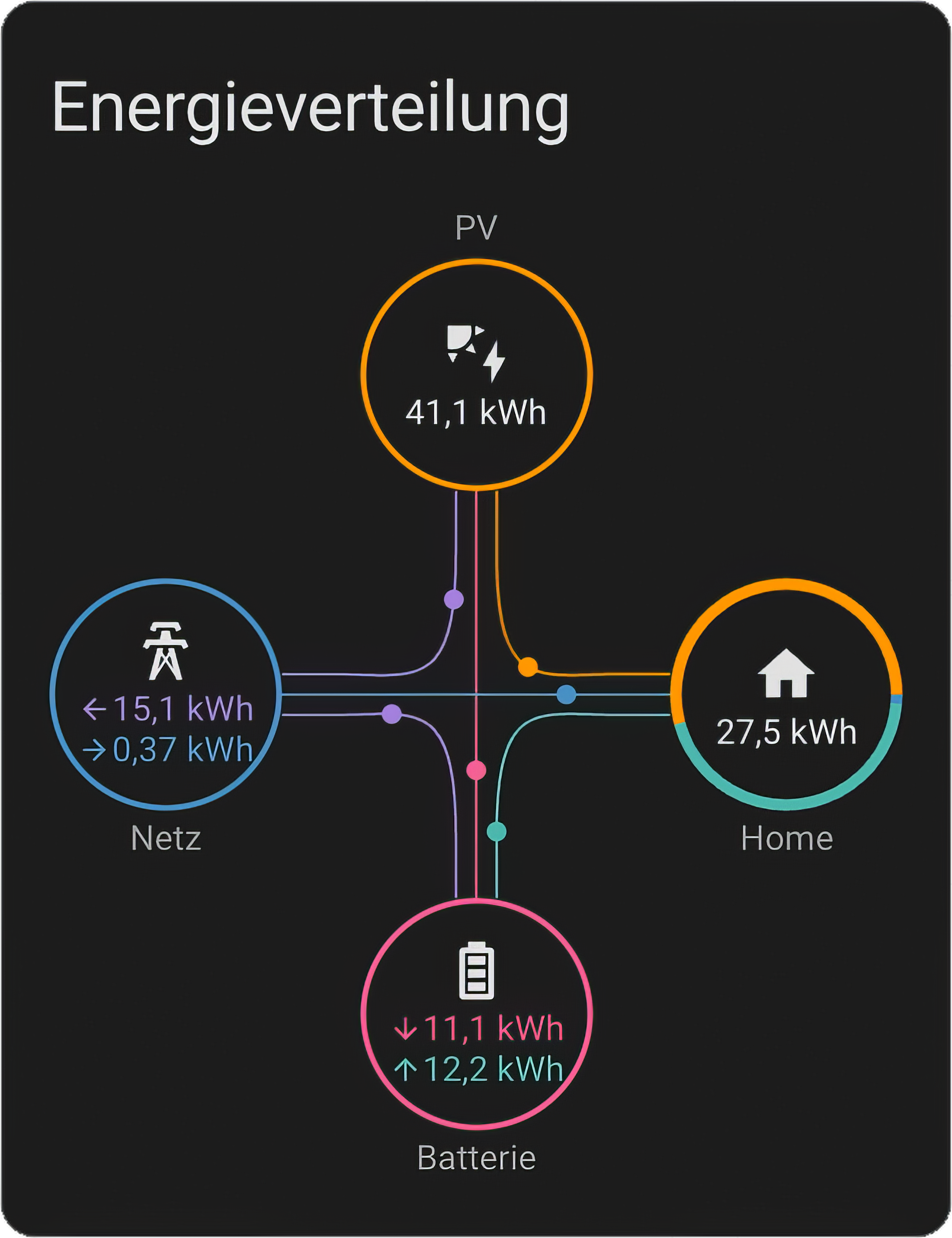
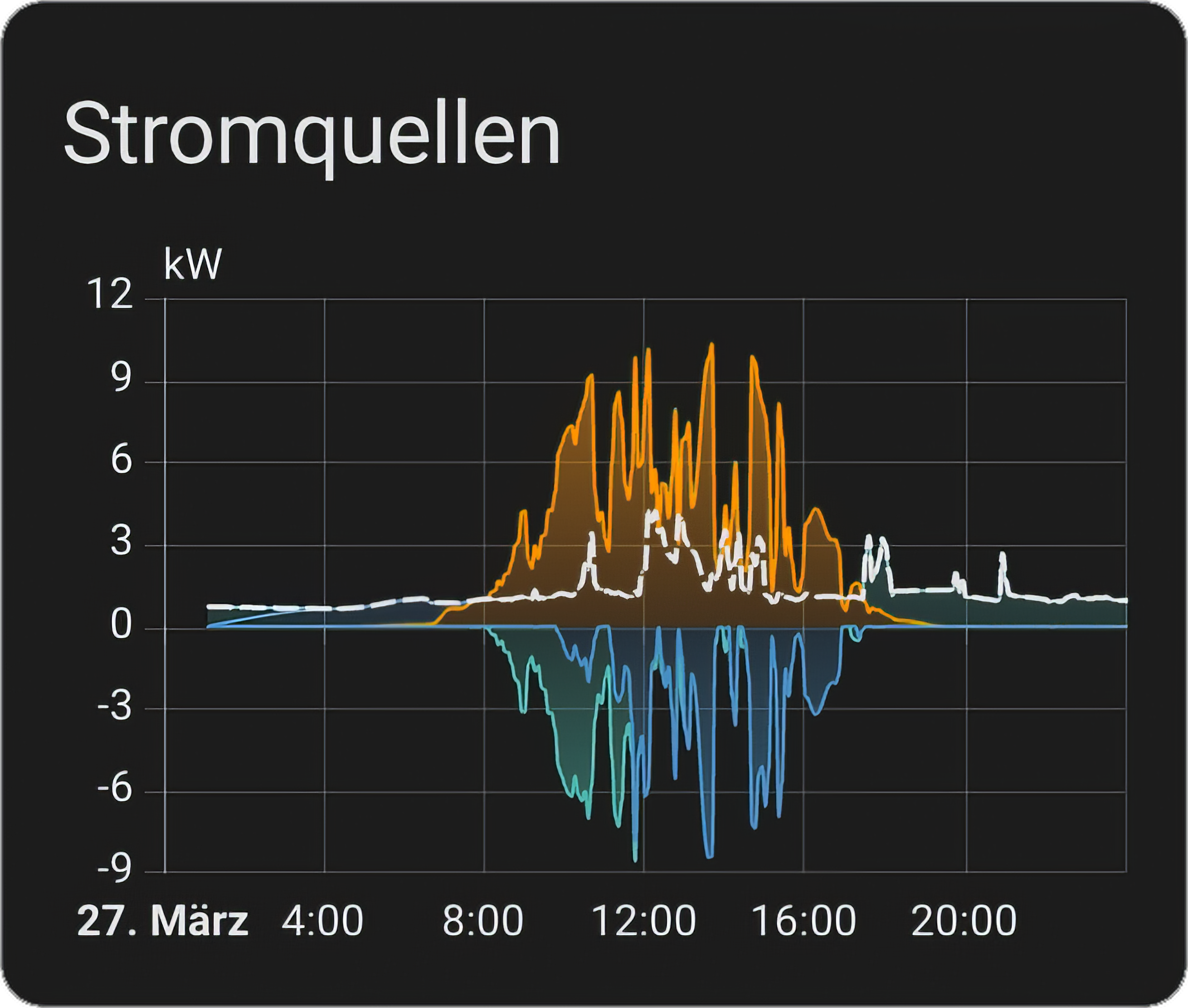
All energy sensors are pre-configured (state_class: total_increasing) - just select and go.
PowerOcean - Grid, Solar, Battery, Home
| Dashboard Section | Sensor |
|---|---|
| Grid consumption | Grid Import Energy (kWh) |
| Return to grid | Grid Export Energy (kWh) |
| Solar production | Solar Energy (kWh) |
| Battery charge | Battery Charge Energy (kWh) |
| Battery discharge | Battery Discharge Energy (kWh) |
| Home consumption | Home Energy (kWh) |
Select Two sensors for battery power - charge and discharge separately for higher accuracy.
Delta 2 Max - Solar, AC Input, AC Output
| Dashboard Section | Sensor |
|---|---|
| Solar (MPPT 1) | Solar Energy (kWh) |
| Solar (MPPT 2) | Solar 2 Energy (kWh) |
| AC input | AC Input Energy (kWh) |
| AC output | AC Output Energy (kWh) |
Smart Plug - Device Energy
| Dashboard Section | Sensor |
|---|---|
| Individual device | Energy (kWh) |
Add under Energy > Individual Devices.
Stream - AC-coupled Battery
| Dashboard Section | Sensor |
|---|---|
| Battery charge | Battery Charge Energy (kWh) |
| Battery discharge | Battery Discharge Energy (kWh) |
Solar and home energy sensors exist as diagnostics but are disabled by default because the Stream only reports meaningful home/grid/solar flow values when an EcoFlow-compatible meter is paired in the app. A per-string counter (PV 1 Energy to PV 4 Energy) is available as well, also disabled by default because the solar energy sensor already covers the total. For normal AC-coupled battery use, select the two battery energy sensors above.
On a Stream Micro there is no battery, so solar production is the whole picture: enable PV 1 Energy and PV 2 Energy and add them under Solar production.
See also A caravan on a limited campsite hookup for a full package that buffers a small campsite pillar with a Delta and a smart plug. For a wallbox, Charging an electric car from solar surplus has a package that hands PowerOcean surplus to a third-party wallbox.
Charge Delta when PowerOcean is full
automation:
  - alias: "Charge Delta 2 Max when PowerOcean battery is full"
    trigger:
      - platform: numeric_state
        entity_id: sensor.ecoflow_powerocean_battery_soc
        above: 98
    condition:
      - condition: numeric_state
        entity_id: sensor.ecoflow_delta_2_max_soc
        below: 80
    action:
      - service: switch.turn_on
        target:
          entity_id: switch.ecoflow_smart_plug_plug

  - alias: "Stop charging when full or PowerOcean drops"
    trigger:
      - platform: numeric_state
        entity_id: sensor.ecoflow_delta_2_max_soc
        above: 99
      - platform: numeric_state
        entity_id: sensor.ecoflow_powerocean_battery_soc
        below: 50
    action:
      - service: switch.turn_off
        target:
          entity_id: switch.ecoflow_smart_plug_plug
Delta AC off at night
automation:
  - alias: "Delta AC off at night"
    trigger:
      - platform: time
        at: "23:00:00"
    action:
      - service: switch.turn_off
        target:
          entity_id: switch.ecoflow_delta_2_max_ac_output
Solar surplus alert
automation:
  - alias: "Grid export alert - use surplus"
    trigger:
      - platform: numeric_state
        entity_id: sensor.ecoflow_powerocean_grid_export_power
        above: 1000
        for: "00:05:00"
    action:
      - service: notify.mobile_app
        data:
          title: "Solar surplus"
          message: >
            Exporting {{ states('sensor.ecoflow_powerocean_grid_export_power') }}W
            - consider turning on high-load devices
PowerOcean dynamic backup reserve (Enhanced Mode)
Raise the backup reserve when an EV is plugged in or a storm is forecast, lower it overnight to use the battery for self-consumption.
automation:
  - alias: "Backup reserve high before storm"
    trigger:
      - platform: state
        entity_id: weather.home
        attribute: forecast
    condition:
      - condition: template
        value_template: >
          {{ state_attr('weather.home', 'forecast')[0].condition in ['lightning', 'lightning-rainy'] }}
    action:
      - service: number.set_value
        target:
          entity_id: number.ecoflow_powerocean_backup_reserve
        data:
          value: 80

  - alias: "Backup reserve low overnight"
    trigger:
      - platform: time
        at: "23:00:00"
    action:
      - service: number.set_value
        target:
          entity_id: number.ecoflow_powerocean_backup_reserve
        data:
          value: 10
PowerOcean Work Mode switching (Enhanced Mode)
Switch to AI Schedule when dynamic-tariff data is available, fall back to Self-use otherwise.
automation:
  - alias: "Work Mode AI Schedule on cheap-tariff days"
    trigger:
      - platform: numeric_state
        entity_id: sensor.tibber_price_total
        below: 0.20
    action:
      - service: select.select_option
        target:
          entity_id: select.ecoflow_powerocean_work_mode
        data:
          option: "ai_schedule"
Stream AC 5000 alongside a PowerOcean (Gen 1), by @Polarlander11
Two automations that let a Stream AC 5000 run next to a first-generation PowerOcean without the two fighting over the same energy: by day the Stream charges only from real grid surplus, and only while the PowerOcean battery is not being drawn down; from the evening it discharges at a rate that spreads its usable capacity over the night, keeping a 25 % reserve and stopping at sunrise. The two windows never overlap by design. The guide, with the complete YAML and a measured inverter efficiency figure, is in #393.
The design decisions behind the integration
| Data source | MQTT push, with HTTP polling as the fallback in Standard Mode |
| Sign-in | Standard Mode uses the Developer Portal access and secret key; Enhanced Mode signs in with the EcoFlow account |
| Reconnect | Four-tier backoff that keeps retrying instead of giving up |
| Fallback | Switches to HTTP polling when the MQTT stream goes stale (Standard Mode) |
| Stream health | Three states, live, stale and offline, published as a diagnostic sensor |
| Energy tracking | Local Riemann sum with gap detection, adopting the device's own lifetime counters where it reports them |
| Devices | Every supported model in one integration, on one config entry per account |
| Controls | Each write is the frame the EcoFlow app sends for the same setting, and the entity shows what the device reports back |
| Offline devices | An expected state that does not fill the log with errors |
How the connection recovers on its own
While data is flowing. In Enhanced Mode the device pushes its readings and the integration keeps that connection busy so the server does not close it. A PowerOcean is asked for its live stream again every 20 seconds, every device is asked for its latest values every 30 seconds, and a ping goes out every 60 seconds. A Smart Plug also gets a full snapshot every 120 seconds, because it reports in bursts with quiet stretches in between.
When the connection breaks. The integration reconnects by itself, with a growing pause between attempts: 5 seconds, then 10, 20, 40, and from there a fixed 60 seconds. Each attempt uses a new client identity, which is what gets a session accepted again after the server has dropped the old one. After ten attempts it pauses for up to five minutes and then starts a fresh cycle. There is no attempt limit at which it stops trying.
What the entities do meanwhile. Nothing disappears the moment data stops. The integration counts the age of the last reading and moves through three stages:
| Stage | Age of the last reading | What you see |
|---|---|---|
| Stale | over 35 seconds | Entities keep their values, reconnect attempts are running |
| Degraded | over 5 minutes | Entities keep their values, and those values are visibly old |
| Unavailable | over 10 minutes | Entities go unavailable in Home Assistant |
Some devices report less often, and those get longer windows so a quiet device is not declared gone:
| Device | Stale | Degraded | Unavailable |
|---|---|---|---|
| Smart Plug (with account sign-in) | 3 minutes | 6 minutes | 10 minutes |
| WAVE 3 in standby | 4.5 minutes | 9 minutes | 10 minutes |
| PowerPulse 2 | 20 minutes | 40 minutes | 60 minutes |
A WAVE 3 that is running pushes every couple of seconds and uses the standard windows. The PowerPulse 2 windows always apply: it pushes when something changes and otherwise stays quiet for long stretches, charging or not.
In Standard Mode the HTTP poll decides availability instead. Entities go unavailable when the polls themselves keep failing, not when a push pauses.
What clears it. The next frame received from the device. The stage resets immediately, the entities pick up the new values, and nothing needs to be restarted or reloaded.
Where to look. Every device has two diagnostic sensors:
- MQTT Status reports the connection itself:
receivingwhile frames arrive,connected_stalewhile the connection is open but the device is quiet,disconnectedwhile a reconnect is pending. - Connection Mode reports which path is in use:
standard,enhanced, orenhanced_fallbackwhen the integration has fallen back to polling.
No entities appearing
- Devices must be online in the EcoFlow app
- Verify Access Key and Secret Key from the Developer Portal
- Check Settings > System > Logs for
ecoflow_energy
Data not updating
- Standard: HTTP polls every ~30 s. Delta also gets MQTT push. Check credentials if no data.
- Enhanced: WSS auto-reconnects with new ClientID. Check logs for reconnect messages.
Devices stay unavailable and the log shows repeated reconnects
EcoFlow serves accounts from more than one region, and the server for your account is named in the credentials the integration fetches at sign-in. Versions before 1.17.0 ignored that and always used the European address, so an account served elsewhere was refused with nothing said about why: the connection opens, the server closes it again, and the cycle repeats.
If you see that pattern, update to 1.17.0 or newer. A diagnostics download reports the address in use under mqtt_status > broker, which is the fastest way to tell this apart from a credential problem.
Update credentials (manual re-auth)
Use the integration menu (not the options dialog):
Settings > Devices & Services > EcoFlow Energy > 3-dot menu > Reconfigure
- German UI label: Neu konfigurieren
- This opens the manual credential update flow for Access Key / Secret Key (and Enhanced credentials if enabled)
"Authentication expired" after restart
This notification can appear when your IoT Developer API key does not have access to the configured devices. The integration uses two credential sets:
- Access Key / Secret Key (IoT Developer Portal) - used for HTTP data polling
- Email / Password (Enhanced Mode only) - used for MQTT real-time data
If the devices are not linked to the API key, HTTP polling fails with error 1006 ("device not allowed"). In Enhanced Mode, MQTT data still works fine, but the repeated HTTP errors used to trigger a false re-authentication prompt.
To fix:
- Log in at developer.ecoflow.com
- Go to "Devices" and verify both your API key and your devices are listed
- Make sure the Developer Portal account uses the same email as your EcoFlow App account - devices are linked automatically when the accounts match
- If the accounts differ, bind the devices manually via their serial numbers
Since v1.8.3, the integration handles this gracefully: error 1006 is logged once with a clear message and does not trigger re-authentication.
PowerOcean variants with serial prefix J327, J32D or J32E: the Developer Portal currently offers no way to link these devices to an API key, so Standard Mode entities stay unavailable (error 1006). This is an EcoFlow API limitation, not a configuration problem. Use Enhanced Mode for these devices - it delivers full real-time data.
Enhanced Mode issues
- Verify EcoFlow email and password
- Requires
cryptographypackage (included in HA Core) - Check logs for "Enhanced login failed" or "decryption failed"
Download diagnostics
Settings > Devices & Services > EcoFlow Energy > 3-dot menu > Download Diagnostics - connection status, data freshness, no credentials exposed.
Have a quick look through the file before you attach it to a public issue. The redaction removes the keys, the account and every serial shape it knows, and it is checked against every recording on file, but a field EcoFlow adds later is unknown until someone sees it. Treat the redaction as a strong safety net, not as a guarantee.
In Enhanced Mode the download also carries a sample of the raw messages your devices send, including devices that are already supported - a supported device is not a dead end for improving it. The Record extra diagnostic data for 24 hours option in the integration options only makes that sample deeper, so switch it on when an issue asks for it and take the download while it is still running. It stops by itself after 24 hours and never sends anything to your devices.
