
Table of Contents
A couple of months ago, I purchased this 4G LTE USB dongle from Shopee for around 300+ PHP. Out of curiosity, I searched the internet to see if there was a way to modify the horrible web UI of the device. Here are some images of the device along with the board and its chips.
 |
 |
|---|---|
 |
 |
 |
 |
 |
 |
 |
The heart of the dongle is an MSM8916, running a stripped-down version of Android 4.4.4 KitKat. Interestingly, the setup restricts the use of the additional two CPU cores, likely to prevent the device from overheating.
The web UI is so poorly designed that you can bypass it entirely by simply changing the URL and calling main.html to access the main page.

Supported Bands (According to mmcli):
Details
| Band Type | Band Number | Frequency (MHz) |
|---|---|---|
| UTRAN | 1 | 2100 |
| UTRAN | 8 | 900 |
| EUTRAN | 1 | 2100 |
| EUTRAN | 3 | 1800 |
| EUTRAN | 5 | 850 |
| EUTRAN | 7 | 2600 |
| EUTRAN | 8 | 900 |
| EUTRAN | 20 | 800 |
| EUTRAN | 38 | 2600 TDD |
| EUTRAN | 40 | 2300 TDD |
| EUTRAN | 41 | 2500 TDD |
CPUINFO
Details
processor       : 0
model name      : ARMv7 Processor rev 0 (v7l)
BogoMIPS        : 38.40
Features        : swp half thumb fastmult vfp edsp neon vfpv3 tls vfpv4 idiva idivt
CPU implementer : 0x41
CPU architecture: 7
CPU variant     : 0x0
CPU part        : 0xd03
CPU revision    : 0

processor       : 1
model name      : ARMv7 Processor rev 0 (v7l)
BogoMIPS        : 38.40
Features        : swp half thumb fastmult vfp edsp neon vfpv3 tls vfpv4 idiva idivt
CPU implementer : 0x41
CPU architecture: 7
CPU variant     : 0x0
CPU part        : 0xd03
CPU revision    : 0

Hardware        : Qualcomm Technologies, Inc MSM8916
Revision        : 0000
Serial          : 0000000000000000
Processor       : ARMv7 Processor rev 0 (v7l)
MEMINFO
Details
MemTotal:         397824 kB
MemFree:           53692 kB
Buffers:            1720 kB
Cached:            68792 kB
SwapCached:         3156 kB
Active:            92836 kB
Inactive:         106204 kB
Active(anon):      62516 kB
Inactive(anon):    67424 kB
Active(file):      30320 kB
Inactive(file):    38780 kB
Unevictable:        1136 kB
Mlocked:               0 kB
SwapTotal:        196604 kB
SwapFree:         180944 kB
Dirty:                28 kB
Writeback:             0 kB
AnonPages:        126840 kB
Mapped:            36980 kB
Shmem:               276 kB
Slab:              31164 kB
SReclaimable:       9572 kB
SUnreclaim:        21592 kB
KernelStack:        5040 kB
PageTables:         5428 kB
NFS_Unstable:          0 kB
Bounce:                0 kB
WritebackTmp:          0 kB
CommitLimit:      395516 kB
Committed_AS:    4596648 kB
VmallocTotal:     499712 kB
VmallocUsed:       49008 kB
VmallocChunk: 309276 kBWarning
I just want to clarify that I'm not responsible if something goes wrong and the device gets bricked. Please proceed at your own risk and make sure to back up your data before attempting any modifications
Caution
Using Miko tools for firmware dumping, whether via xml or full emmc block, often results in a corrupted dump (based on my testing). Therefore, I advise you to take multiple dumps, not just with Miko tools, but also with EDL.
Important
Before doing anything to your USB dongle, you must first enable ADB (if it's not already enabled) by accessing this URL: http://192.168.100.1/usbdebug.html.
You need to have:
If you are using Windows, you must install the following:
On Windows, If you intend to use edl you might encounter this error: NotImplementedError: Operation not supported or unimplemented on this platform. One way to fix this is by uninstalling the QDLoader 9008 Driver and replacing it with Zadig WinUSB⁽¹⁾.
To enable EDL mode on your device, execute the following command:
adb reboot edl
Alternatively, for a more hands-on approach, you can short the D+ and GND on the USB or the 2 pads on the board before connecting it to your computer. Once the device is in EDL mode, execute the following commands to create a full backup:
python3 edl rf {your_filename}.bin
To restore simply run:
python3 edl wf {your_filename}.bin
for individual backup:
python3 edl rl {your_foldername} --genxml
You can then use tools such as PowerISO to view the different partitions of the dump.
Important
Some devices have root access out of the box. Before proceeding, kindly check if yours does.
To gain root access, you need to install SuperSU on the USB dongle. Ensure you have the following files:
After obtaining the necessary files, open a new terminal and execute the following commands:
adb push SR5-SuperSU-v2.82-SR5-20171001224502.zip /sdcard

adb reboot bootloader

fastboot boot twrp-3.1.1-0-seed.img
The device may take some time to restart adb. Please be patient. Once adb is up and running again, proceed with the following commands:
adb shell

twrp install /sdcard/SR5-SuperSU-v2.82-SR5-20171001224502.zip

rebootWe can use adbcontrol to see what's going on with the device.
Tip
You need to modify the config.properties file accordingly
adbCommand = {LOCATION_OF_ADB_EXE}
localImageFilePath = {LOCATION_ON_YOUR_HOST_MACHINE}
By default a screen timeout which results to a black screen when no activity is present, to bypass this we need to run:
adb shell settings put system screen_off_timeout 2147483647

adb shell input keyevent 26
Steps:
extract adbcontrol.zip

cd adbcontrol

java -jar adbcontrol.jarFirst and foremost, we need to identify the correct APK file. Some versions of this dongle come with Jetty2m.apk and MifiService.apk. In my case, the MifiService.apk was located in /system/priv-app/MifiService.apk. I then pulled the APK using the command adb pull /system/priv-app/MifiService.apk
Fetch test-keys:
git clone https://android.googlesource.com/platform/build
cd build/target/product/security/
openssl pkcs8 -inform DER -nocrypt -in platform.pk8 -out platform.pem
openssl pkcs12 -export -in platform.x509.pem -inkey platform.pem -out platform.p12 -password pass:android -name testkey
keytool -importkeystore -deststorepass android -destkeystore platform.keystore -srckeystore platform.p12 -srcstoretype PKCS12 -srcstorepass android
mv platform.keystore {YOUR_WORK_DIR}
Decompile apk:
java -jar apktool.jar d {APP_NAME}.apk -o {APP_NAME}
You can then start to customization under the assets folder
Tip
Don't forget to change the versionCode and versionName in the apktool.yml
Recompile apk(If asked for a passphrase type android):
java -jar apktool.jar b -o unsigned.apk {APP_NAME}
Zipalign:
zipalign -v 4 unsigned.apk aligned.apk
jarsigner -verbose -sigalg SHA1withRSA -digestalg SHA1 -keystore ./platform.keystore  aligned.apk testkey
Install apk:
adb install -r aligned.apk
Important
Current OpenWRT firmware use the mcfg_sw.mbn located under MODEM_PR\MCFG\CONFIGS\MCFG_SW\GENERIC\COMMON\DEFAULT\DEFAULT. I haven't tested it if it works across different regions, If you can't get signal with yours kindly refer to Changing Region
- Download
openwrt-UZ801.tar.xzfrom releases - Extract the compressed file with
tar xf openwrt-UZ801.tar.xz. - cd OpenWRT-UZ801.
- For Linux, run
./flash.sh; for Windows, run./flash.bat. - If all goes well you can now see a constant blinking red and blue light.
- Download the file using:
wget https://download.wvthoog.nl/openstick-uz801-v3.0.zip. - Extract the zip file.
- Execute
adb reboot-bootloader - For Linux, run
./flash.sh; for Windows, run./flash.bat. - Wait for the script to execute.
- If all goes well All basic functions should now work. Configure the device for your chosen use case.
For more information visit Wim van 't Hoog blog
Note
To be updated
In case you bricked your device and cannot access EDL, just short the pins below and follow the restore guide.
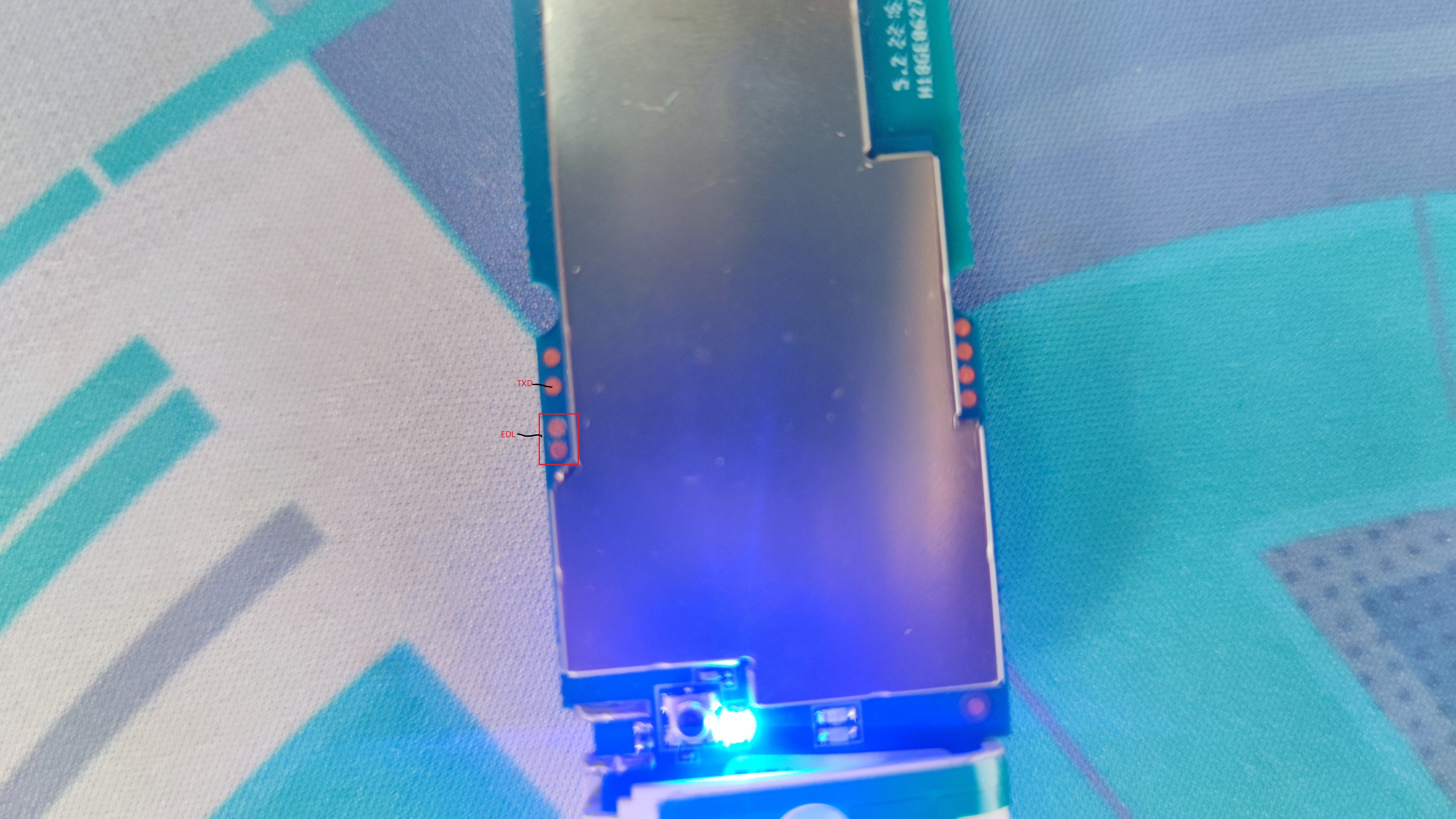
Incase you lost your IMEI you can fix it using modem_at AT+WRIMEI={YOUR_IMEI}
This project references the following resources:
-
Wim van 't Hoog - For Debian build and instructions.
-
ddscentral - For Debian build and instructions.
-
postmarketOS - Information and Board pinout image
-
edl - Primary tool for dumping the Original firmware
-
adrian-bl - Instruction for modifying Web UI
-
HandsomeYingyan - For HandsomeMod source code
These resources have been instrumental in the creation of this project.
This repository is open-sourced software licensed under the MIT license.
Copyright AlienWolfX 2024