Utility for Windows to switch between sound devices using a hotkey.
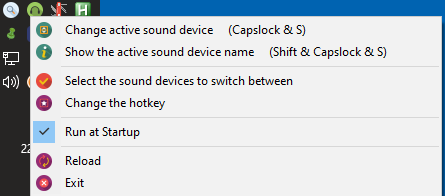
I have speakers and headphones connected to my computer. I use the headphones with the IP phone and video conferences, but the rest of the time I use the speakers to have music in the background.
With this utility I can easily switch between the two sound devices: with each press of the hotkey that I have defined, the sound alternates between both devices: the speakers and the headphone. Every time you change the sound device, a notification is displayed indicating which device is now active.
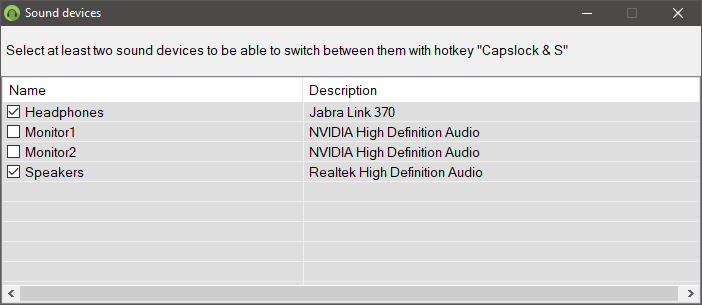
My two monitors are also listed in windows as sound devices, although they don't have speakers. To ignore these two "sound devices" that really aren't, in the tray menu of this utility there is an option that shows the list of sound devices in your computer and you can select the devices you want to switch between with the hotkey. Alternatively, they could also be disabled in Windows sound device manager.
It's portable, doesn't need installation. Download the executable file from "Releases" section, and put it in the location of your choice.
The first time you run this utility, the necessary files for its execution will be deployed in that same folder: the two Nirsoft utilities (see the technology section below for more information), and a config.ini file will also be created in %APPDATA%\SwitchAudioOutput.
Each time the hotkey combination is pressed (or "Change active sound device" is pressed in the tray menu), the next selected sound device will be set as active sound device. By default, the hotkey is "Caps Lock + S", but you can change it (see below).

If you just want to know what the active sound device is, you can hold down the shift button while pressing the hotkey (default: "Shift + Caps Lock + S") and you will get a notification showing the name of the active sound device.

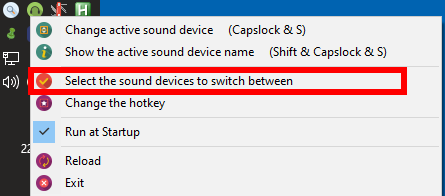
By default, all sound devices in the system are selected. To select/deselect sound devices that you want to use or not with this utility, go to the option "Select the sound devices to switch between" in the tray menu of this utility, and check the box of the sound devices you want to use and deselect the ones you don't want to use. The hotkey will switch de sound devices only between the ones selected here.
For example, I deselected my monitors without speakers that windows recognize as sound devices. I selected only the headphones and speakers.
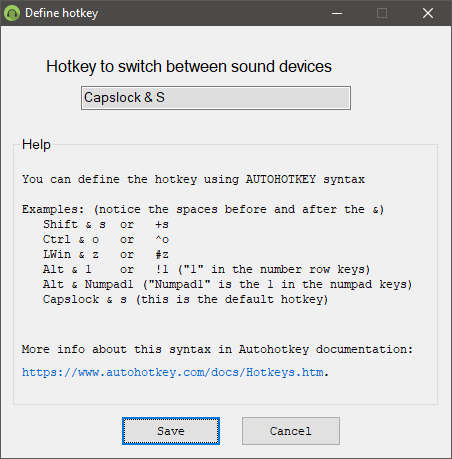
As said before, the default hotkey is "Caps Lock + S", but it can be changed in the tray menu option "Change the hotkey".
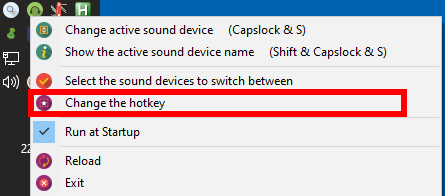
To define your own hotkey, use the autohotkey syntax. It's very easy, let's see some examples.
These are a few examples of hotkey syntax. For most of them you can use human readable syntax (option 1) or an equivalent shorthand syntax (option 2)
SYNTAX OPTION 1 SYNTAX OPTION 2 REMARKS Shift & s +s Ctrl & o ^o LWin & z #z Alt & 1 !1 "1" is the 1 key in number row keys Alt & Numpad1 !Numpad1 "Numpad1" is the 1 key in the numpad keys Capslock & s This is the default hotkey (notice the spaces before and after the &)
In a virtual desktop environment, install this utility in the physical computer (is where the sound devices are connected). This way, you can switch the sound devices from the physical computer and it may be possible to switch them from the virtual desktop too. I say "may be possible" because virtual desktops intercept almost all keystrokes so they don't reach the physical computer and therefore the "Switch Audio Output" doesn't receive that hotkey. To solve this problem, you have to find out which key combinations are not intercepted for each specific case of virtual desktop. (To find them: ask google).
For example, in the Cixtrix VDI remote desktop, "Caps Lock" key combinations aren't intercepted by the remote desktop, so if any hotkey defined with this key is pressed from the virtual desktop, it will be received by this utility in the physical computer and the sound device is going to be switched.
In windows RDP, the hotkey ^!Home" (Ctrl+Alt+Home) is received by the physical computer, so if you use windows RDP this may be a solution. Little drawback: After pressing this hotkey (Ctrl+Alt+Home) de focus doesn't return to the RDP, so you have to press ESC or just click with the mouse in the RDP window to continue working with it.
Third party software: To get the list of sound devices and to change the active sound device, the following freeware utilities from Nirsoft are used:
- SoundVolumeView: To get the list of sound devices
- NirCmd: To change the active sound device
Aside from Nirsoft software, "Switch Audio Output" is entirely written in Autohotkey v1.1, which is a widely used opensource programming language which allows to write very cool utilities easily.
If you are a programmer and you didn't know Autohotkey, give it try:
- Autohotkey official website: www.autohotkey.com
- Autohotkey source code: github.com/Lexikos/AutoHotkey_L
Some antivirus gives false positives with Autohotkey language, with which this utility has been programmed. If you find yourself in this situation:
- You can check that the file is virus-free with the vast majority of antiviruses at the multiantivirus analyser www.virustotal.com
- If you have programming skills, you can take a look to the source code and compile it yourself (you have to download and install Autohotkey from www.autohotkey.com and compile it with "Convert .ahk to .exe" utility)
Sadly, this is a common situation that happens with some antivirus that use an ultra-aggressive approach that generates false-positives. You can read this article from Nirsoft: Antivirus companies cause a big headache to small developers.
To solve this problem and if you have enough privileges on the computer, you can register an exception for SwitchAudioOutput.exe in the antivirus configuration.
Many thanks to Nir Sofer (Nirsoft) for his more than 100 freeware utilities he has made, especially the two used here: NirCmd and SoundVolumeView
Thanks to GraphicLoads for their icon set
Thanks to the entire autohotkey community.