A fork of joycon2cpp — with a fully rewritten GUI, improved optical mouse support, and seamless Switch 2 controller support on PC.
-
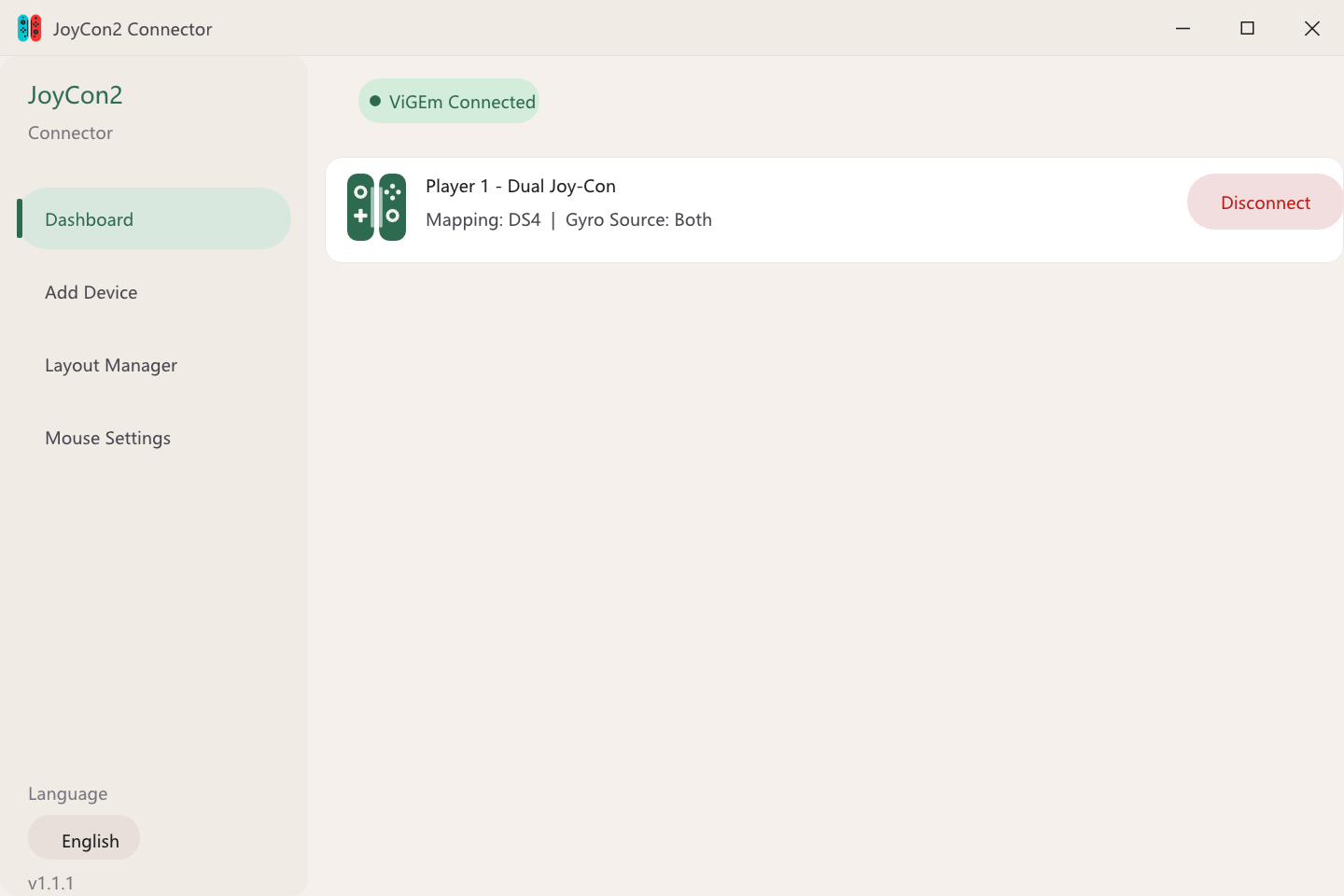
New GUI — Replaces the original command-line interface with a clean, modern graphical UI.
-
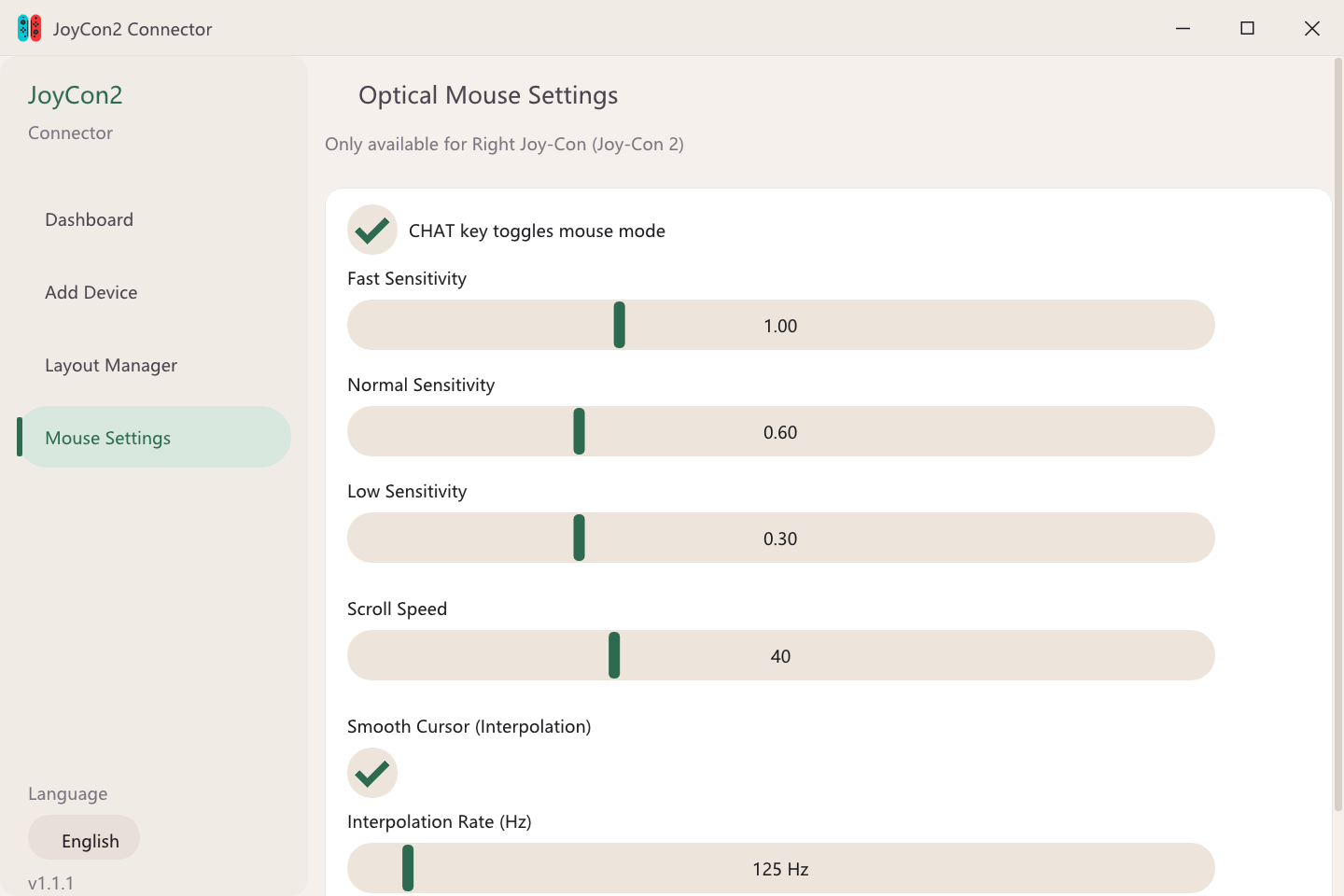
Improved Mouse Mode — Supports the right Joy-Con 2's optical sensor as a PC mouse. Press the CHAT button to cycle through mouse modes (High / Medium / Low sensitivity + Off). Sensitivity and scroll speed can be adjusted in the mouse settings page. Interpolated input is added for smoother cursor movement.
-
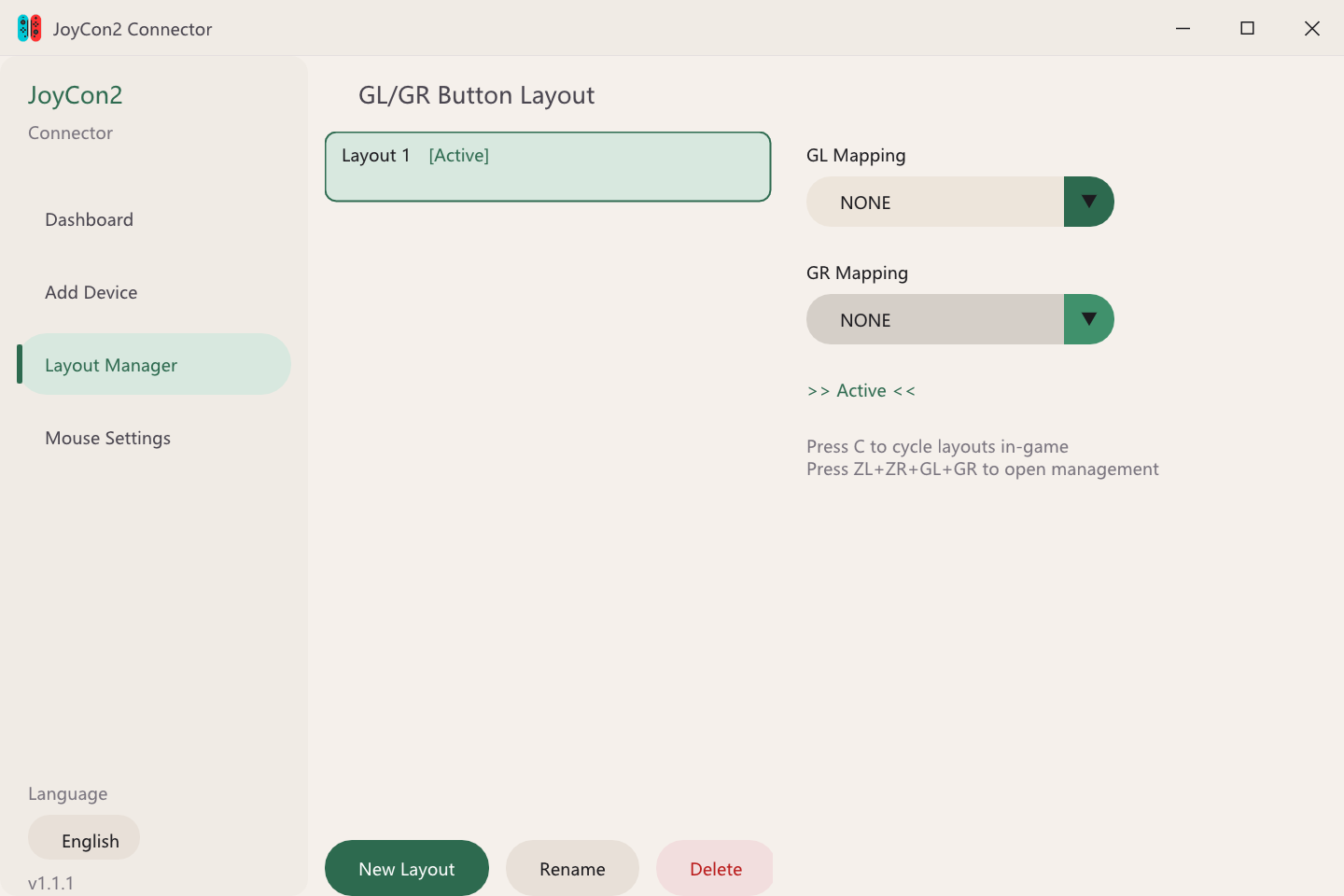
GL/GR Back Button Mapping — Supports custom mappings for the Pro Controller 2's back buttons. Multiple named layouts can be created and switched on the fly during gameplay.
-
Multi-language Support — UI supports switching between Chinese and English (language button in the bottom-left corner).
-
Multiple Controller Support — Supports Joy-Con 2, Pro Controller 2, and NSO GameCube controllers.
-
Gyro Support — Supports emulated gyro input for compatible games and emulators.
| Dashboard | Add Device |
|---|---|
 |
 |
| Back Button Layout | Mouse Settings |
|---|---|
 |
 |
This project is Windows-only. The virtual controller output relies on the ViGEmBus driver, which is exclusive to Windows. You're welcome to fork this for macOS/Linux if you'd like to tackle that.
Before running the app, make sure these are installed:
- Download and launch the executable from the Releases page (or build from source — see below).
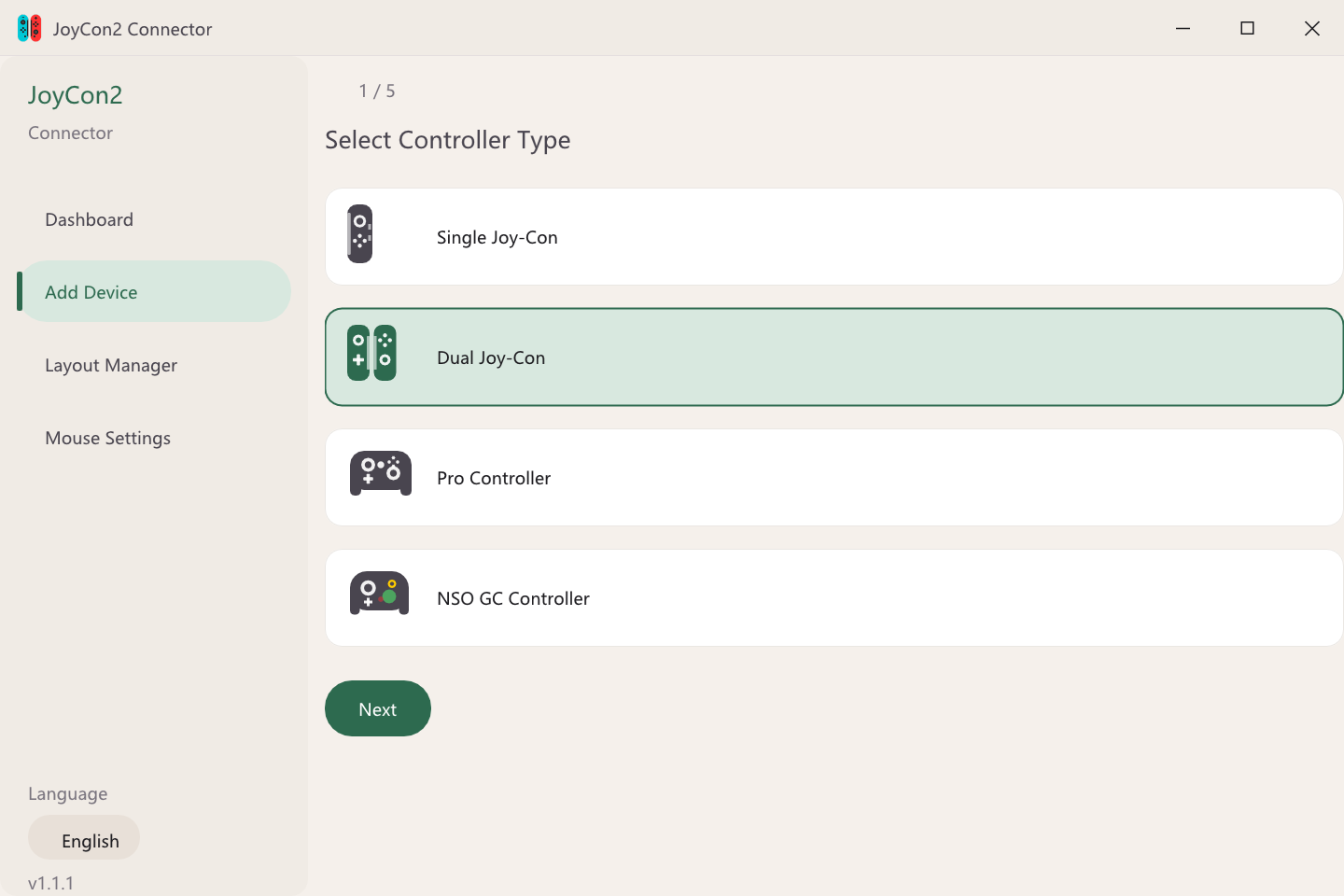
- Go to Add Device in the sidebar and select your controller type:
- Single Joy-Con
- Dual Joy-Con (paired L + R)
- Pro Controller
- NSO GameCube Controller
- Follow the on-screen steps — you'll be prompted to specify Left/Right for single Joy-Cons, or pair them one at a time for dual mode.
- Once connected, your controller appears on the Dashboard as a virtual DS4 gamepad, ready to use in any supported PC or emulator game.
The right Joy-Con 2's optical sensor can act as a PC mouse. Press the CHAT button to cycle through three mouse modes (high / medium / low sensitivity) or turn it off. Sensitivity and scroll speed can be tuned in the Mouse Settings page.
Go to Back Button Layout to assign GL and GR to any button input. You can create multiple named layouts and switch between them mid-game by pressing C, or open the layout manager with ZL + ZR + GL + GR.
Install the following via the Visual Studio Installer:
- Visual Studio 2022 or newer
- Workload: Desktop development with C++
- Component: Windows 10 or 11 SDK
- Component: MSVC v14.x
-
Open the x64 Native Tools Command Prompt for your Visual Studio version.
-
Navigate to the
joycon2_connectordirectory:cd joycon2_connector -
Generate Visual Studio project files:
cmake -S . -B build -G "Visual Studio 17 2022" -A x64
-
Build in Release mode:
cmake --build build --config Release
-
The compiled executable will be at:
build\Release\joycon2_connector.exe
Connection Error / Unable to Connect: Please make sure the controller is powered off. After starting the scan, press and hold the pairing button to power it on. Once the connection is successful, release the pairing button.
Controller stops connecting after multiple attempts: This is a known controller-level cooldown behavior — not an OS or Bluetooth stack issue. Simply wait a few minutes and try again.
ViGEm not detected: Make sure the ViGEmBus driver is installed before launching the app. The status indicator on the Dashboard will show green when it's connected.
Bit layouts differ between Left and Right Joy-Cons: Always select the correct side during setup.
Joy-Con 2 BLE Notification Layout (click to expand)
This section documents the raw BLE notification format for Joy-Con 2, useful if you're developing or reverse-engineering controller input.
Huge thanks to @german77 for providing the notification layout.
08670000000000e0ff0ffff77f23287a0000000000000000000000000000005f0e007907000000000001ce7b52010500beffb501ee0ffeff04000200000000
| Offset | Size | Field | Comment |
|---|---|---|---|
0x00 |
0x4 | Packet ID | Sequence or timestamp |
0x04 |
0x4 | Buttons | Button state bitmap |
0x08 |
0x3 | Left Stick | 12-bit X/Y packed |
0x0B |
0x3 | Right Stick | 12-bit X/Y packed |
0x0E |
0x2 | Mouse X | |
0x10 |
0x2 | Mouse Y | |
0x12 |
0x2 | Mouse Unk | Possibly extra motion data |
0x14 |
0x2 | Mouse Distance | Distance to IR/motion surface |
0x16 |
0x2 | Magnetometer X | |
0x18 |
0x2 | Magnetometer Y | |
0x1A |
0x2 | Magnetometer Z | |
0x1C |
0x2 | Battery Voltage | 1000 = 1V |
0x1E |
0x2 | Battery Current | 100 = 1mA |
0x20 |
0xE | Reserved | Undocumented |
0x2E |
0x2 | Temperature | 25°C + raw / 127 |
0x30 |
0x2 | Accel X | 4096 = 1G |
0x32 |
0x2 | Accel Y | |
0x34 |
0x2 | Accel Z | |
0x36 |
0x2 | Gyro X | 48000 = 360°/s |
0x38 |
0x2 | Gyro Y | |
0x3A |
0x2 | Gyro Z | |
0x3C |
0x1 | Analog Trigger L | |
0x3D |
0x1 | Analog Trigger R |
- Left Joy-Con does not use the Right Stick — data at
0x0B–0x0Dis junk. - Stick values use 12-bit X/Y packed across 3 bytes.
- Accel/Gyro are signed 16-bit integers.
- Temperature formula:
25 + (raw / 127)— e.g.raw = 3679→ ~54°C - Battery voltage is in millivolts —
3000= 3.0V;0x0000means unavailable. - Pro Controller 2 and GC Controller notifications follow a similar layout with some field shifts.
- Original project: joycon2cpp
- BLE layout research: @german77
- Virtual controller output: ViGEmBus