
ElectronMail is an Electron-based unofficial desktop client for ProtonMail. The app aims to provide enhanced desktop user experience enabling features that are not supported by the official in-browser web clients. It is written in TypeScript and uses Angular.




The download page with Linux/OSX/Windows installation packages is here.
The way of verifying that the installation packages attached to the releases have been assembled from the source code is being provided.
Some Linux package types are available for installing from the repositories (Pacman and Snap packages are being maintained by @joshirio):



 Open Source.
- ⚙️ Reproducible builds.
- ⚙️ Cross platform. The app works on Linux/OSX/Windows platforms.
- 🔎 Full-text search. Enabled with v2.2.0 release. See the respective issue for details.
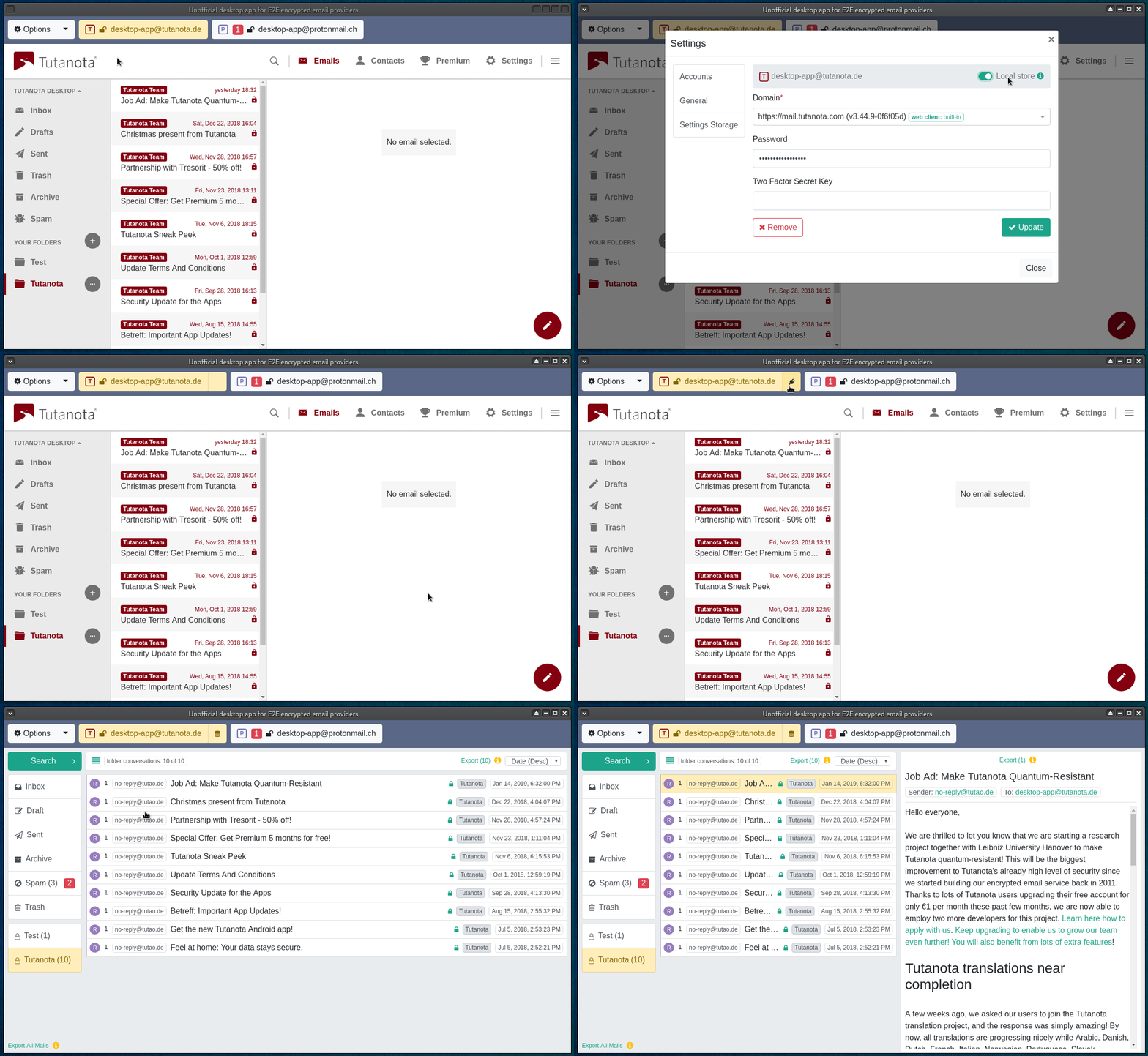
- 📦 Offline access to the email messages (only emails body content stored locally but not the attachments). The local store feature enables storing your messages in the encrypted
database.binfile, so you could view your messages offline, perform a full-text search against them and export them to EML files. Enabled since v2.0.0 release. - 📫 Multi accounts support per each email provider including supporting individual entry point domains.
- 🔓 Automatic login into the app with a remembered master password using keytar module (keep me signed in feature).
- 🔓 Automatic login into the email accounts, including filling 2FA tokens. Two auto-login delay scenarios supported in order to make it harder to correlate the identities, see the respective issue.
- 🔓 Persistent email account sessions. The feature introduced since v4.2.0 version with the
experimentallabel, #227. The feature enables the scenario when you to enter the account credentials on the login form only once, manually or automatically by the app, and then you never see the login form anymore for this email account even if you restart the app (unless you explicitly dropped the session in the admin area or it got dropped by the service due to the inactivity/expiration). If this feature is enabled for the account, manual credentials filling is the preferred option as a more secure option since you don't save the account credentials anywhere (credentialsare encrypted though even if saved, seesettings.binfile description in the FAQ). - 🔐 Encrypted local storage with switchable predefined key derivation and encryption presets. Argon2 is used as the default key derivation function.
- 🔔 Native notifications for individual accounts clicking on which focuses the app window and selects respective account in the accounts list.
- 🔔 System tray icon with a total number of unread messages shown on top of it. Enabling local messages store improves this feature (how to enable), see respective issue.
- ⚙️ Starting minimized to tray.
- ⚙️ Closing to tray.
- ⚙️ Switchable accounts handle buttons positioning (
top,left,left-thin). See details in #36 and #175. Demo screenshots placed in the images folder (specifically this image). - 📦 Batch emails export to EML files (attachments can optionally be exported in online/live mode). Feature released with v2.0.0-beta.4 version, requires
local messages storefeature to be enabled (how to enable). - 🔐 Built-in/prepackaged web clients. The prepackaged with the app proton web clients assembled from source code, see the respective official repositories. See 79 and 80 issues for details.
- ⚙️ Configuring proxy per account support. Enabled since v3.0.0 release. See 113 and 120 issues for details.
- 📝 Spell Checking.

.gif)
You got it here.
The reproducible builds idea is respected by the project. So the simplest way to prepare your own installation package from the source code is to clone the project and hook it up to the AppVeyor and Travis CI systems. The respective config files appveyor.yml and .travis.yml come with the project.
- Regardless of the platform you are working on, you will need to have Node.js v12 installed. v12 as it's recommended to go with the same Node.js version Electron comes with. If you already have Node.js installed, but not the v12, then you might want to use Node Version Manager to be able to switch between multiple Node.js versions:
- Install NVM.
- Run
nvm install 12. - Run
nvm use 12.
- Some native modules require compiling process to be involved and for that Python and C++ compiler need to be installed on the system:
- On
Windows: the simplest to install all the needed stuff on Windows is to runnpm install --global --production windows-build-toolsCLI command. - On
Linux:python v2.7,makeand a C/C++ compiler toolchain, likeGCCare most likely already installed. Besides keytar needslibsecretlibrary to be installed. - On
macOS:python v2.7and Xcode need to be installed. You also need to install theCommand Line Toolsvia Xcode, can be found under theXcode -> Preferences -> Downloadsmenu.
- On
- ProtonMail's WebClient requires addition environment setup if you run Windows, see.
- Clone this project to your local device. If you are going to contribute, consider cloning the forked into your own GitHub account project.
- Install Yarn.
- Install dependencies running
yarn --pure-lockfile. - Build app running
yarn run app:dist. - Build a package to install running
yarn run electron-builder:distcommand to build Windows/Mac OS X package and one of the following commands to build Linux package:yarn run electron-builder:dist:linux:appimageyarn run electron-builder:dist:linux:debyarn run electron-builder:dist:linux:freebsdyarn run electron-builder:dist:linux:pacmanyarn run electron-builder:dist:linux:rpmyarn run electron-builder:dist:linux:snap
- The assembled inbstallation package comes into the
./distfolder.
To recap, considering that all the described build requirements are met, the short command to build let's say Arch Linux package will be yarn --pure-lockfile && yarn app:dist && yarn electron-builder:dist:linux:pacman.
If you want to backup the app data these are only files you need to take care of (files localed in the settings folder):

config.jsonfile keeps config parameters. There is no sensitive data in this file, so unencrypted.settings.binfile keeps added to the app accounts including credentials if a user decided to save them. The file is encrypted with 32 bytes length key derived from the master password.database.binfile is a local database that keeps fetched emails/folders/contacts entities if thelocal storefeature was enabled for at least one account. The file is encrypted with 32 bytes length key randomly generated and stored insettings.bin. The app by design flushes and loads to memory thedatabase.binfile as a whole thing but not like encrypting only the specific columns of the database. It's of course not an optimal approach in terms of performance and resource consumption but it allows keeping the metadata hidden. You can see some details here.database-session.binfile is being used in the same way and for the same purpose asdatabase.binbut it holds the current session data only. The data from this file will be merged to thedatabase.binon the next app unlocking with the master password.session.binfile holds the session data of the email accounts. The file is used if thePersistent Sessionfeature is enabled for at least one account (the feature introduced since v4.2.0 version withexperimentallabel, #227). The file is encrypted with 32 bytes length key randomly generated and stored insettings.bin.log.logfile keeps log lines. The log level by default is set toerror(seeconfig.jsonfile).
It's recommended to perform the following actions before uninstalling the app:
- If you had the
Keep me signed infeature enabled (see screenshot), clickLog-outaction in the app menu (see screenshot). That will remove locally stored master password (done with node-keytar). You can also remove it having the app already uninstalled, but that would be a more complicated way as you will have to manually edit the system's keychain. - Remove settings folder manually. You can locate settings folder path clicking
Open setting folderapp/tray menu item (see screenshot) or readingapp.getPath(name ="userData")relatedapp.getPath(name)section here.
