-
Notifications
You must be signed in to change notification settings - Fork 0
Expand file tree
/
Copy pathcustomize-robots.Rmd
More file actions
215 lines (150 loc) · 11 KB
/
customize-robots.Rmd
File metadata and controls
215 lines (150 loc) · 11 KB
1
2
3
4
5
6
7
8
9
10
11
12
13
14
15
16
17
18
19
20
21
22
23
24
25
26
27
28
29
30
31
32
33
34
35
36
37
38
39
40
41
42
43
44
45
46
47
48
49
50
51
52
53
54
55
56
57
58
59
60
61
62
63
64
65
66
67
68
69
70
71
72
73
74
75
76
77
78
79
80
81
82
83
84
85
86
87
88
89
90
91
92
93
94
95
96
97
98
99
100
101
102
103
104
105
106
107
108
109
110
111
112
113
114
115
116
117
118
119
120
121
122
123
124
125
126
127
128
129
130
131
132
133
134
135
136
137
138
139
140
141
142
143
144
145
146
147
148
149
150
151
152
153
154
155
156
157
158
159
160
161
162
163
164
165
166
167
168
169
170
171
172
173
174
175
176
177
178
179
180
181
182
183
184
185
186
187
188
189
190
191
192
193
194
195
196
197
198
199
200
201
202
203
204
205
206
207
208
209
210
211
212
213
214
215
---
title: "Customizing Automatic Checks"
output:
html_document:
toc: true
toc_float: true
---
By default, all automation steps and checks will run. Based on the requirements of your course, you have the flexibility to enable or disable specific features by modifying the settings in the `config_automation.yml` file. Simply adjust the options to "true" or "false" accordingly.
The `config_automation.yml` file looks like this:
```
### Render preview of content with changes (Rmd's and md's are checked)
render-preview: true
##### Checks run at pull request #####
# Check quiz formatting
check-quizzes: false
quiz_error_min: 0
# Check that urls in the content are not broken
url-checker: true
url_error_min: 0
# Spell check Rmds and quizzes
spell-check: true
spell_error_min: 0
#### Other options
# Style any R code
style-code: true
# Would you like your markdown files to be checked for formatting
markdown-linter: true
# Would you like a readability report on your markdowns?
readability-report: true
# Test build the docker image if any docker-relevant files have been changed
docker-test: false
# Should URLs be tested periodically?
url-check-periodically: true
##### Renderings run upon merge to main branch #####
# Rendering each platform's content
render-website: rmd
render-leanpub: true
render-coursera: true
## Automate the creation of Book.txt file? yes/no
## This is only relevant if render-leanpub is yes, otherwise it will be ignored
make-book-txt: true
# What docker image should be used for rendering?
# The default is jhudsl/base_ottr:main
rendering-docker-image: 'jhudsl/base_ottr:main'
```
There are three main sets of automation steps and checks run:
- `.github/workflows/pull-request.yml` : Run upon opening a pull request
- `.github/workflows/render-all.yml`: Run upon any changes merged to the `main` branch
- `.github/workflows/check-url.yml`: Run checks of URLs in a OTTR repo periodically to see if any are no longer valid
## Pull Request Checks:
These actions are triggered upon a pull request being opened. They are set up in the file: `.github/workflows/pull-request.yml`/.
### Check Quiz Formatting
In the `config_automation.yml` file it is set by:
```
check-quizzes: false
```
By default, it is set to `false`. But if you wish to [create quizzes on Leanpub](https://www.ottrproject.org/course_publishing.html#publishing-with-leanpub), you should set this to `true`. This is not necessary if you only want quizzes for Coursera.
Leanpub needs a particular format for it to upload correctly. This action will look for quizzes in the `quizzes` directory and check for these items. The outcome of these quiz checks will be printed to a GitHub comment on your pull request.
### Check for broken URLs
In the `config_automation.yml` file there are two different URL checkers.
1) One that is run during pull requests. It is set by:
```
url-checker: true
```
GitHub Actions runs a check on all the URLs upon creating a pull request to the `main` branch.
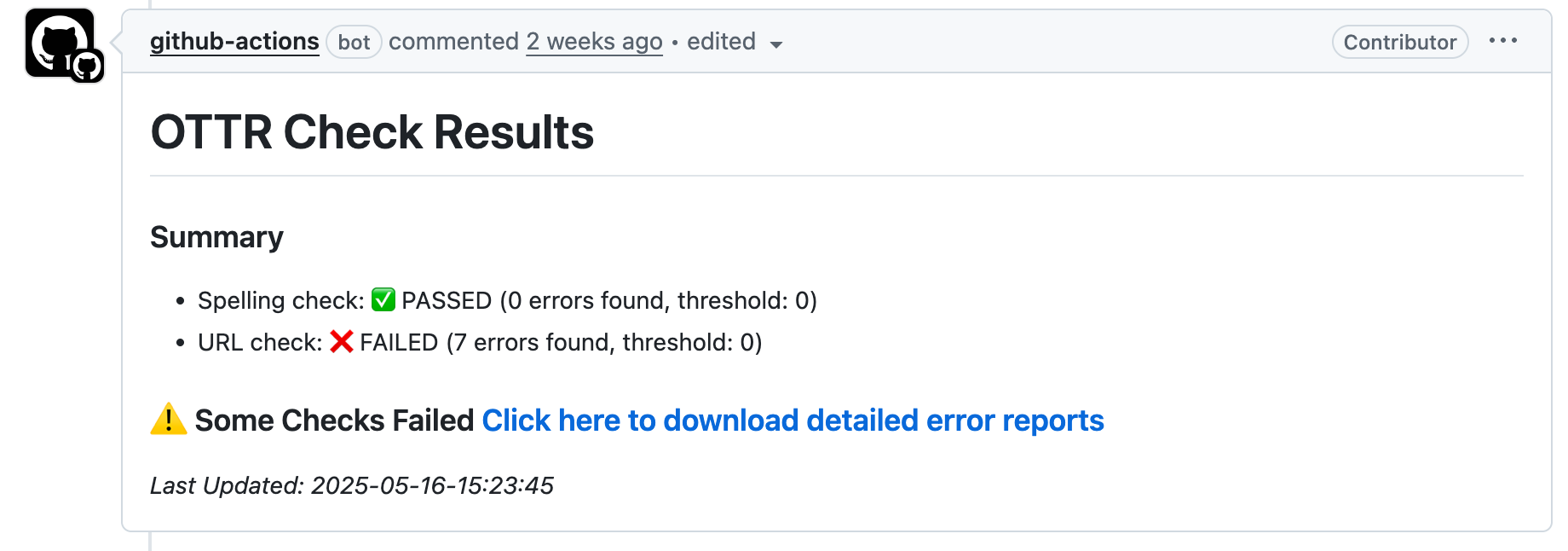
If it fails, you can click on the output comment on your pull request that says "Click here to download detailed error reports". This will download a zip file containing a list of the broken URLs it found.
It is necessary to set the error threshold in the config_automation file (see below); otherwise, the check summary may still report that the URL check failed, even if no errors were found. The error threshold controls how many errors are allowed before the check will fail.
```
url_error_min: 0
```
2) The other URL check runs on a set interval to see if any URLs referenced are no longer valid. This one is set by:
```
url-check-periodically: true
```
If either URL checker is failing on something that isn't really a URL or doesn't need to be checked, open the `resources/ignore-urls.txt` file and add that URL exactly as it is specified in the error print out. After committing the changes to `resources/ignore-urls.txt` on your branch, the url check status check should be successfully passed.
### Preview rendering
In the `config_automation.yml` file it is set by:
```
render-preview: true
```
After you open a pull request, a preview of the renders will be linked in an automatic comment on the pull request. Upon each commit these previews will re-render and edit the comment with the latest render.
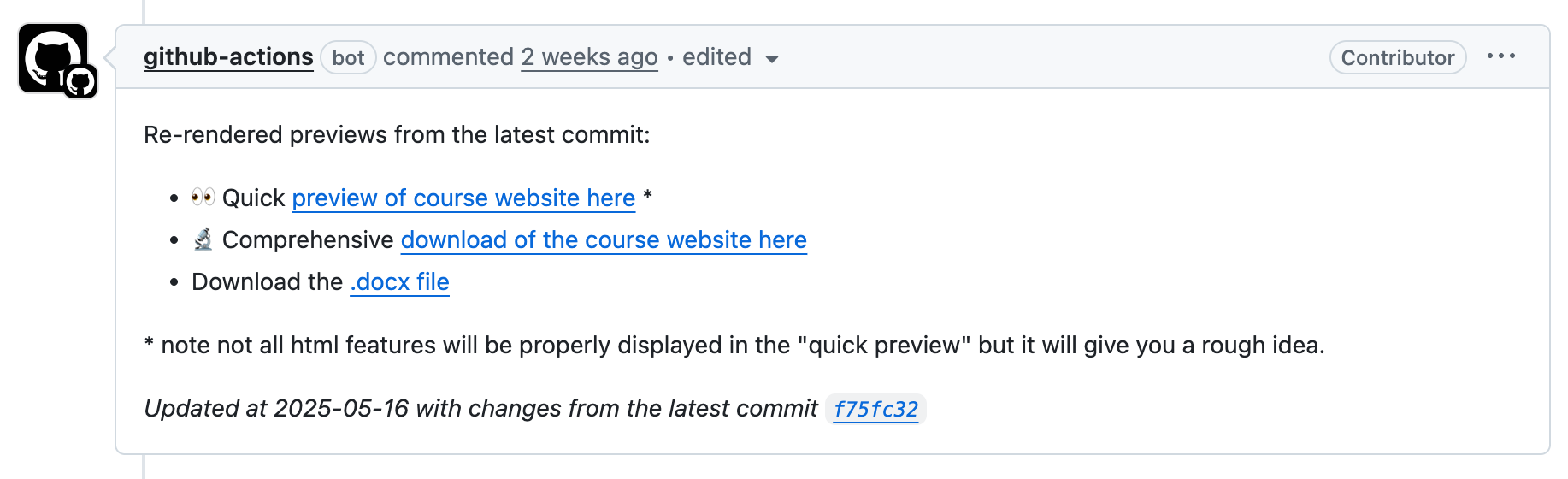
These Github Actions are located in `render-preview` section of the `pull-request.yml`.
These previews do NOT incorporate any changes influenced by any changes to the Docker image if the Dockerfile is also updated in the same pull request.
### Spell checking
In the `config_automation.yml` file it is set by:
```
spell-check: true
```
Github Actions will automatically run a spell check on all Rmds and mds whenever a pull request to the `main` branch is filed.
Just like the URL error threshold, the spelling error threshold option controls how many errors are allowed before the check will fail.
```
spell_error_min: 0
```
In order to manage the accumulation of errors, we recommend resolving those or adjusting the threshold/allowable limit before merging your pull request. Errors are displayed in much the same way as URL check errors with a summary of how many errors are found. Click on the output comment on your pull request that says "Click here to download detailed error reports". This will download a zip file containing a list of the spelling errors it found.
Some of these errors may be things that the spell check doesn't recognize for example: `ITCR` or `DaSL`.
If it's a 'word' the spell check should recognize, you'll need to add this to the dictionary.
Go to the `resources/dictionary.txt` file. Open the file and add the new 'word' to its appropriate place (the words are in alphabetical order).
After committing the changes to `resources/dictionary.txt` on your branch, the spell check status check should be successfully passed.
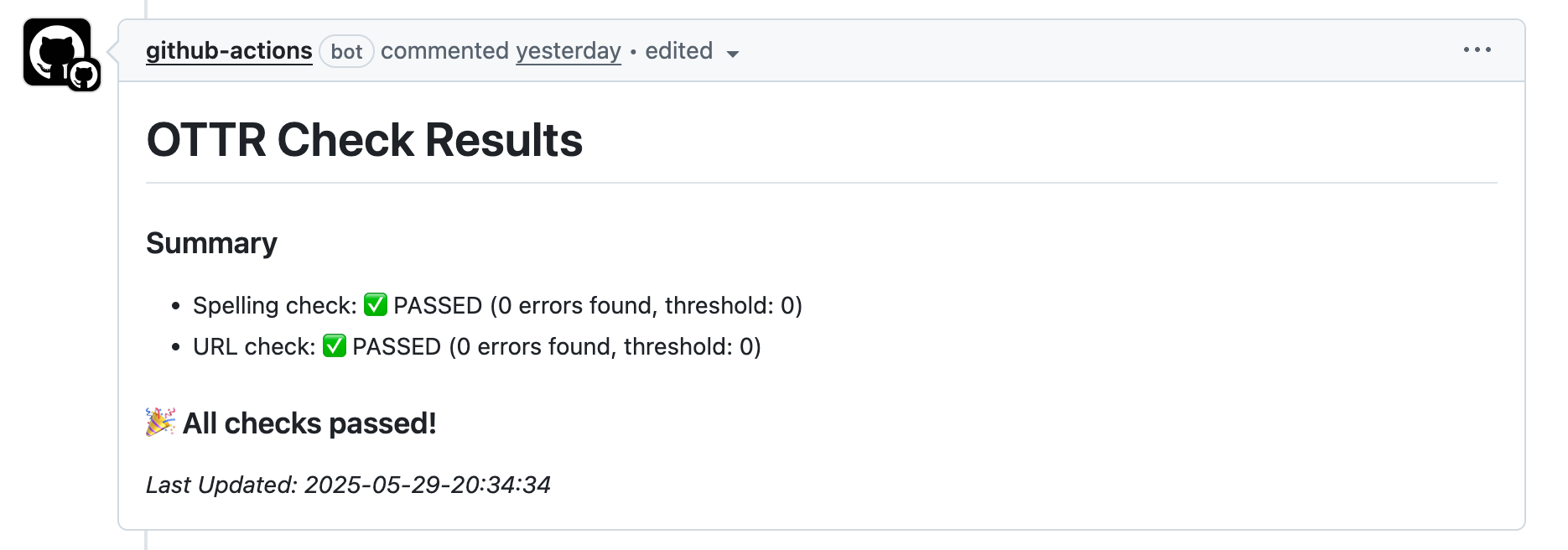
The pull request comment included below shows an example of a check that passed (spell check), and a check that failed (the URL check) with the option to download detailed error report(s).
When all checks pass, the option to download error reports is no longer included, instead displaying a message that the URL and spell checks passed.
### Style code
In the `config_automation.yml` file it is set by:
```
style-code: true
```
The `styler` package will style R code in all Rmds. Style changes will automatically be committed back to your branch.
### Docker testing
In the config_automation.yml file it looks like:
```
docker-test: false
```
By default it is set to `false` which means it won't run automatically unless you change this to `true`.
This is only relevant if you have [your own Docker image you are managing for your course](https://www.ottrproject.org/customize-docker.html). If changes are made to Docker-relevant files: `Dockerfile`, `install_github.R`, or `github_package_list.tsv`, this will test re-build the Docker image. If it is successfully built, then it makes sense to merge it to `main` but the Docker Image will not be pushed to `Dockerhub` automatically. [Follow these instructions to push your Docker image to Dockerhub](https://www.ottrproject.org/customize-docker.html#Testing_a_modified_Docker_image).
<br>
## Rendering actions
Upon merging changes to any `Rmd` or `assets/` folder to `main`, the course material will be automatically re-rendered.
For rendering a website version of the course (or your website), rather than `true` or `false`, the options are `rmd`, `rmd_web`, `quarto` or `quarto_web`.
A course has chapters like a book, whereas a website version will appear more like a typical website.
* If rendering a course with [R Markdown files](https://rmarkdown.rstudio.com/), use `rmd`.
* If rendering a course with [quarto files](https://quarto.org/), use `quarto`.
* If rendering a website with [R Markdown files](https://rmarkdown.rstudio.com/), use `rmd_web`.
* If rendering a website with [quarto files](https://quarto.org/), use `quarto_web`.
```
render-website: rmd
```
### Rendering options for courses
By default, all rendering steps will be run. But depending on the needs of your course, you can turn these on and off by going to the `config_automation.yml` file and switching options to `true` or `false`.
```
render-leanpub: true
render-coursera: true
```
For publishing to Leanpub, make sure that the render Leanpub option is set to true: `render-leanpub: true`. See more details about publishing to Leanpub [here](https://www.ottrproject.org/course_publishing.html#publishing-with-leanpub).
If render-leanpub is true, the `make-book-txt` option is also relevant. This option controls whether you'd like to manually specify the order of your chapters and quizzes by creating the [Book.txt file](https://leanpub.com/lfm/read#leanpub-auto-the-booktxt-file) by hand or whether you'd like this to be [automatically generated based on file and quiz numbering.](https://ottrproject.org/ottrpal/#about-the-booktxt-file). Read more about this [in the upcoming section](https://www.ottrproject.org/examples.html#Setting_up_quizzes).
By default, `make-book-txt: true` will use the numbering in the names of the documents for chapters and quizzes to order them, but if you'd like to specify the order for the chapters and quizzes to be different on Leanpub, then set this to `make-book-txt: false`, so as not to override the book.txt file that you would make manually.
```
make-book-txt: true
```
For publishing to Coursera, make sure render Coursera option is set to true: `render-coursera: true`. See more details about publishing to Coursera [here](https://www.ottrproject.org/course_publishing.html#publishing-with-coursera).
<br>
## Manually running rendering or checks
From time to time, it may be useful to manually re-trigger a particular GitHub Action. Most of the GitHub Actions, particularly the rendering ones, can be re-run manually. See this article about [how to manually re-run a GitHub Action](https://docs.github.com/en/actions/managing-workflow-runs/manually-running-a-workflow#running-a-workflow).
<br>
## Fixing broken GitHub Actions
GitHub action rendering or other GitHub actions may fail sometimes if the input is unexpected or for a number of other reasons.
To investigate why a GitHub action has failed, go to `Actions` and click on the failed action. [See this article for how to find this information](https://docs.github.com/en/actions/learn-github-actions/understanding-github-actions#viewing-the-workflows-activity).
See our [FAQ's section](./faqs.html) for the most commonly encountered errors and how to address them.
If you are unsure what the error message means and have trouble addressing it, please [file an issue on the OTTR_Template repository to get help](https://github.com/ottrproject/OTTR_Template/issues/new?assignees=cansavvy&labels=bug&template=course-template-problem-report.md).