Dashy has three different views:
- Default View - This is the main homepage with sections in a grid layout
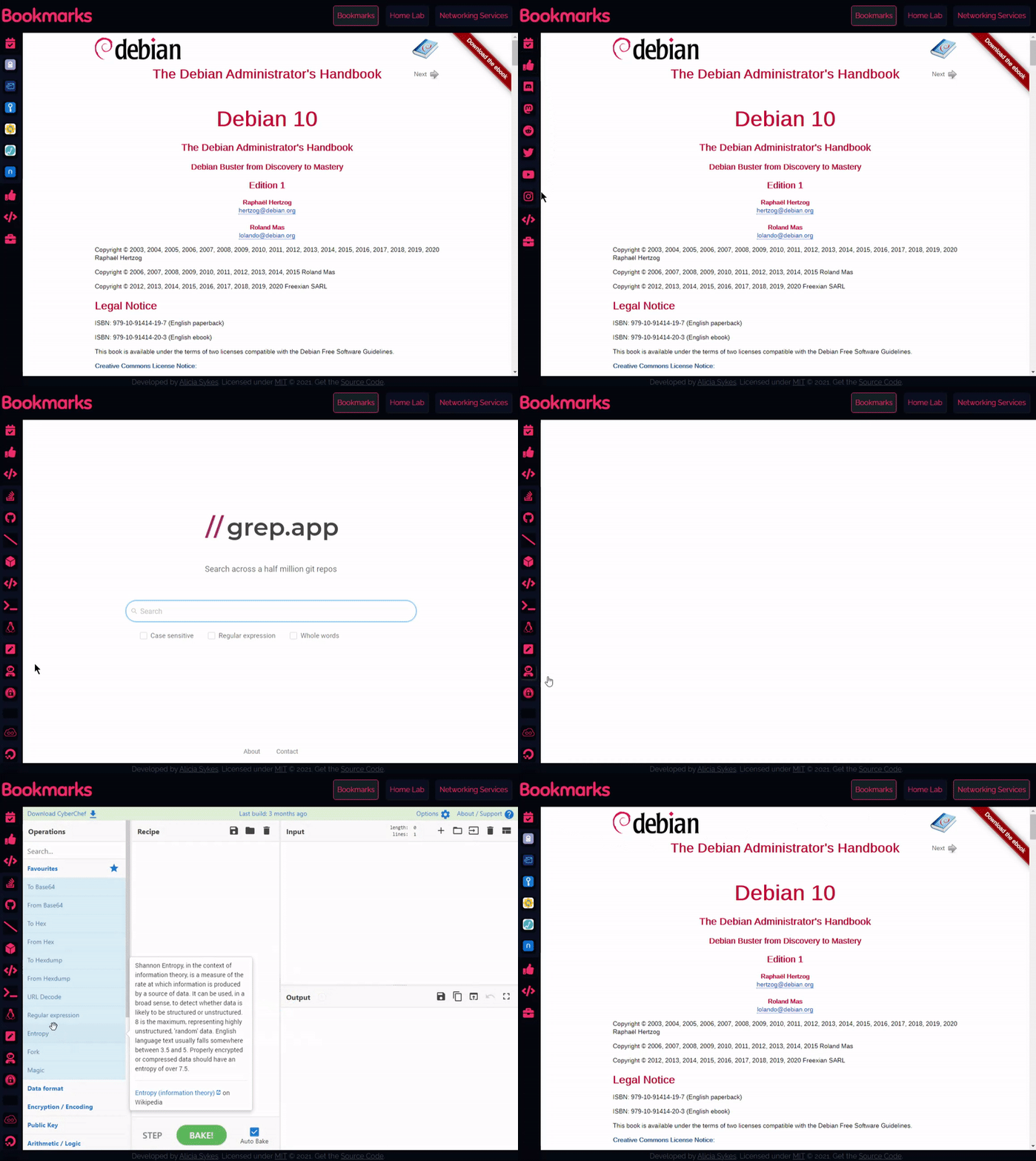
- Workspace View - Items displayed on the side, and are launched within Dashy
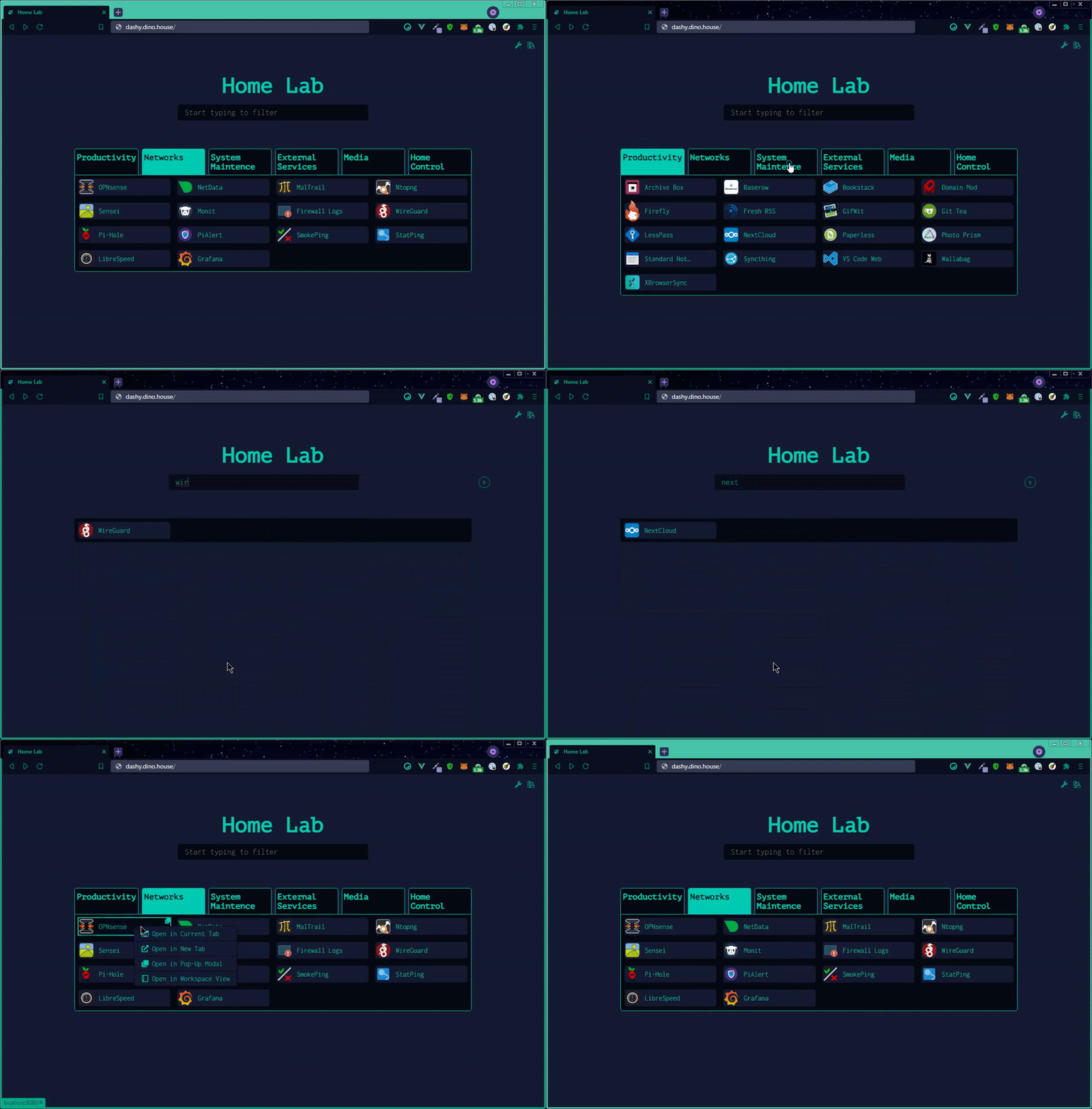
- Minimal View - A clean + simple tabbed view
You can switch between views using the dropdown in the top-right corner. Set your chosen Starting View with appConfig.startingView. Click the page title at any time to go back to your selected starting view.
This is the main page that you will land on when you first launch the application. Here all of your sections (with items + widgets) are visible in a grid layout.
Example of Default View

The workspace view displays your links in a sidebar on the left-hand side, and apps are launched inside an iframe without having to leave Dashy. This enables you to use all of your self-hosted apps from one place, and makes multi-tasking easy.
The menu button at the top of the sidebar expands it to show app names and a search box. Apps you open are listed at the bottom of the sidebar, so you can switch back and forth, or close them. The page URL follows the app you're viewing, so you can bookmark or link to it, e.g. /workspace?url=https://app-to-open/.
You can specify a default app to be opened when you land on the workspace, by setting appConfig.workspaceLandingUrl: https://app-to-open/. If this app exists within your sections.items, then the corresponding section will also be expanded.
You can also opt to keep previously opened websites/ apps open in the background, by setting appConfig.enableMultiTasking: true. This comes at the cost of performance, but does mean that your session with each app is preserved, enabling you to quickly switch between them. Apps stay open until you close them from the open apps list.
Example of Workspace View
The minimal view aims to be super fast and simple, and can be used as a browser startpage. Items are grouped into a tab view, and the last opened tab will be remembered. Similar to the main view, you can search and launch items just by typing, and right-clicking will show more options (like open in modal, workspace or new tab).
Example of Minimal View
Dashy supports several different ways to launch your apps. The primary opening method for each app can be specified using the target attribute, with a value of one of the following:
sametab- The app will be launched in the current tabnewtab- The app will be launched in a new tabtop- Opens in the top-most browsing context, useful if you're accessing Dashy through an iframemodal- Launch app in a resizable/ movable popup modal on the current pageworkspace- Changes to Workspace view, and launches app
You can also set a default opening method, which will be applied to all items that don't have a specified target, using appConfig.defaultOpeningMethod, to one of the above values.
Even if the target is not set (or is set to sametab), you can still launch any given app in an alternative method. Either right-click to see all options, or use one of the keyboard shortcuts: Alt + Click will open the modal, and Ctrl + Click will open in a new tab.

If you don't like the custom context menu, it can be disabled by setting appConfig.disableContextMenu: true.
If you get a 'Refused to Connect' error in the modal or workspace views, then the target app is sending headers that block it from being embedded. You can fix this by allowing Dashy in the app's Content-Security-Policy, for instructions on how to do so, see the Troubleshooting Docs.