#Preparing for the Media^Alps Workshop with Mac OS X#
##Installing Necessary Software##
Please note, Mac OS 10.10 (Yosemite) or higher is recommended. Installing Xcode may be difficult with earlier versions of Mac OS. If possible, please update your operating system to at least OS 10.10.
Open up a Terminal on your Mac. You can find Terminal within the Applications folder on your computer. It may be within a folder called "Utilities" You can also use Spotlight (by pressing ⌘ + spacebar) to search for "Terminal." The Terminal icon looks like this:
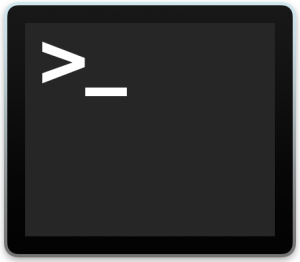
Install Xcode command-line developer tools. At the Terminal prompt, which ends with a $, type
xcode-select --install
Now press enter. This should start the installation process for the Xcode command line tools. If this installation fails for some reason or you experience other problems, you can download the complete Xcode package from the Mac App Store. Just search for "Xcode" or use this link: https://itunes.apple.com/us/app/xcode/id497799835?mt=12
###Installing Homebrew### This is a package manager that will allow you to easily install all of the software necessary for this workshop. To install Homebrew, copy and paste the command below into your Terminal and press enter to run it.
ruby -e "$(curl -fsSL https://raw.githubusercontent.com/Homebrew/install/master/install)"
When Homebrew is finished installing type
brew update
And press enter. Homebrew will either update itself or display a message that it is already up-to-date.
###Installing Git### This is the version control software that we will use. Installing git will allow us to work with GitHub. To install git type
brew install git
into your Terminal and press enter. Now, wait for Homebrew to install git.
###Installing vrecord### Vrecord is open-source video capture software for archivists and conservators. First type
brew tap amiaopensource/amiaos
And press enter. Now type
brew install vrecord
and press enter. This will install vrecord as well as video transcoding software called ffmpeg. We will discuss vrecord and ffmpeg during the workshop. You may be interested in checking out the vrecord project at https://github.com/amiaopensource/vrecord
##Setting Up Git on Your Computer## First, run
git config --global user.name "YOUR NAME"
This gives git your name so it can keep track of your commits.
Now run
git config --global user.email "YOUR EMAIL ADDRESS"
Check your work. Run
git config --list
You should see your name and email address displayed. If not, or if you have mistakes, run the previous commands again. Any new data you enter will overwrite the older data.
Connect your copy of git to GitHub with a credential helper (so you don't have to put in your username and password every time you use GitHub). This is optional, but highly recommended. Run
git credential-osxkeychain
You should see the following message:
Usage: git credential-osxkeychain <get|store|erase>
Great! The credential helper is already installed. Now run
git config --global credential.helper osxkeychain
to set it up. Time to kick up your heels, you're ready for the workshop!
If you did not see the message, visit https://help.github.com/articles/caching-your-github-password-in-git/ and follow the instructions to install and set up the Mac OS credential helper.
##Optional: Downloading a Text Editor## There are several great text editors available for Mac OS X for free. These will help you when working with code, html, xml, or MarkDown files. Here are some options:
Text Mate -- http://macromates.com/
Text Wrangler -- http://www.barebones.com/products/textwrangler/
Sublime Text -- http://www.sublimetext.com/2 (technically this program isn't free, but has an unlimited evaluation period, if you like it support the developers by paying for license)
##Questions and Issues## If you have any questions or issues with the installation instructions please contact the Media^Alps organizers at media.alps2016@gmail.com