OpenSpec Workbench brings the complete OpenSpec change workflow into VS Code.
It uses native tree views, markdown editors, diffs, Source Control, Chat, and
notifications while keeping lifecycle and security behavior in
@openspec-ui/core.
Project site: https://openspec-ui.dev.
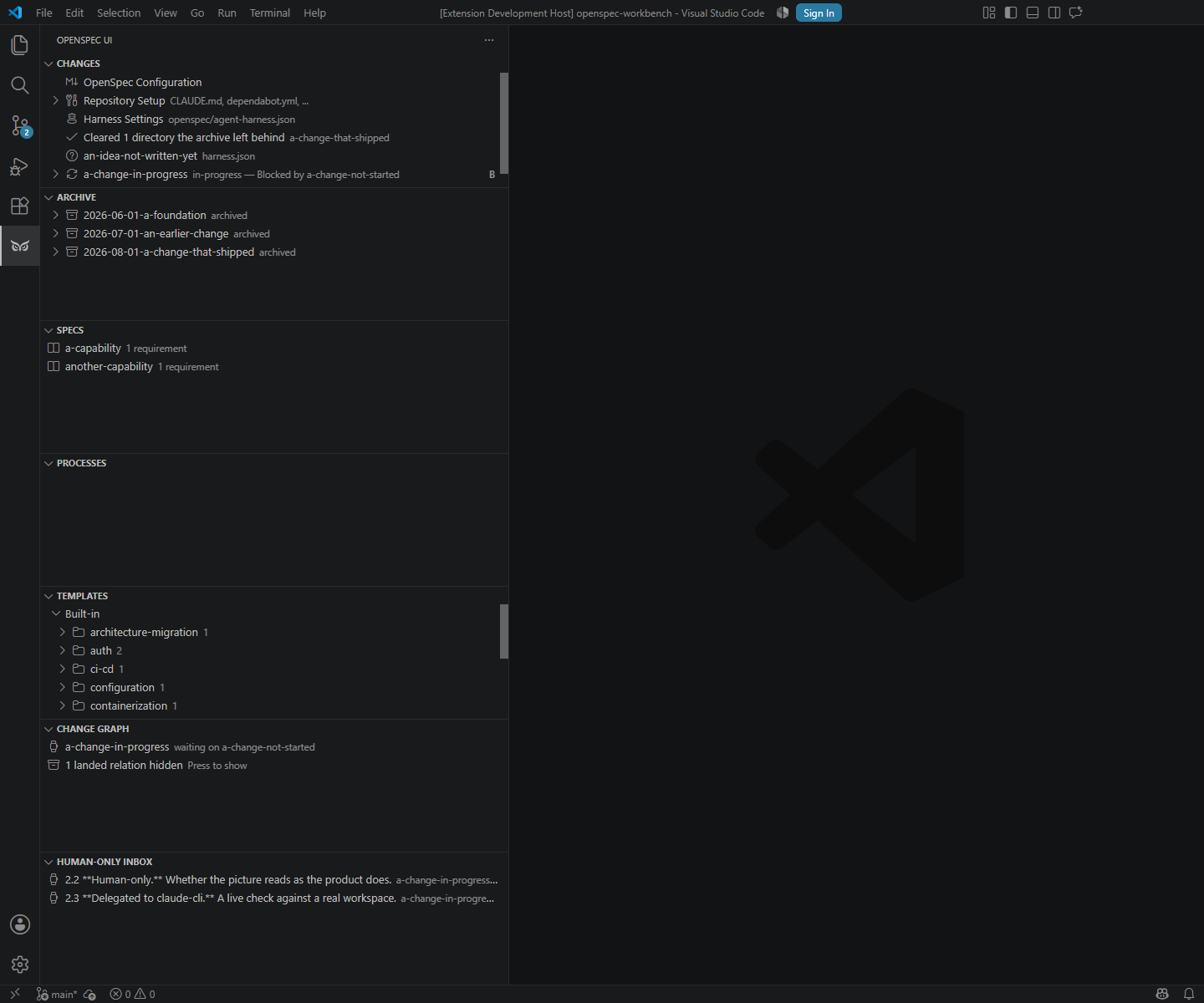
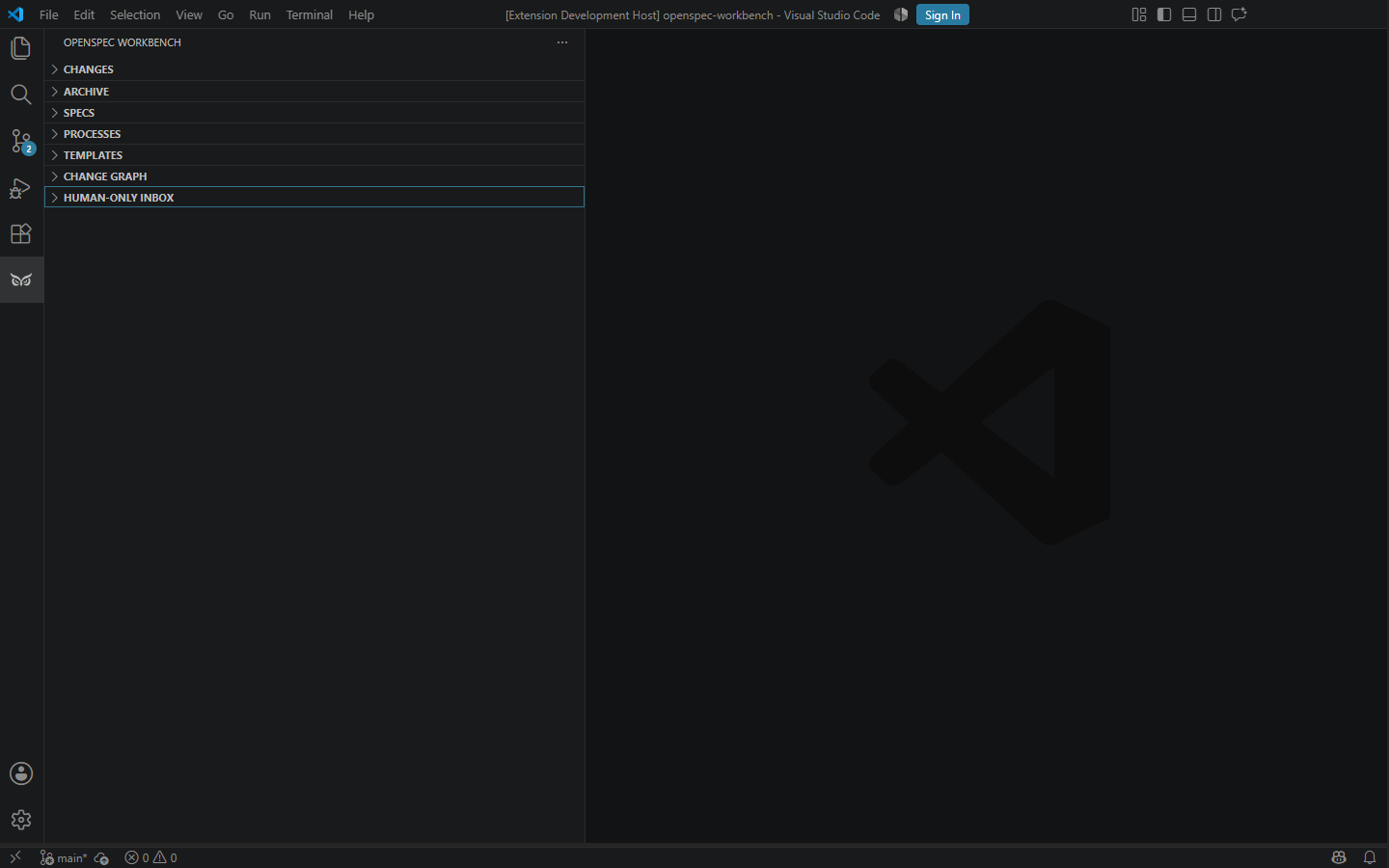
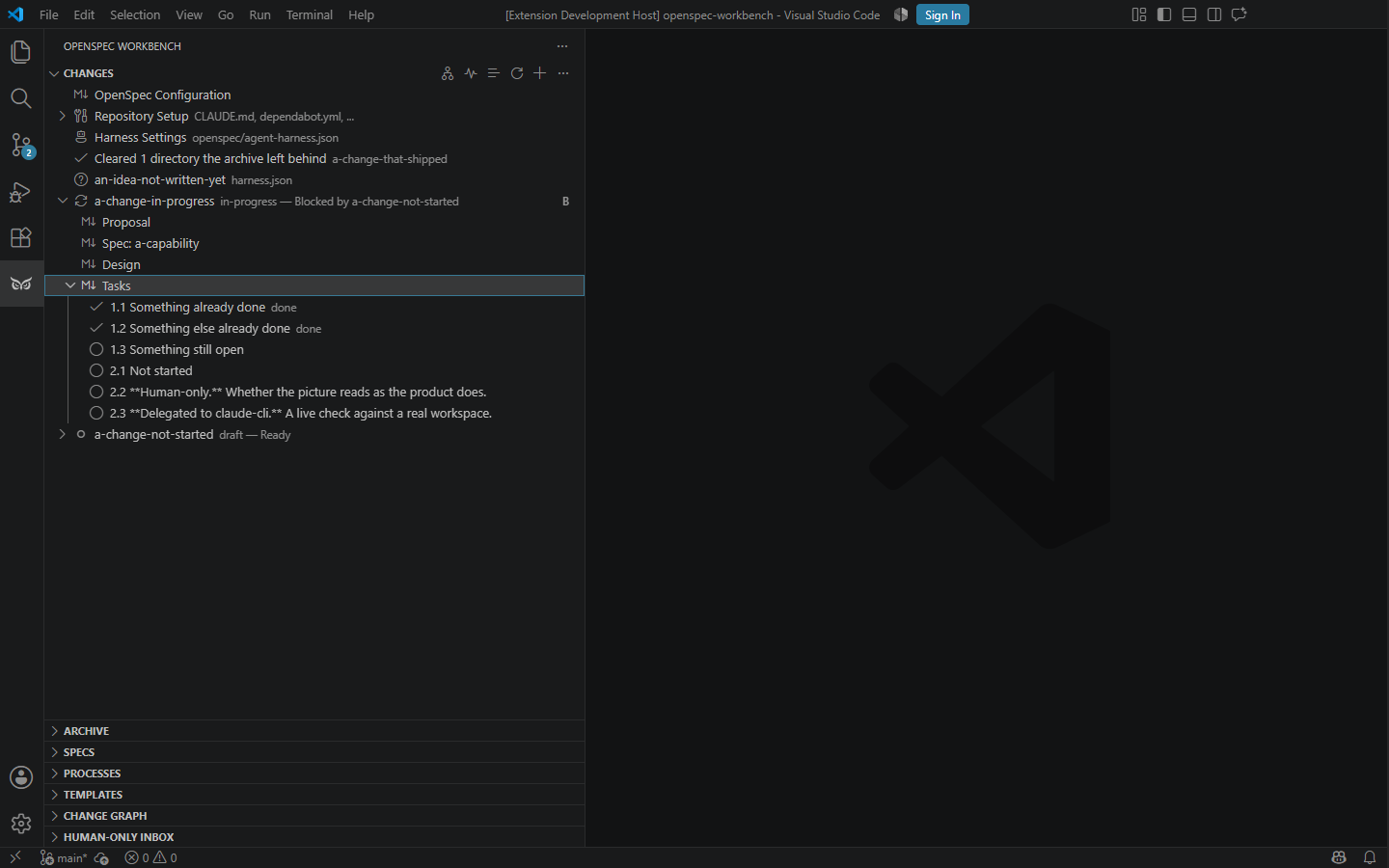
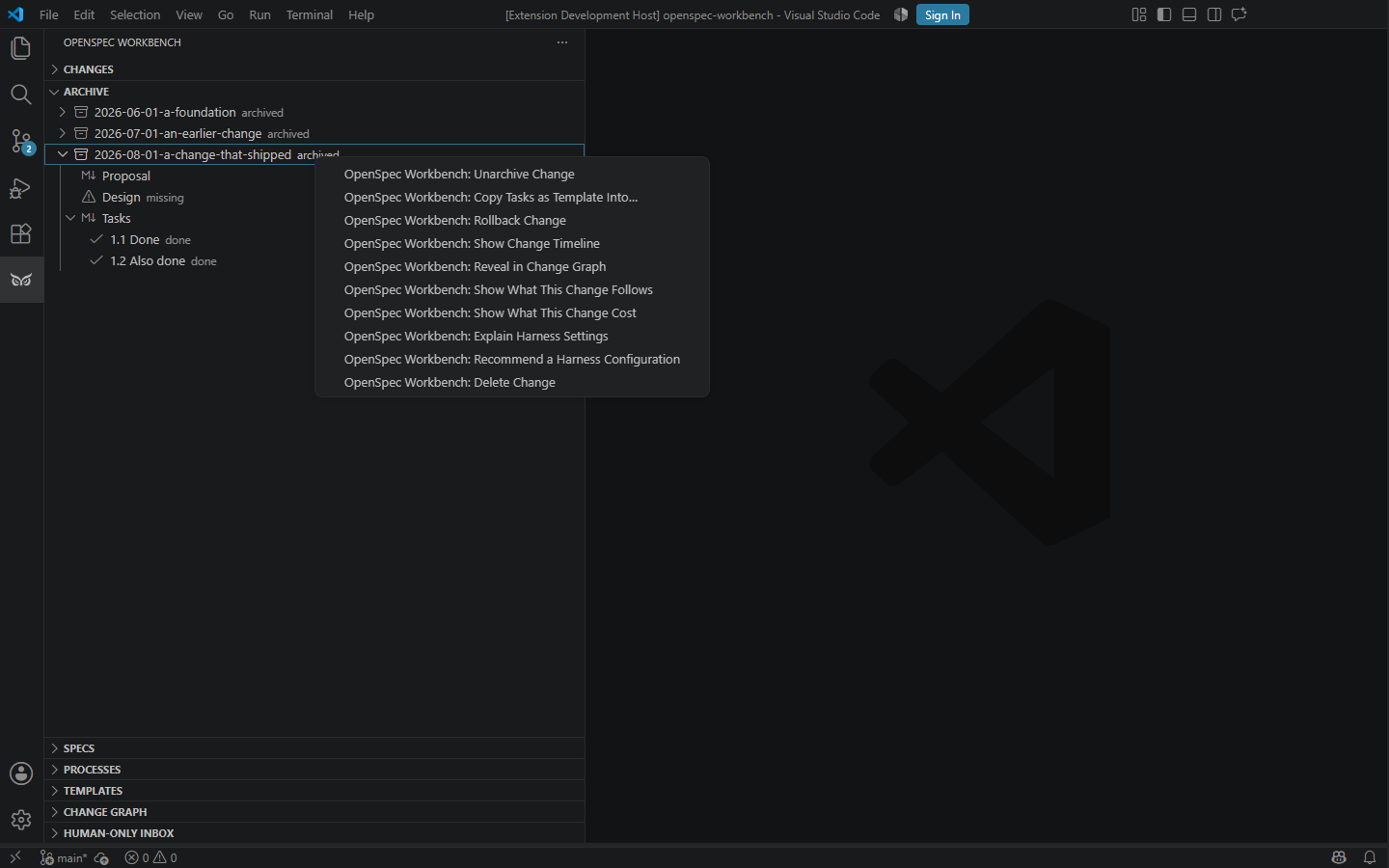
Individual checklist entries remain nested under their tasks.md artifact,
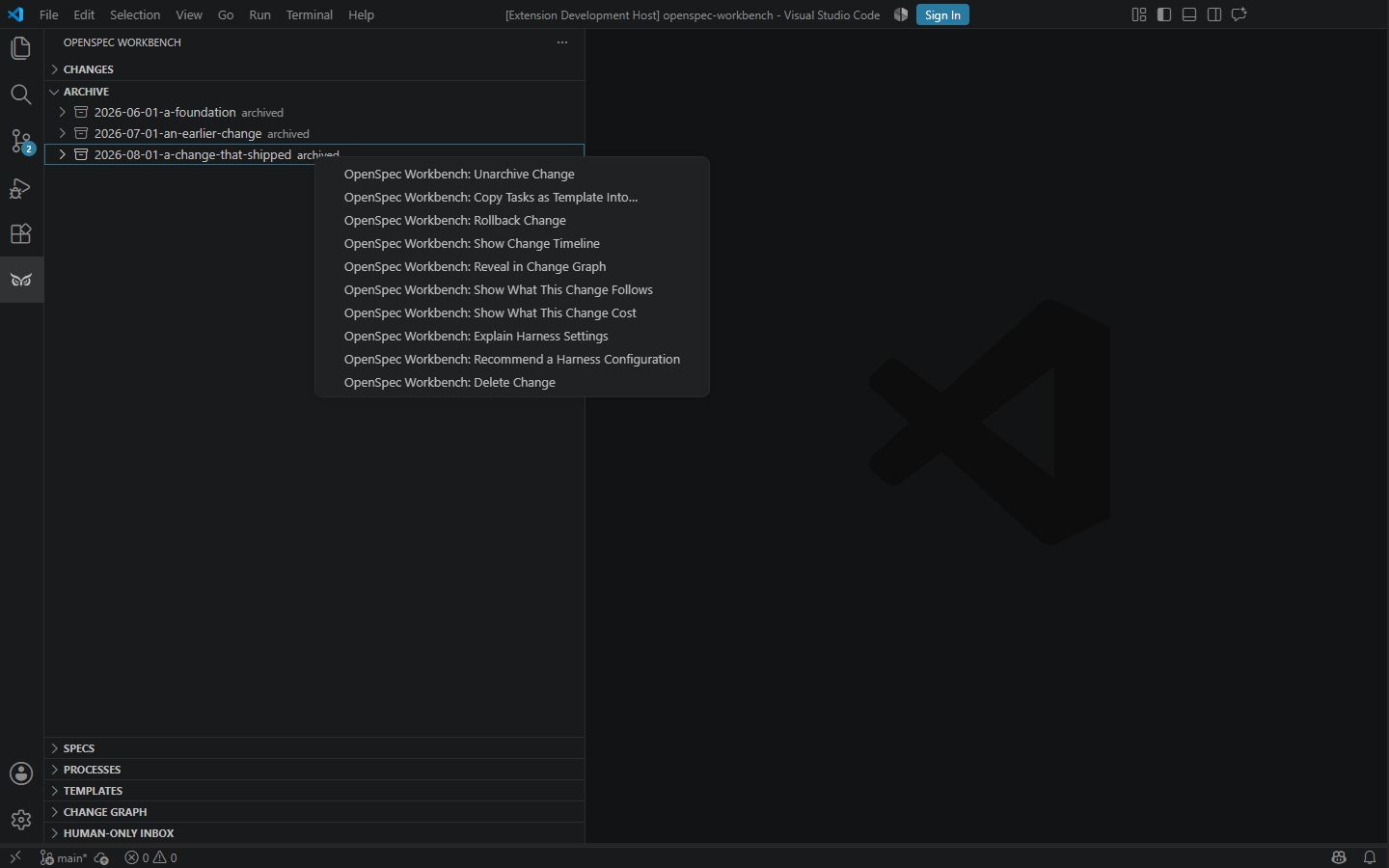
while archived changes expose lifecycle and template actions from the native
context menu.
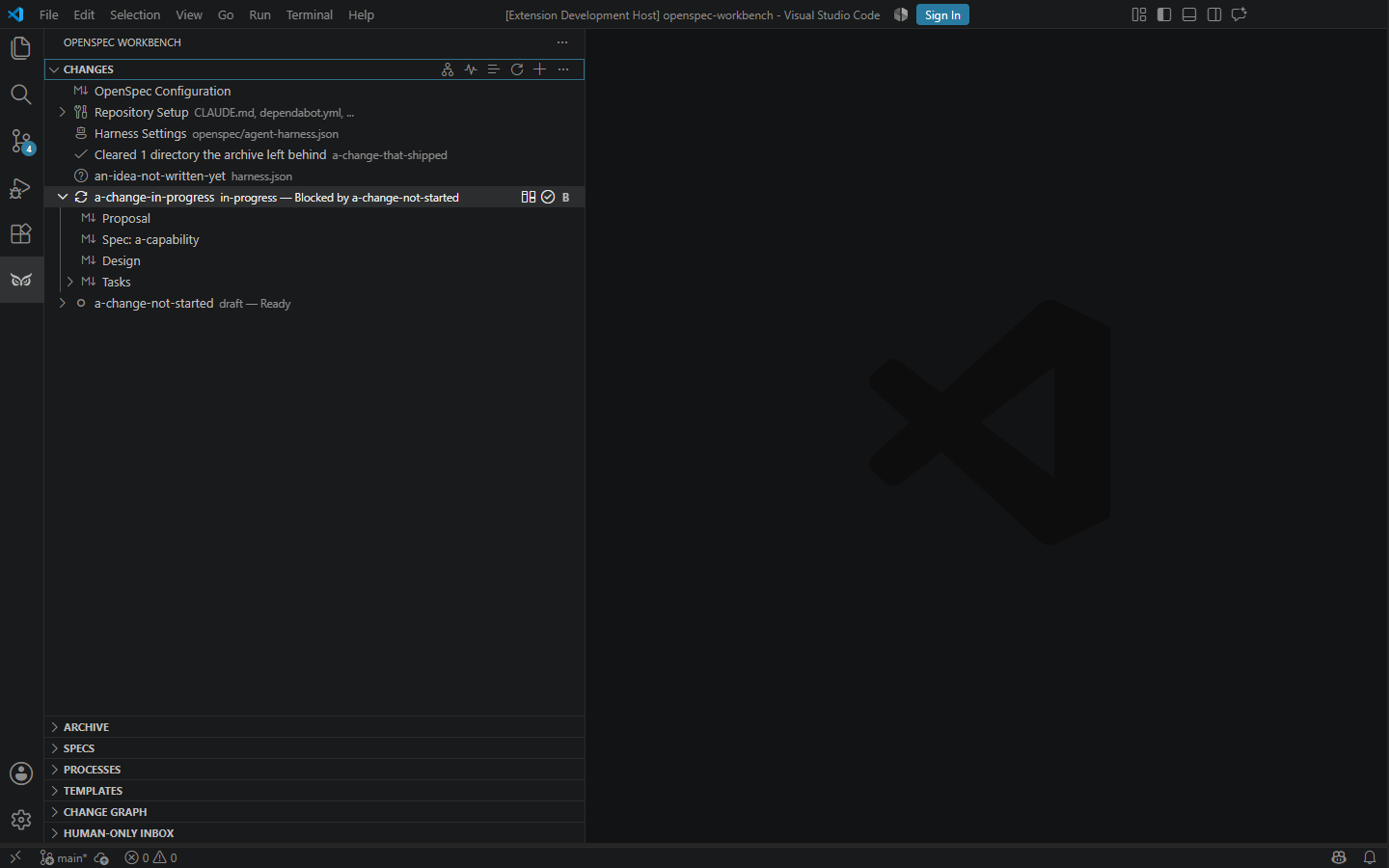
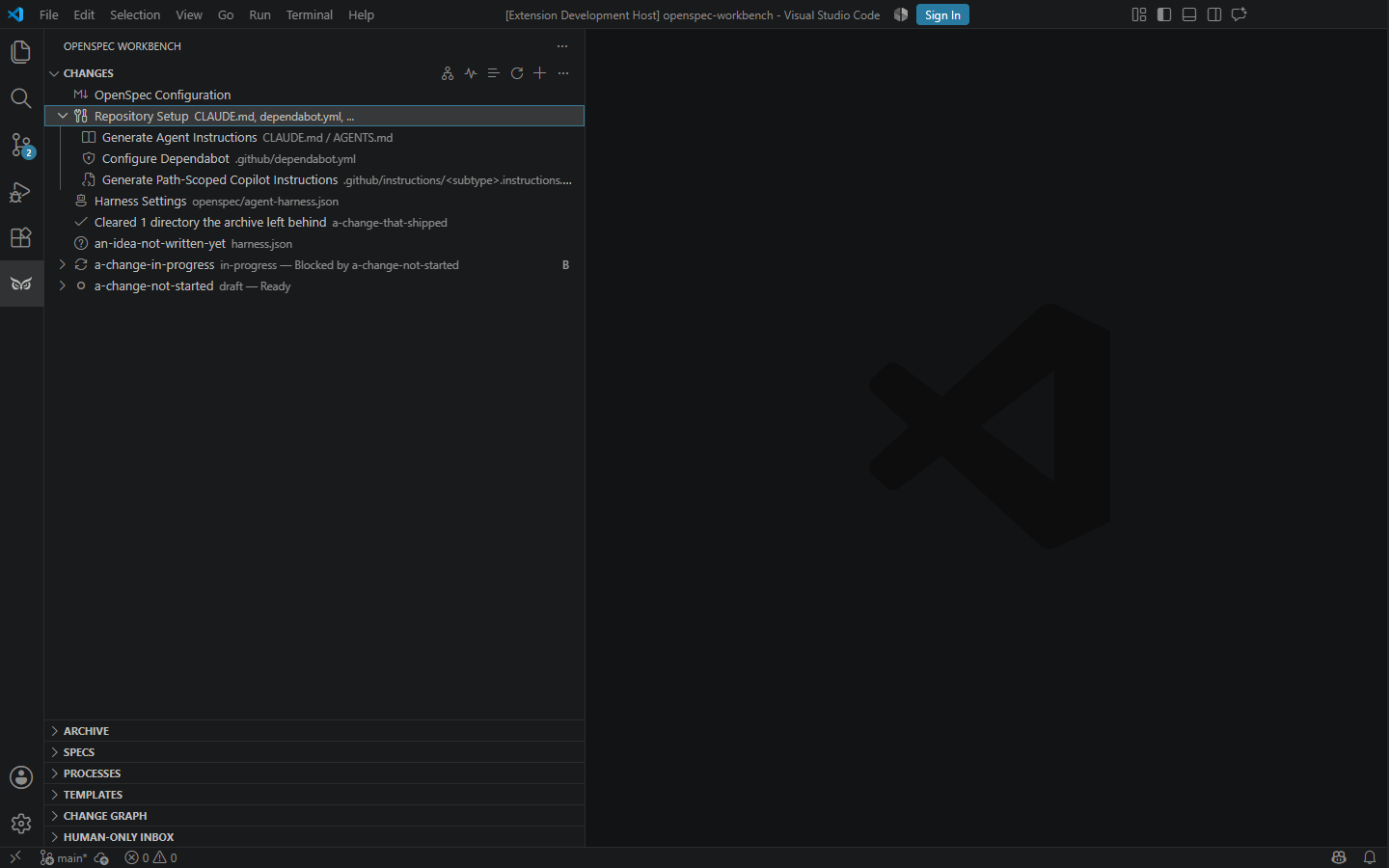
The Changes tree states each change's standing beside its name, in the same word every surface uses. The words are:
- Running, or Running in another working directory;
- Waiting for you, or Waiting in another working directory;
- Failed or Stopped at a stage;
- Blocked, Ready or Done;
- Further along in another copy;
- Merged in #N, Archived on main, or Deleted on main.
Hovering a change shows where each part of that word was read from.
The word follows a run: it says Running within a few seconds of a run starting on the change, and stops saying it when the run ends, with no Refresh. Only the run records are read for that, never git.
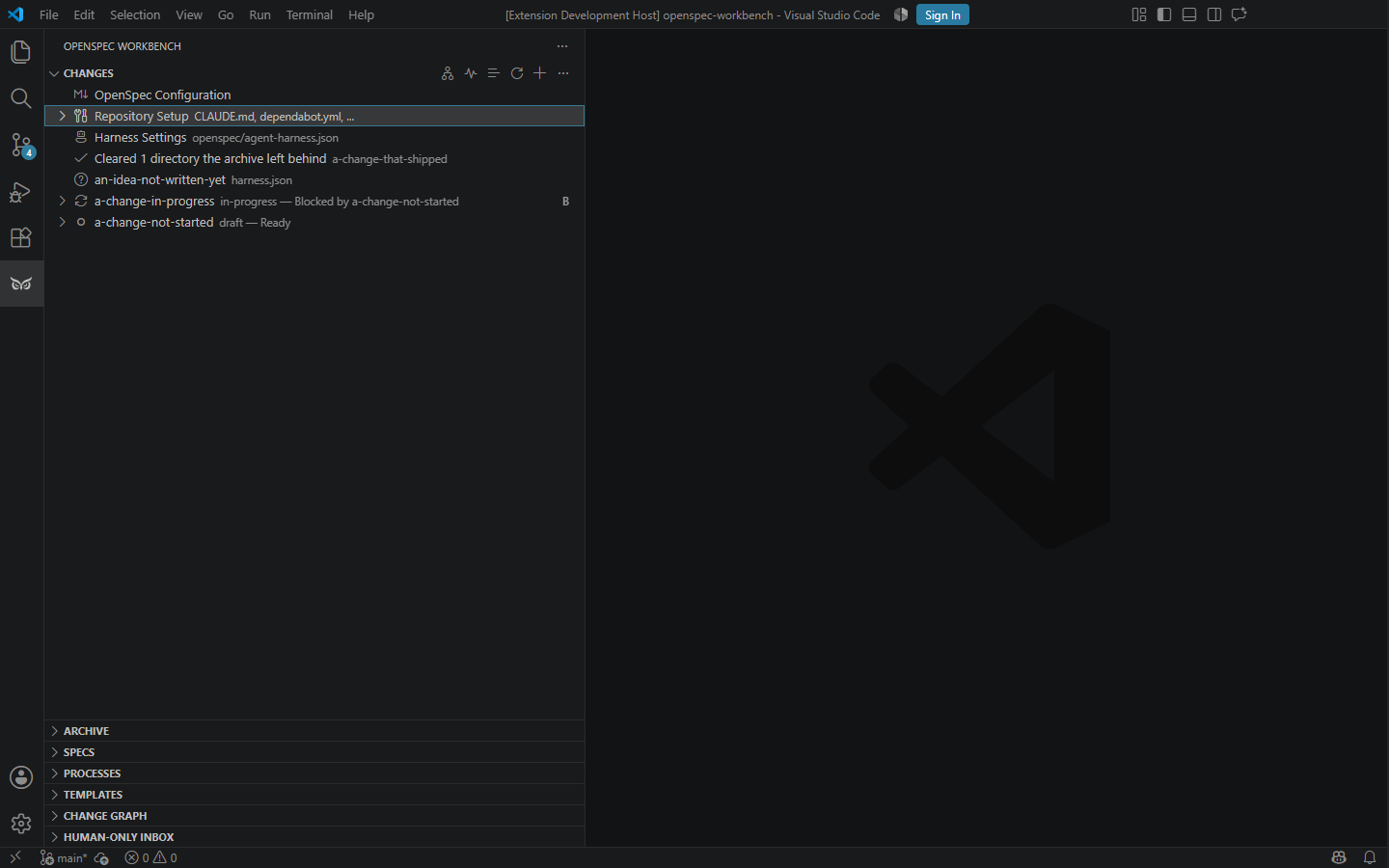
The side panel's first view is the Workspace: Open Pipeline and Open Dashboard, the Workspace Harness, Agents - each agent the product knows, whether it is found here, its version and the stages the harness gives it - OpenSpec Configuration, Repository Setup, and Run Typecheck, Run Tests and Run Lint where the workspace declares them. The Changes view is a list to go by: choosing a change shows its card in the Pipeline, scrolled to and marked, and a change worked only in its own worktree has a row of its own. A change's menu is Show Actions..., which lists every action its card offers.
OpenSpec Workbench: Open Pipeline, also in the Changes view's title bar, opens the Pipeline in a panel of its own. It is the same picture the standalone app draws: every change as a card in the order the changes declare, with its state, its tasks, what a live run last said, and what can start alongside what.
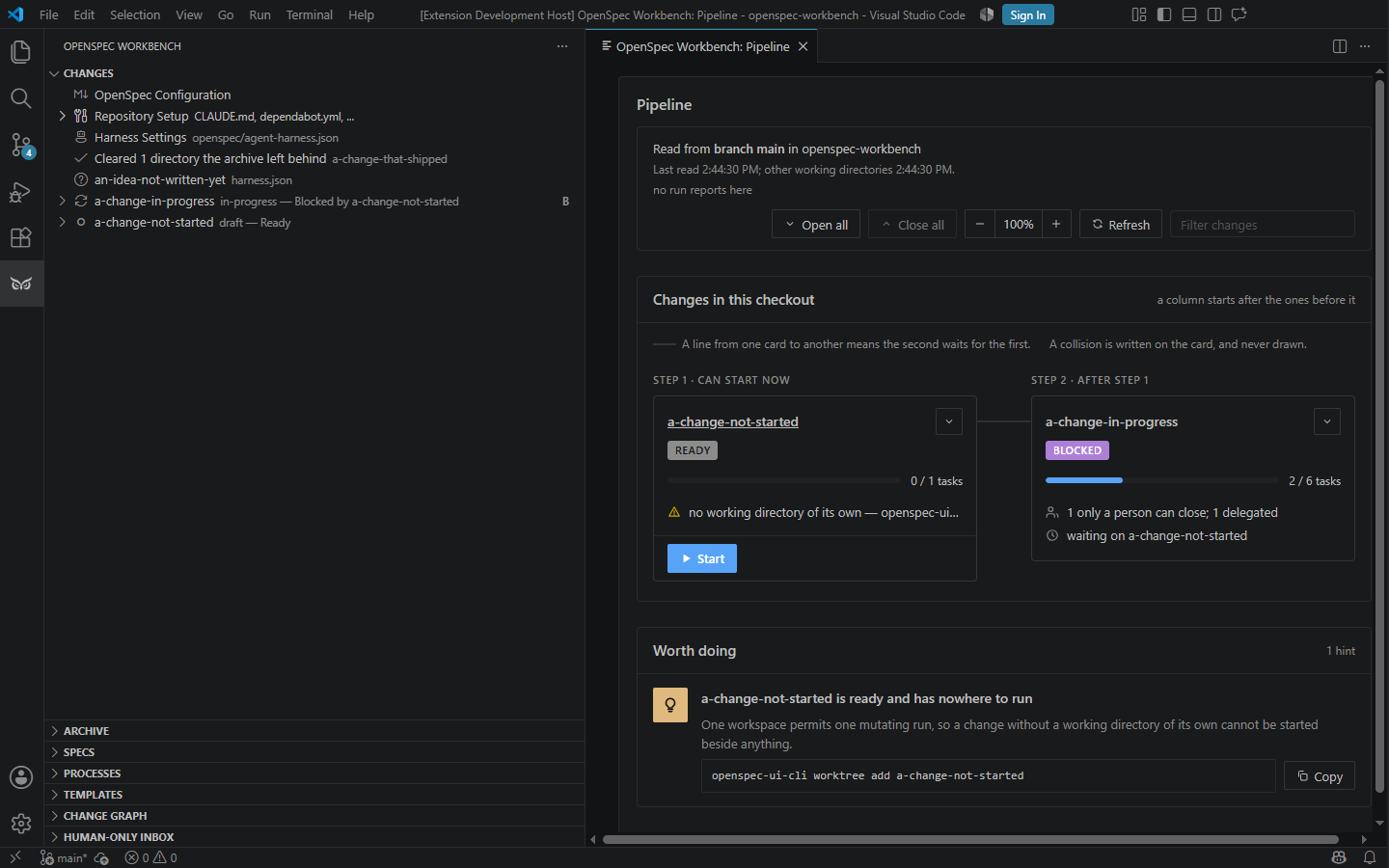
A card's Start opens the run dialog for that change. On a run this editor holds, the card answers a checkpoint or a permission, and Stop asks the run to stop, with a reason. See stopping a run.
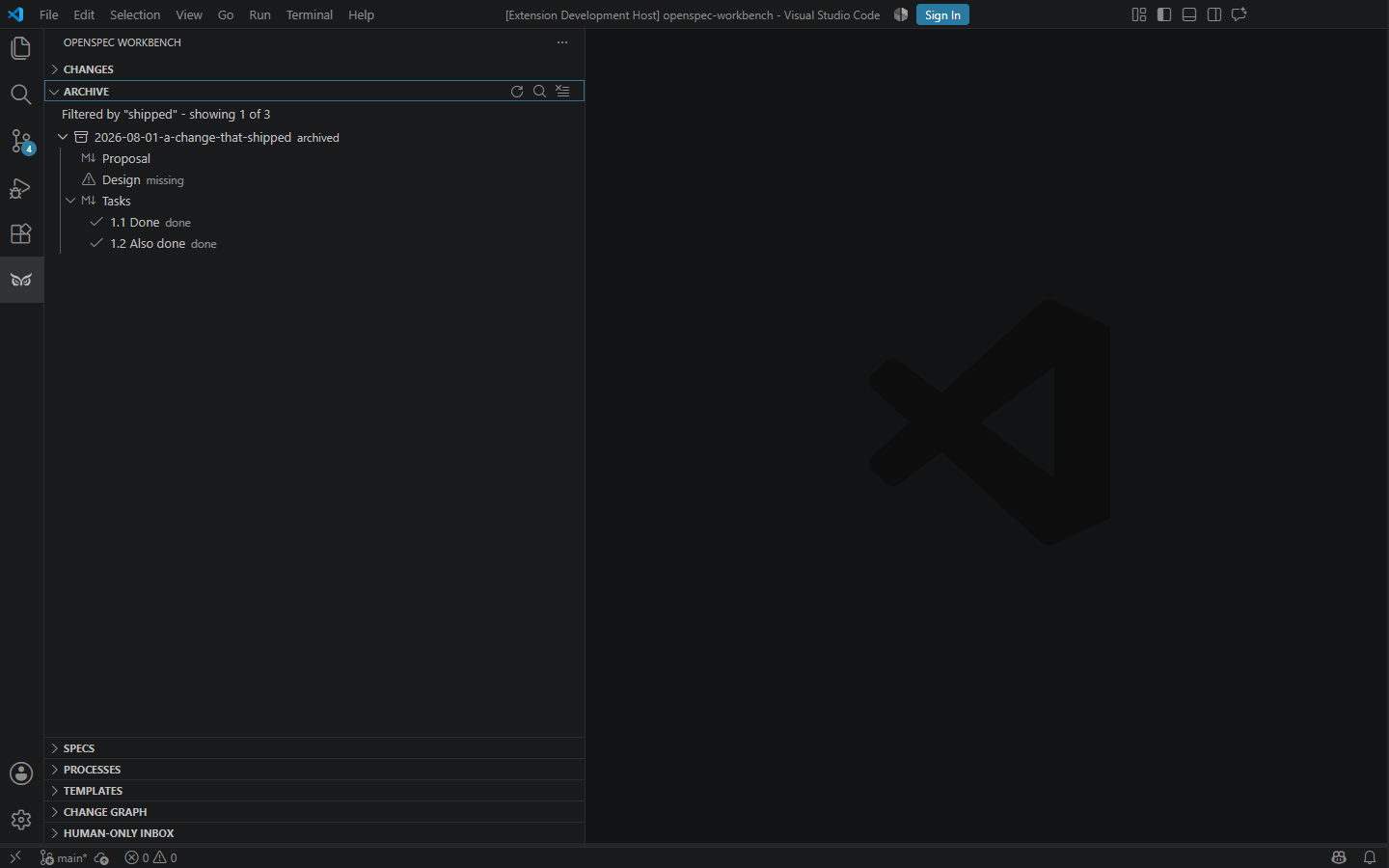
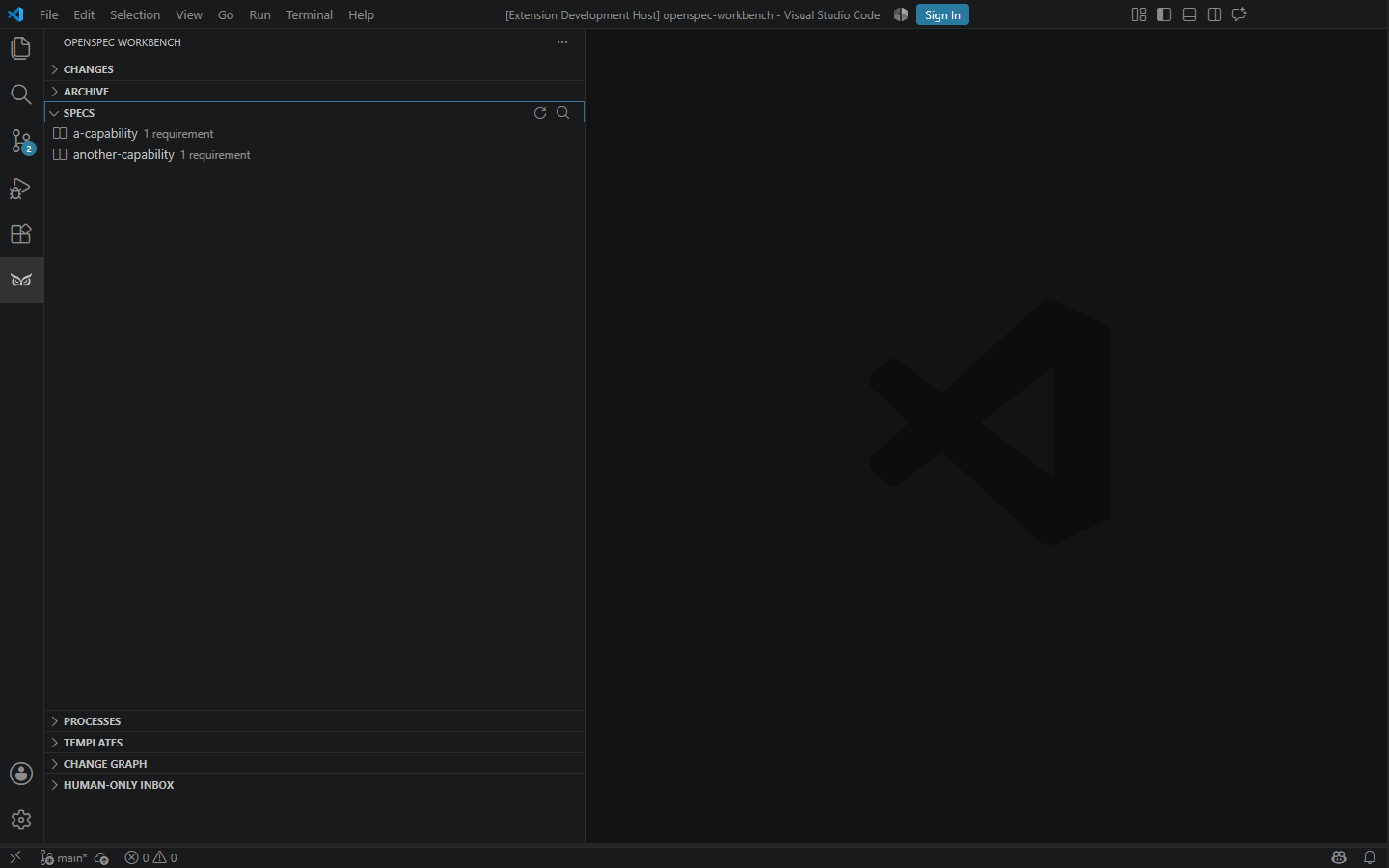
The Archive, Specs and Change Graph views each take a filter from their title bar. Every word typed has to appear somewhere in the row, so "pipeline blocked" finds the blocked pipeline change rather than everything called pipeline. A narrowed view says what it is narrowed by and how much of itself it is showing, and a view that matches nothing says so with the words it was given.
The Change Graph folds away every branch whose root and every change under it are archived, and ends its rows with the count it is hiding. One press shows them again; a filter that finds something inside a folded branch opens that branch for the reading. A branch a live change follows, or is waiting on, is never folded.
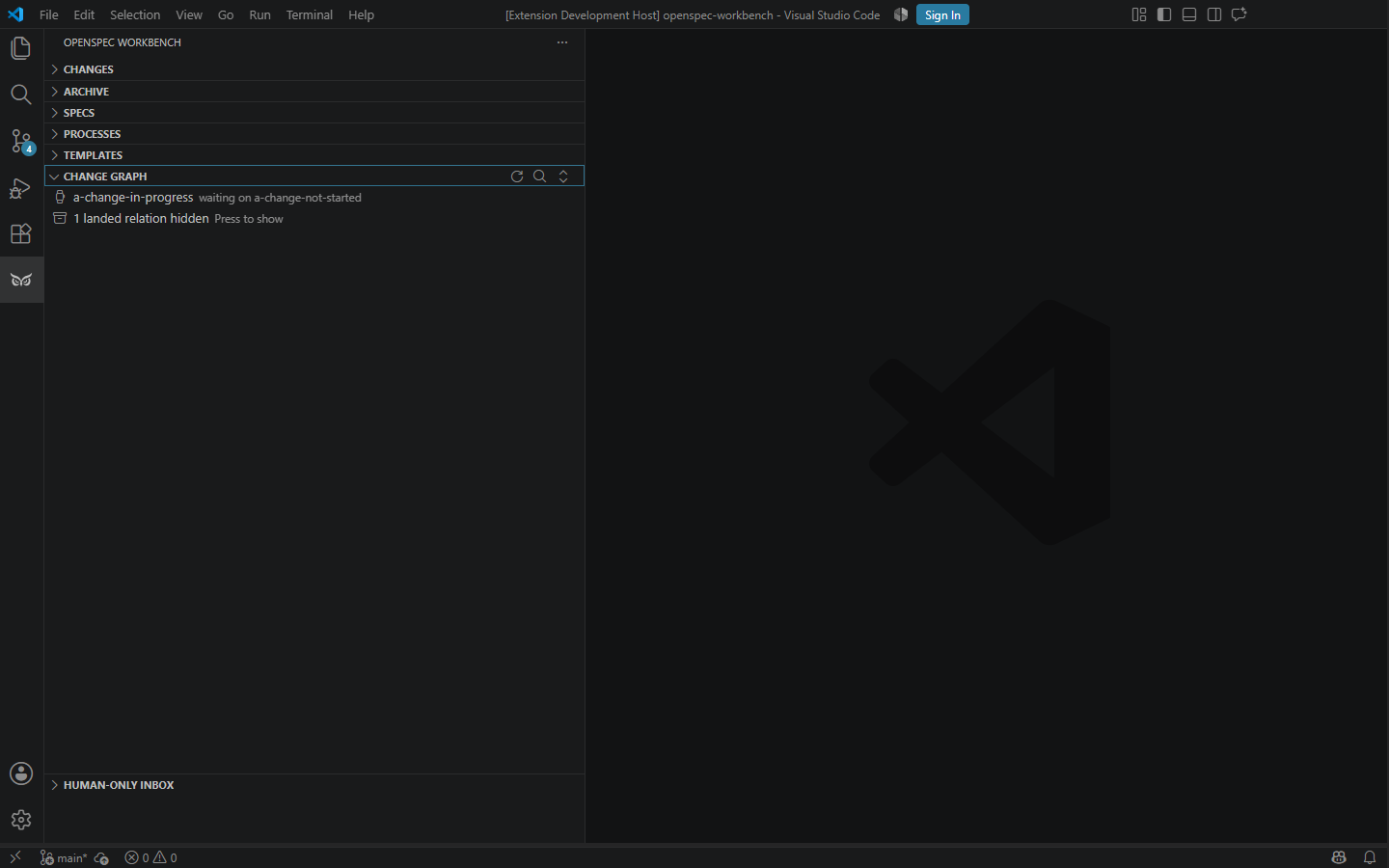
Add Relation and Remove Relation are in a change's Show Actions... and on its card, and on its row in the Change Graph. Adding asks which relation - Follows, Supersedes or Blocked by, each with the sentence that says what it means - and then which change, from the ones the workspace has. Removing offers only the relations that change actually states.
An edit that names a change the workspace does not have, a change naming itself, or one that would close a cycle is refused before anything is written, naming the changes in the cycle.
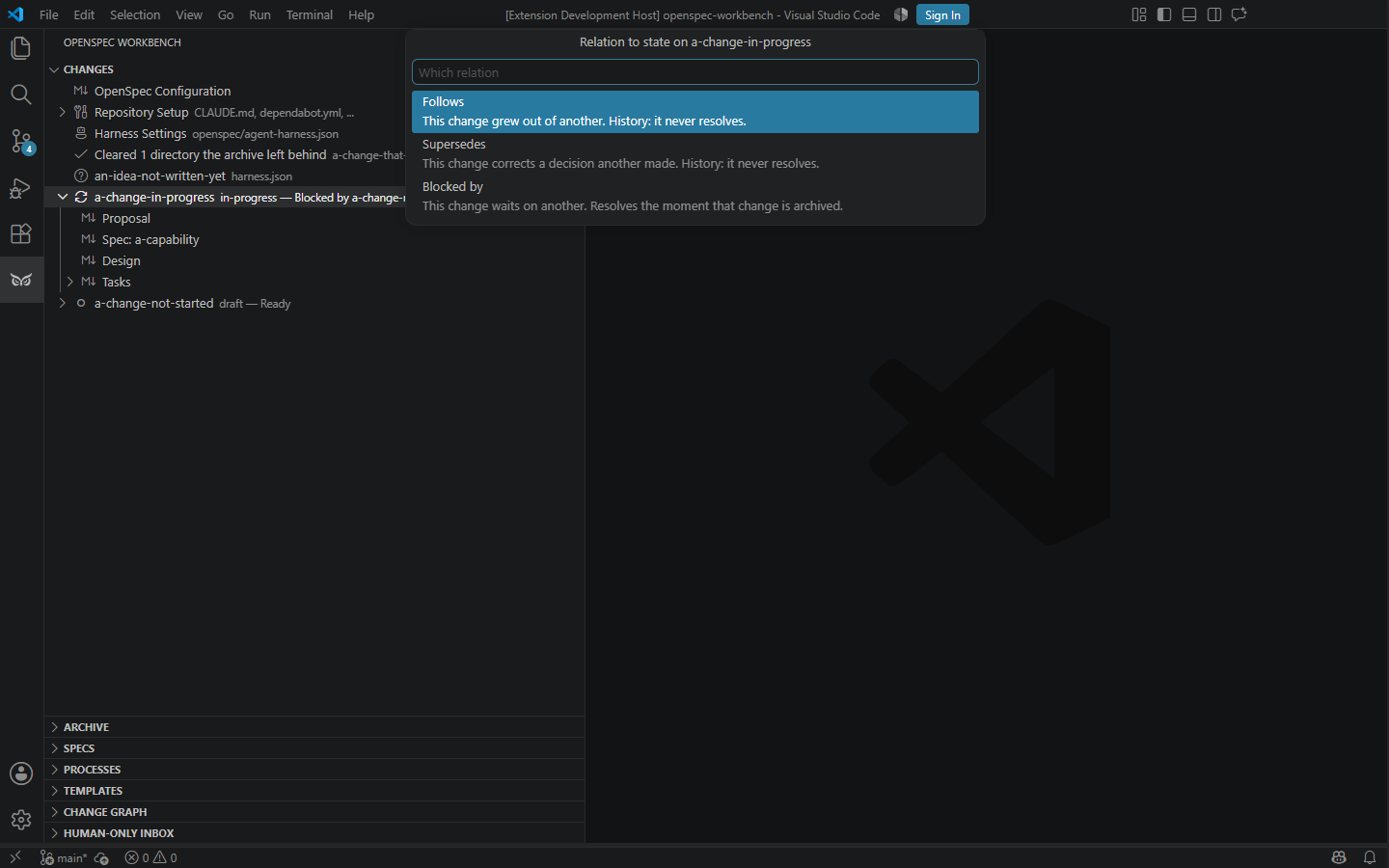
Archiving can leave a directory holding nothing but a file this product wrote, and that directory used to be listed as a change with no tasks. It is cleared now, on activation and on an interval, and the Changes view says what went. A directory holding something this product did not write, or one whose name is nowhere in the archive, is shown rather than removed: it may be a change you have not written yet.
- Start from the Workspace view: the Pipeline, the Dashboard, the
workspace harness, the agents found on this machine with the stages each
runs,
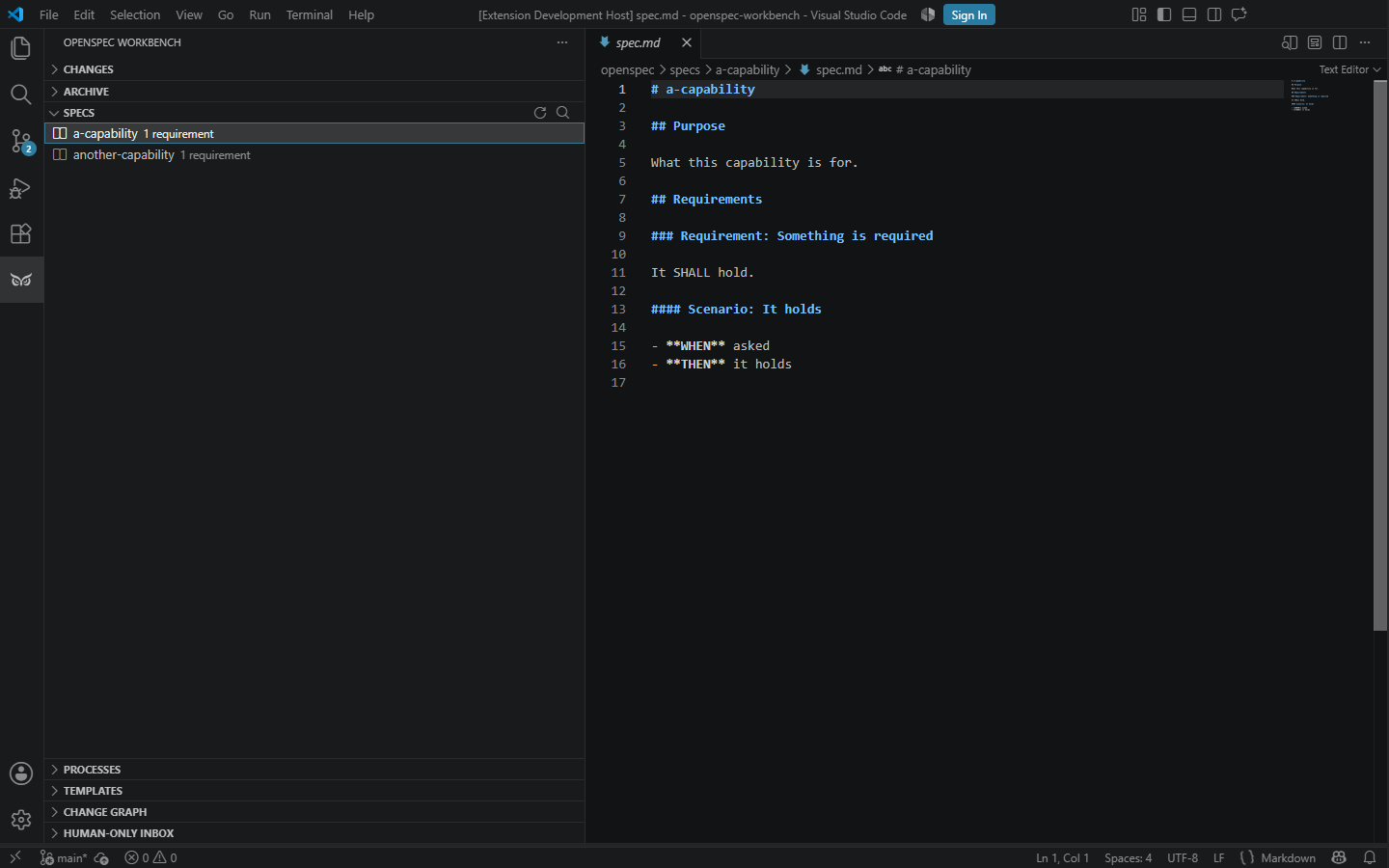
config.yaml, Repository Setup and the checks. - Navigate active changes - those of this checkout and those worked only in their own worktrees - archived changes, canonical specs, and every proposal, design, task list, and delta spec. Choosing a change shows its card in the Pipeline.
- Have a new change on the server at once: Create Change commits it on its
own branch and pushes it. A card whose change's branch is not on the
server says so, and Commit Change commits everything the change's
worktree holds and pushes it - never on
main, never in this checkout. - Create, validate, archive, restore, and delete changes - from a change's
card or its Show Actions..., and from an archived change's menu - with
confirmation for destructive operations. Expand a change,
then expand its collapsible "Tasks" entry to see the individual
tasks.mdchecklist items nested under it; select one to jump to it in the editor, or delete it (active changes only, and only if not yet done) with confirmation. - See queued, running, completed, failed, cancelled, interrupted, and rolled-back operations in the Processes view. Read-only work can run in parallel; workspace mutations are serialized to keep checkpoints isolated.
- See what a run spent, where the agent reports it. A recorded cost
appears beside the run, and a chain stops at a stage boundary when a
configured ceiling is reached — naming the budget rather than failing a
stage. A run whose agent reported nothing says so; it never shows
$0.00, because unreported is not the same as free. Which agents report what, and which ceiling can act on each, is in LIMITS.md. - Read the Change Graph view: each change nested under the ones it follows, archived ones marked, and any waiting on a change that has not landed shown as waiting — so what can be started now is answerable without opening a file. It states and removes relations, and nothing else; a change with two parents appears under each, and every other action is on the change's card and in its Show Actions..., where a change appears exactly once.
- Open the Human-Only Inbox to see every open item that is waiting on a person, across all active changes, each naming the change it belongs to and opening it when selected. When nothing is waiting the view says so rather than showing an empty list. It offers no way to mark an item done: those items are reported by a person after observing the thing they name, and a button on a surface that cannot observe it would turn that rule into a formality.
- Open the Pipeline in a panel ("OpenSpec Workbench: Open Pipeline"): every active change as a card with its state, its tasks and what a live run last said, and every other working directory beneath. A card starts its change, answers a run's checkpoint or permission, and asks a run to stop with a reason. A run held elsewhere offers Stop only when it is signed by the same enrolled person as this machine's key.
- See each change's standing word beside it in the Changes tree — the same
word the Pipeline, the standalone app and
openspec-ui-cli show readinessuse — with where each part of it was read from on hover. - Say that a run signed by an unenrolled key was yours with Confirm Key in the Human-Only Inbox; its runs then read as signed by you.
- Ask a change what it follows — "Show Ancestry" walks back to the changes it grew out of and opens any of them. This is how a decision is traced to the reason for it once the change that made it is archived.
- Move between the Changes/Archive trees and the Change Graph on request.
"Show Graph", from a change's Show Actions... or an archived change's
menu, expands and selects
every row it occupies (a change following more than one other change has
one row per parent) and reports the count when there is more than one; if
the change states no relation it says so rather than appearing to do
nothing — most changes are not in the graph, since it shows only what
states a relation. "Show Change", on a graph row, opens the Archive
tree for an archived change and Changes otherwise. Both are off unless
invoked:
openspec-ui.followSelectionInChangeGraph(defaultfalse) turns on following the Changes/Archive selection into the graph automatically, without stealing focus from the list being browsed. - Use
@openspecin VS Code Chat with/plan,/implement,/review,/status, and/validate. - Or run
plan/implement/reviewdirectly from the Process Dashboard's own agent picker (Claude CLI, GitHub Copilot CLI, Codex CLI, Gemini CLI, or a local OpenAI-compatible LLM) — a separate mechanism from VS Code Chat, see "Agents" below. - Recover process history and checkpointed runs after extension reload. Start VS Code Agent implementation sessions, finish them for review, and roll back only files changed by a run. Rollback refuses to overwrite later edits and discloses files omitted by checkpoint size limits.
- "Rollback Change" on a Change item (in either the Changes or Archive tree) rolls back every process ever run against that Change, restoring every touched file to its state before the earliest of those runs — works identically for active and archived changes. Same fail-closed behavior as single-process rollback: any file changed outside what the system knows about refuses the entire restore, not just that one file.
- Open the Process Dashboard with Workspace root and Change directory filled from the current VS Code workspace. The default message-bridge dashboard follows the active VS Code color theme, including dark and high-contrast themes.
- Open native markdown and diff editors instead of custom replacements.
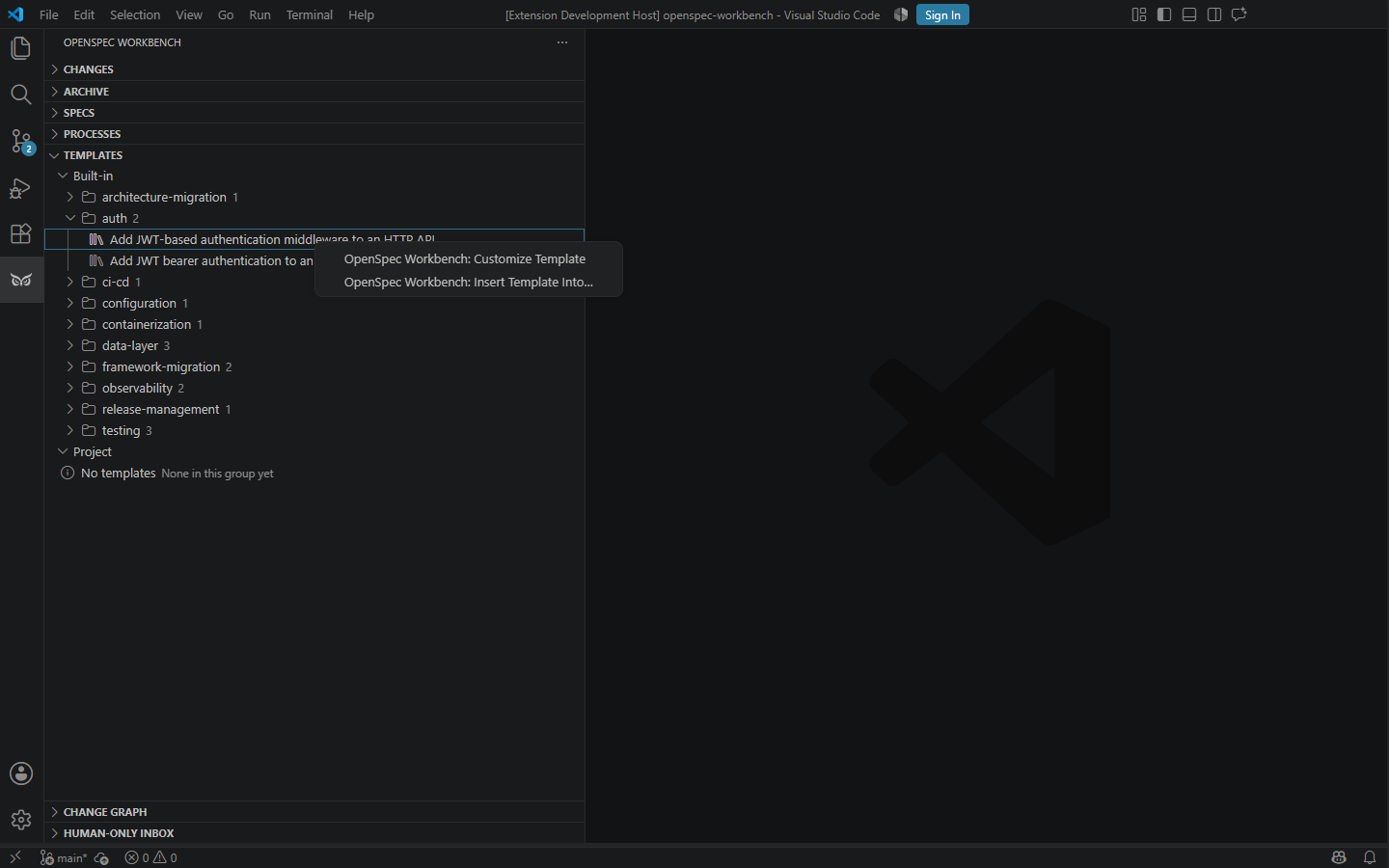
- Browse built-in and project-level change templates in the Templates view, grouped first by origin (Built-in / Project) and then by category. Customize a built-in template into your project (keeping a backlink to the version it was forked from), insert a rendered template into any active change, or delete a project-level template with confirmation — built-in templates ship as part of the extension and are never deletable through the UI. 17 built-in templates across 10 categories (data-layer, framework-migration, architecture-migration, testing, ci-cd, auth, containerization, observability, configuration, release-management), covering Python, Node.js/TypeScript, ASP.NET Core, and language-agnostic patterns.
- Bootstrap repository files for a picked project type (Node.js/
TypeScript or Python): agent instructions (
CLAUDE.md/AGENTS.md),.github/dependabot.yml, and path-scoped.github/instructions/ <subtype>.instructions.md. Reachable either from the Command Palette or from the "Repository Setup" row of the Workspace view. Any of these commands leaves an existing file alone (and tells you so) if it wasn't created by this extension — never overwrites hand-written content.
- VS Code 1.90 or newer.
- OpenSpec CLI available as
openspeconPATH. - A workspace containing
openspec/config.yaml, or initialize OpenSpec from the CLI before using the Workbench. - VS Code Chat and an available language model for
/plan,/implement, and/review. Deterministic lifecycle, status, and validation actions do not require AI.
- Open the OpenSpec activity-bar container.
- Create or expand a change in Changes.
- Edit Proposal, Design, Tasks, and delta Specs in native editors.
- Run Validate, then choose Run... and Apply in VS Code Chat — this runs through VS Code's own Copilot Chat, using whatever model is selected in Chat's own model picker. If you specifically want a particular CLI agent (e.g. the real Anthropic Claude Code CLI, not Claude via Copilot) to make the change instead, use OpenSpec Workbench: Open Process Dashboard and its own agent picker instead — see "Agents" below.
- Follow the run in Processes. When Agent work is done, choose Finish Implementation.
- Review native diffs, roll back the checkpoint if needed, or archive the completed change. Archiving creates or updates canonical specs.
Enter @openspec and choose a slash command. The first argument must be an
active change id:
@openspec /review openspec-workbench focus on rollback safety
To run plan/implement/review through a specific CLI agent (Claude
CLI, GitHub Copilot CLI, Codex CLI, Gemini CLI, or a local
OpenAI-compatible LLM) instead of VS Code's native Chat/Agent handoff:
- Run OpenSpec Workbench: Open Dashboard from the Command Palette (or the toolbar button on a change in Changes).
- In the panel, pick
implement(orplan/review) from the command dropdown. - Pick the agent you want from the agent dropdown next to it — each option shows a best-effort detected/not-detected badge.
- Click Run.
This picker is independent of VS Code Chat: it runs the command through
this extension's own CLI-agent protocol (@openspec-ui/core's
buildDefaultAgentRunners), resolved at activation from the open
workspace. Each listed CLI tool (claude/copilot/codex/gemini)
must already be installed and authenticated on the machine separately —
the extension never handles API keys itself. If a tool is missing, the
run fails immediately with a clear error instead of hanging. This works
the same way in both the default message-bridge dashboard and the
optional local-server mode
(openspec-ui.transport.localServer.enabled). None of these tools need a
VS Code extension or any VS Code-specific setup — a plain CLI login is
enough, the same as using it from a terminal. See the root repository
README.md's "Agent Selection" section for the full picture, including
how this differs from the @openspec Chat Participant above.
OpenSpec Workbench: Configure Workspace Harness and OpenSpec Workbench: Configure
Harness for this Change set the per-stage agent, autonomy level, and
review gate the commands above (and a chain run) use by default. Each opens
a panel of its own: the first for the workspace's global file, the second
for the one change it was run on, titled Harness: <change>, already
loaded;
OpenSpec Workbench: Run with Agentic Harness starts a single-stage run or a
chain depending on the resolved autonomy level. See the root repository's
HARNESS.md for every setting these commands can and
cannot reach, and LIMITS.md for what actually caps a
run's spending.
A chain run can be answered mid-stage: when a stage's agent asks for
permission before a sensitive action, the chain view offers an Allow/Deny
control naming the request, and the answer reaches that stage's own run.
Under autonomous there is no confirmation channel, so a permission
request there ends the run with a stated reason instead of waiting.
-
openspec-ui.transport.localServer.enabled: use the optional standalone REST/WS shell inside the dashboard, for both the AI panel and the Pipeline panel. The default extension path imports core directly and uses an in-process message bridge. Because the optional localhost shell is a cross-origin iframe, it retains the standalone palette instead of inheriting VS Code theme variables. With this on, the Pipeline panel's cards are read by the server's own process instead of the editor's, so they keep answering while a harness chain runs in this editor. -
openspec-ui.checkpointRetentionDays: days to keep process/checkpoint history before it's pruned, once, on the next window reload. Defaults to0, which keeps everything forever — unchanged from every prior version. A positive number prunes anything older than that many days.Warning: once a process is pruned this way, both single-process Rollback and "Rollback Change" become permanently unavailable for it — pruning itself cannot be undone. Leave this at
0(the default) unless you specifically want bounded history growth and have accepted that trade-off.
npm run typecheck --workspace openspec-ui-vscode
npm run lint --workspace openspec-ui-vscode
npm run test --workspace openspec-ui-vscode
npm run build --workspace openspec-ui-vscode
npm run test:integration --workspace openspec-ui-vscode
To try a local change in your own VS Code instead of just building:
npm run reinstall:local --workspace openspec-ui-vscodeUnlike npm run package (which only produces the .vsix), this also
force-installs it — the extension's version in package.json often
does not change between local iterations, and code --install-extension
silently does nothing when the target version is already installed, so a
plain reinstall without --force can leave you testing stale code. You
still need to run "Developer: Reload Window" yourself afterward — that
step is not automated.