Project Setup Guide
Follow this guide to set up the development environment and a developer build of TF2 Panda.
- Windows 64-bit
- Python 3.8 or newer
- This is the Python interpreter that will be used and compiled against
- Visual Studio 2019 with C++ support
- CMake
- Git
- Strawberry Perl
- A good text editor, like VS Code, Atom, or Notepad++
- Blender 2.9x (3 isn't supported yet)
-
jom build system
- Put jom.exe on your PATH
-
Ogg vorbis encoder
- Put oggenc2.exe on your PATH, rename it to oggenc.exe
- Optional: LLVM Clang
This will house the development environment and all of the engine and game repositories.
mkdir %USERPROFILE%\player
This contains development environment boilerplate stuff and third-party package build scripts.
cd %USERPROFILE%\player
git clone https://github.com/toontownretro/wintools
This will copy some files to bootstrap your development environment.
cd wintools\panda
setup
Edit player/env.bat to contain the correct locations of your Python and Visual Studio installations. Edit PYTHON_LOCATION and the call to the vcvars.bat script if they are not already correct. Ignore the Maya location.
Run the Terminal.lnk shortcut in your player folder. This is a special terminal that pulls in env.bat when it launches. You must use this terminal (or at least pull in env.bat) when working within the player environment.
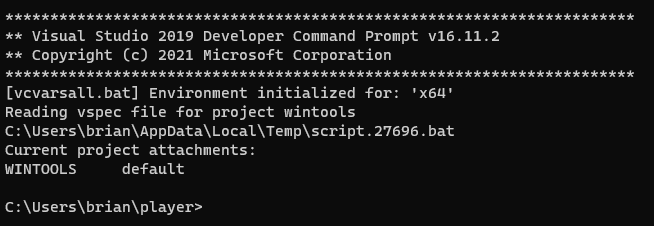
Note the %WINTOOLS% variable. Don't panic. This does exist, and it's set up automatically through the "attach" system, which is described in more detail later.
cd %WINTOOLS%
mkdir build
cd build
cmake .. -G "Visual Studio 16 2019" -A x64
cmake --build . -j --config RelWithDebInfo
cd ..
python copy_dlls.py
Three third-party packages are required by TF2 that are not included in wintools. These are FMOD, Steam Audio, and NVIDIA PhysX.
Download and install the FMOD Engine for Windows (not Studio) from here. You need an account to access the download. The library must be made part of wintools.
copy "C:\Program Files (x86)\FMOD SoundSystem\FMOD Studio API Windows\api\core\lib\x64\fmod.dll" "%WINTOOLS%\built\bin\fmod.dll"
copy "C:\Program Files (x86)\FMOD SoundSystem\FMOD Studio API Windows\api\core\lib\x64\fmodL.dll" "%WINTOOLS%\built\bin\fmodL.dll
This one must be built from source.
Note the %PLAYER% variable. This is automatically set to the location of your player folder when you launch the terminal.
cd %PLAYER%
git clone https://github.com/toontownretro/steam-audio
cd steam-audio\fmod
python setup.py
mkdir built
cd built
cmake .. -G "Visual Studio 16 2019" -A x64 -DCMAKE_BUILD_TYPE=RelWithDebInfo
cmake --build . -j --config RelWithDebInfo
cd built\src\RelWithDebInfo
copy phonon_fmod.dll "%WINTOOLS%\built\bin\phonon_fmod.dll"
Next, extract steamaudio_4.1.2.zip into steam-audio\fmod.
Then copy the DLLs into wintools.
cd %PLAYER%\steam-audio\fmod
copy steamaudio\lib\windows-x64\phonon.dll %WINTOOLS%\built\bin\phonon.dll
copy steamaudio\lib\windows-x64\GPUUtilities.dll %WINTOOLS%\built\bin\GPUUtilities.dll
copy steamaudio\lib\windows-x64\TrueAudioNext.dll %WINTOOLS%\built\bin\TrueAudioNext.dll
Finally, add these lines to player/Config.pp so the build system finds Steam Audio.
#define STEAM_AUDIO_IPATH $[PLAYER]\steam-audio\fmod\steamaudio\include
#define STEAM_AUDIO_LPATH $[PLAYER]\steam-audio\fmod\steamaudio\lib\windows-x64
This one also has to be built from source.
cd %PLAYER%
git clone https://github.com/lachbr/PhysX
cd PhysX\physx
generate_projects.bat
For VS 2019, use preset 13.
cd compiler\vc16win64
msbuild PhysXSDK.sln -m -p:Configuration=checked;Platform=x64
Then copy the needed DLLs into wintools.
cd %PLAYER%\PhysX\physx\bin\win.x86_64.vc142.md\checked
copy PhysX_64.dll %WINTOOLS%\built\bin\PhysX_64.dll
copy PhysXCommon_64.dll %WINTOOLS%\built\bin\PhysXCommon_64.dll
copy PhysXCooking_64.dll %WINTOOLS%\built\bin\PhysXCooking_64.dll
copy PhysXFoundation_64.dll %WINTOOLS%\built\bin\PhysXFoundation_64.dll
Finally, add these lines to player/Config.pp so the build system finds PhysX.
#define PHYSX_IPATH $[PLAYER]\PhysX\physx\include $[PLAYER]\PhysX\pxshared\include
#define PHYSX_LPATH $[PLAYER]\PhysX\physx\bin\win.x86_64.vc142.md\checked
This is the build system used by the engine and game projects.
cd %PLAYER%
git clone https://github.com/toontownretro/ppremake
cd ppremake
msbuild ppremake.sln -m -p:Configuration=Release;Platform=x64
ppremake.exe should be built in ppremake\built\bin. Leave it there, as we will use the "attach" feature of our development environment to make it accessible.
Run this.
ppremake
Notice how it wasn't able to find it. Now, try this.
cta ppremake
ppremake
The "ctattach" (cta) feature of our development environment allows for projects to be kept isolated and brought into the environment when needed, rather than cluttering up a public install directory or PATH.
This is also useful in other ways, such as two side-by-side game projects with conflicting configuration variables. Keep them isolated and only attach to the one you're working on.
Attaching works by modifying environment variables to include the project's bin folder on PATH, etc, temporary to the current terminal session. It's important to remember that a project does not exist in the development environment unless you attach to it.
You can view your current attachments with the ctshowprojs command.
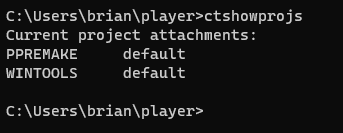
This is the first actual component of the engine. We will use the ppremake system to build it.
Before we can build it, add these lines to player\Config.pp. They respecify some build options we're using that aren't yet default.
#define USE_MEMORY_MIMALLOC 1
#define DO_PIPELINING 1
#define USE_DELETED_CHAIN
#define HAVE_EIGEN
#define LINMATH_ALIGN 1
#define ARCH_FLAGS /arch:AVX2
#define BUILD_TYPE make
#define BUILD_COMPONENTS 1
#define DONT_COMPOSITE 1
#define DO_CROSSOBJ_OPT
If you want to use the LLVM Clang compiler instead of Microsoft's compiler, also add #define USE_COMPILER Clang. You have to have it installed on your computer though, of course.
Now let's clone and ppremake it.
cd %PLAYER%
git clone https://github.com/toontownretro/dtool
cta ppremake
cta dtool
cd %DTOOL%
ppremake
Compare the output to this image. Make sure Python was found and enabled, and all the relevant third-party packages were found. Several of them are not needed, so they aren't found even in the example below. But make sure the ones found in the example are found when you run it. Don't worry about SLEEF though.
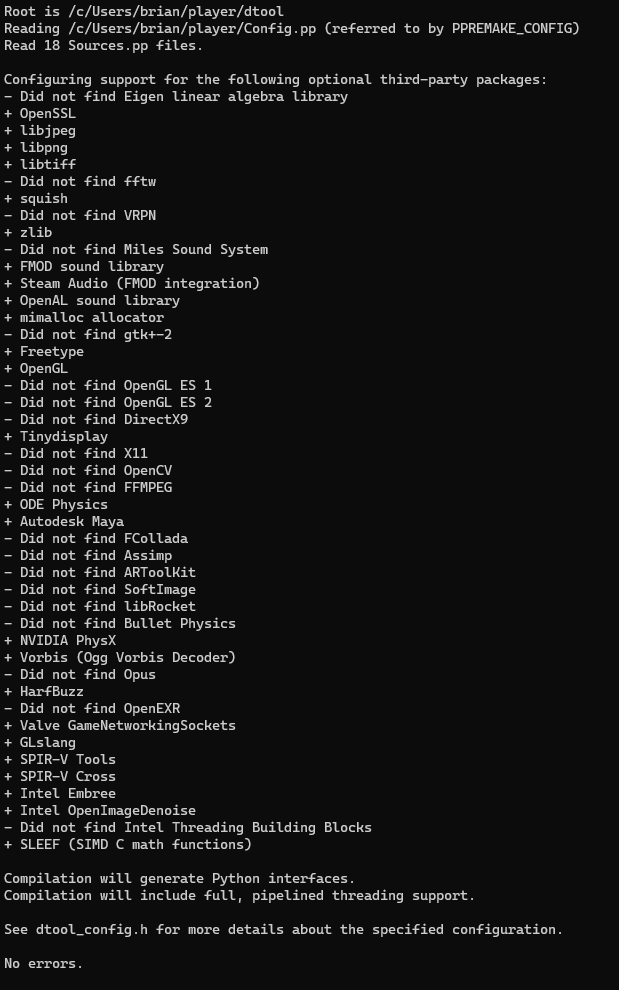
Now, let's build it! -j 5 means to use 5 threads for compilation.
jom -j 5 install
Hopefully it built without any errors. Check that the interrogate program in dtool works correctly to verify. This program is installed into dtool\built\bin, and because we're attached to dtool (via cta dtool), that directory is magically on our path.
interrogate
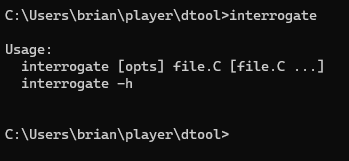
Next, let's do panda. This is the main engine component and takes the longest to build.
The process is exactly the same as dtool, except we don't have to worry about changing our Config.pp or validating the third-party packages, as that only needed to be done once.
cd %PLAYER%
git clone https://github.com/toontownretro/panda
cta panda
cd %PANDA%
ppremake
jom -j 5 install
Once again, same process.
cd %PLAYER%
git clone https://github.com/toontownretro/pandatool
cta pandatool
cd %PANDATOOL%
ppremake
jom -j 5 install
Once again, same process.
cd %PLAYER%
git clone https://github.com/toontownretro/direct
cta direct
cd %DIRECT%
ppremake
jom -j 5 install
This one's a little different. This project is a "model" tree, whereas the previous projects were all code trees. dmodels contains core assets and shader code, which must be built and installed.
First, add the following line to player/Config.pp.
#define SHADERCOMPILE_OPTS -j 10
This specifies the number of threads to use when compiling shaders. Set it to a reasonable value for your CPU.
Note, you must use -j 1 for model trees! Additionally, model tree makes use of programs in pandatool, so we need to make sure we're attached to it (via cta pandatool)
cd %PLAYER%
git clone https://github.com/toontownretro/dmodels
cta direct
cta dmodels
cta pandatool
cd %DMODELS%
ppremake
jom -j 1 install
If you can run pview without any errors, then dmodels (and panda) built correctly.
We've finally gotten to TF2! Give yourself a pat on the back. I know this is a pretty involved process.
Before we do anything, we can't attach to tf because there isn't an entry for it by default in the player/vspec folder, which registers all of the projects that we can attach to. Create a tf.vspec file in player/vspec and put the following text.
personal:root:path=$PLAYER/tf
prebuilt:root:path=$PLAYER/prebuilt/tf
default:root:path=$PLAYER/tf
Now you should be able to do cta tf after cloning it.
cd %PLAYER%
git clone https://github.com/TF-Panda/tf
cta tf
cd %TF%
ppremake
jom -j 5 install
Here's the last one! This is the TF2 model tree and will take some time to build. It has to export all of the models, compile all of the textures, etc.
As with tf, we need to create a tfmodels.vspec in the player/vspec folder. Add the following text.
personal:root:path=$PLAYER/tfmodels
prebuilt:root:path=$PLAYER/prebuilt/tfmodels
default:root:path=$PLAYER/tfmodels
Futhermore, in order for the models to be exported from Blender, it needs to know where Blender is installed on your computer. Add the following line to player/Config.pp, and correct it to the location of your Blender install.
#define BLEND2EGG_OPTS --blender-dir "C:\Program Files\Blender Foundation\Blender 2.92"
Now, let's clone and build it. We are allowed to use threads with tfmodels. And as with dmodels, we need to make sure we're attached to pandatool.
cd %PLAYER%
git clone https://github.com/TF-Panda/tfmodels
cta tf
cta tfmodels
cta pandatool
cd %TFMODELS%
ppremake
jom -j 5 install
Let's do a victory lap by viewing the Engineer model! Run pview models/char/engineer. Press c to center the view on the model, and press a to move to the next animation.