
FlyCoding - Xcode version of Emmet 中文指南
FlyCoding is an Xcode plugin, written using Apple's plug-in mechanism, which runs on the latest Xcode, and provides similar functionality to Emmet in the frontend. You can use special syntax to generate Swfit / Objective-C code as fast as you want, especially when writing a lot of UI controls and constraints, which is tedious and mechanical, but unavoidable. FlyCoding can help you to generate properties, methods, constraints (Masonry / SnapKit) quickly, more features are still in the works, I hope you provide valuable comments and ideas.
- New in version 2.0 is the powerful @do command, which operates on text via shell-like commands.
- remove
- to
- copy
- move
- sort
- Objective-C / Swift attribute generation
- Fast creation of Objective-C / Swift views
- Masonry / SnapKit Constraint Generation
- System-native AutoLayout constraint under Swift
- Rapid Generation Method
- Any complete operation can be separated by '+', use '* N' for batch operation.
@do move 10 34 to 44
// Move 10 to 34 rows to 44.
//
//The commands are very easy to use, you can write them directly from anywhere!
//Commands begin with @do, followed by the command you want to operate on.
//move is the move command, followed by 10 is the start line and 34 is the end line.
//to is also a command that is responsible for moving the content to the specified location.
//to is not a combination of the move command, it is a stand-alone command, which is described in detail in the to command.
//Next is the parameter of the to command
Theoretically, an unlimited number of commands can be connected, with each command being a stand-alone unit that is processed and then passed state via a common context, and as more and more commands are processed, there are bound to be more amazing connections.
- remove/rm
@do rm 10 .- arg1
[arg2]arg1denotes the starting number of linesarg2indicates the end number of lines, and this parameter can be null, soarg1indicates the line to be deleted.- In addition to the number of lines that can be represented by
number, the current line of the command can also be represented by.can be used to represent the current line of the command
- move/mv
@do mv 10 . to 30- arg1
[arg2]arg1denotes the starting number of linesarg2indicates the end number of lines, and this parameter can be null, soarg1indicates the line to be moved.- In addition to the number of lines that can be represented by
number, the current line of the command can also be represented by.can be used to represent the current line of the command
- to arg1
- The
tocommand is required to move to the specified location. arg1indicates the line to be moved to.
- The
- copy/cp
@do cp 10 . to 30- arg1
[arg2]arg1denotes the starting number of linesarg2indicates the end number of lines, this parameter can be null, in this casearg1indicates the line to be copied.- In addition to the number of lines that can be represented by
number, the current line of the command can also be represented by.can be used to represent the current line of the command
- to arg1
- The
tocommand is required to move to the specified location. arg1indicates the line to be moved to.
- The
Sort the codes in the range in descending order according to the length of each line.
- sort/st
@do st 10 .- arg1
[arg2]arg1indicates the starting line, whilearg2, if empty, indicates the current line of the end-action command, and the starting line indicates the current line of the command minus thearg1line.arg2denotes the number of end lines, wherearg1denotes the end line.arg2, in addition to usingnumberto represent the number of lines, can also be used to represent the current line of the command by.can be used to represent the current line of the command, as well as `.
- Single attribute
pv.UIImageView
// pv is attribute control, p is private, v is var, the list can be seen later; . Used to distinguish between attribute and class names
private var <#name#>: UIImageView

Pv.Int/age
// Pv: public var
// `/age` where `/` is used to mark the name of the attribute
public var age: Int- Optional attribute
fv.UILabel?
// fv is attribute control, f is fileprivate, v is var;? means the attribute is optional
fileprivate var <#name#>: UILabel?- Attributes with default values
Pl.UIView{}
// Pl is property control, P is public, l is let; {} means it has default value
// The default value is generated using Class().
// If there is a default value, the type is no longer displayed, because Swift can infer the type itself.
public let <#name#> = UIView()


Pl.Int{100}
// If you add a default value to { {}, it will be used directly.
public let <#name#> = 100- Lazy loading attribute
lv.UIButton
// lv is an attribute, lv is a special combination, l is let, v is var when separated; lazy var when combined.
lazy var <#name#>: UIButton = {
    <#code#>
}()- OC accessible attributes
@Pv.UIImageView
// Adding @ will mark the property as @objc
@objc public var <#name#>: UIImageView- Special attribute identification
 wv.EatProtocol?
// Adding w will mark the attribute as weak, in addition to w, there are u/unowned, c/class and s/static
weak var <#name#>: EatProtocol?- Batch generation of attributes
pl.UILabel{} *2
// *2 Cannot have spaces in the middle, usually used when writing data model or UI.
private let <#name#> = UILabel()
private let <#name#> = UILabel()- Generate block initialization values
plb.UIButton
// The meaning of block is represented by the tag b.
private let <#name#>: UIButton = {
    <#code#>
}()
Tips: If a property is not tagged, it is automatically tagged with let.
UIImageView

let <#name#>: UIImageView| symbols | markers |
|---|---|
| l | Let |
| v | var |
| lv | lazy var |
| p | private |
| P | public |
| o | open |
| f | fileprivate |
| pl | private let |
| pv | private var |
| plv | private lazy var |
| Pl | public let |
| Pv | public var |
| Plv | public lazy var |
| ol | open let |
| ov | open var |
| olv | open lazy var |
| fl | fileprivate let |
| fv | fileprivate var |
| flv | fileprivate lazy var |
| -- | -- |
| @ | @objc |
| u | unowned |
| w | weak |
| c | class |
| s | static |
| Special symbols | function |
|---|---|
| b | block, generating a block initialization value for a property, similar to lazy var |
| F | The initial value of the property is provided by the config function. |
The usage syntax in Objective-C is not that different from Swift, it's mostly the keywords and the look of the generation.
- Single attribute
UIImageView *
// The default description is nonatomic, strong.
@property (nonatomic, strong) UIImageView *<#name#>- Generation of complete attributes
c.NSString *name;
// If you add ' ; ' at the end, it means the Class already has an attribute name attached to it, for quick coding.
@property (nonatomic, copy) NSString *name;
Tips: class can be used to tag class properties
| symbols | markers |
|---|---|
| s | strong |
| w | weak |
| a | assign |
| r | readonly |
| g | getter=<#getterName#> |
| c | copy |
| n | nullable |
| N | nonnull |
| c | class |
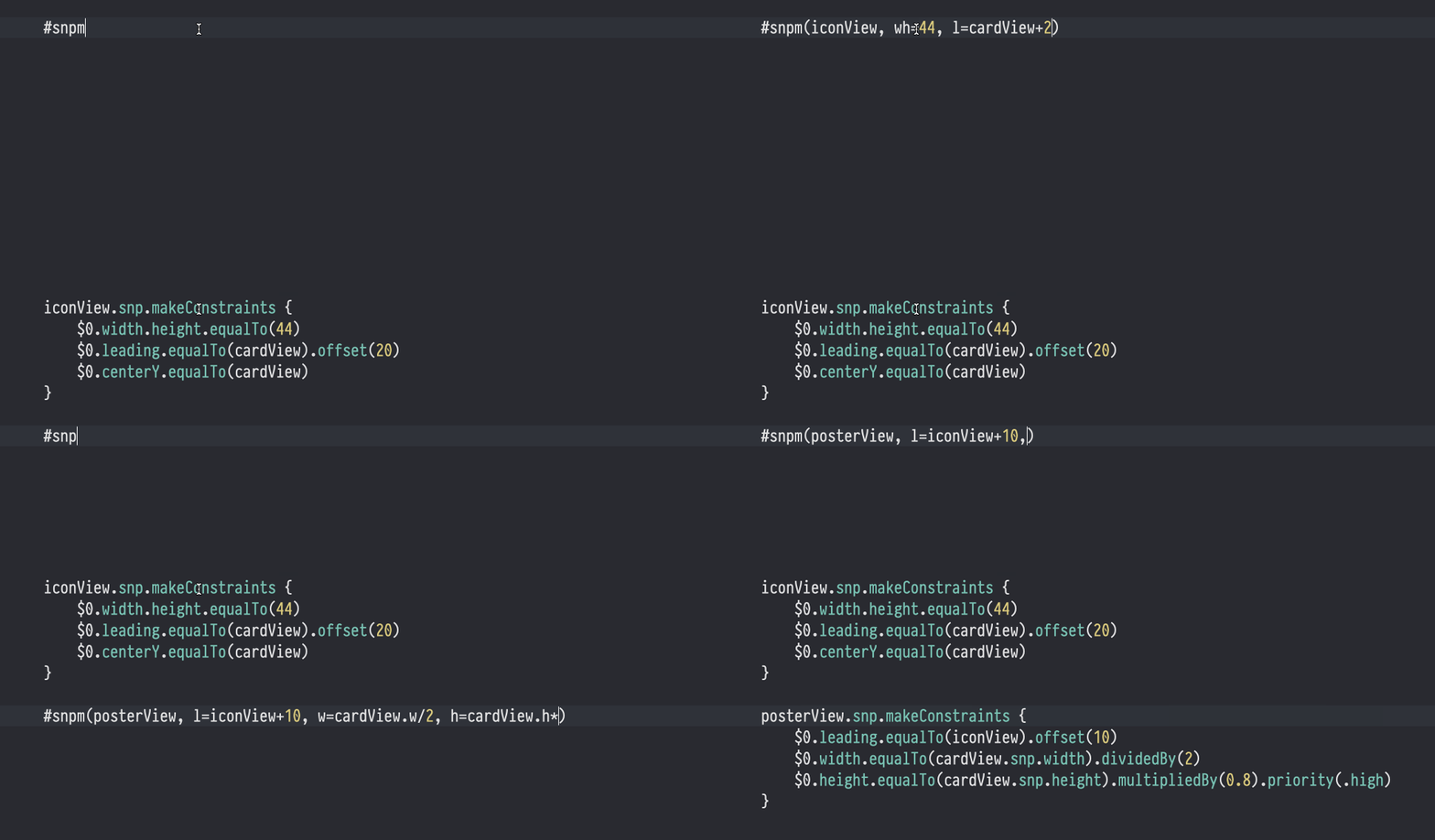
I've chosen the two most commonly used frameworks for this, using Masonry in Objective-C and SnapKit in Swift.
- Add layout
 #snpm(iconView, e=self)
 // snpm is makeConstraints, which is used in () to separate the statements with the sign
 // The first argument is the object to which you want to add the constraint, the rest are layout statements.
 // Each statement is divided into three parts, with the properties of the object being constrained on the left and the constraints in the middle.
 // and on the right is the constraint value or some other constraint object.
 iconView.snp.makeConstraints {
    $0.edges.equalTo(self)
}- Updated layout
#snpu(iconView, h=100)
// snpu is updateConstraints
iconView.snp.updateConstraints {
    $0.height.equalTo(100)
}- Reset layout
#snprm(iconView, r=self - 20)
// snprm is remakeConstraints
iconView.snp.remakeConstraints {
    $0.right.equalTo(self).offset(-20)
}- Demonstration of layout 1 (relative distance)
#snpm(iconView, r=titleLabel.l-20, wh=20)
// Relative distance can be set more intuitively using + -.
iconView.snp.makeConstraints {
    $0.right.equalTo(titleLabel.snp.left).offset(-20)
    $0.width.height.equalTo(20)
}- Demonstration of layout 2 (role of +-)
#snpm(iconView, t=titleLabel.b-superView.height-20, wh=100)
// In a constraint statement, the first plus and minus sign is not only positive or negative, but also a marker for separating the preceding and following statements.
 iconView.snp.makeConstraints {
    $0.top.equalTo(titleLabel.snp.bottom).offset(-superView.height-20)
    $0.width.height.equalTo(100)
}- Demonstration of layout 3 (scale constraint)
#snpm(iconView, wh=self/2)
// Proportional restraint is also a common restraint technique.
iconView.snp.makeConstraints {
    $0.width.height.equalTo(self).dividedBy(2)
}

// Same role
#snpm(iconView, wh=self*0.5)
// Using the * method is also possible, of course.
iconView.snp.makeConstraints {
    $0.width.height.equalTo(self).multipliedBy(0.5)
}- Demonstration of layout 4 (comparison)
#snpm(titleLabel, tl=self, r<=self - 20)
// Commonly used adaptive width according to the length of the text.
// Can also be used >= to mean greater than or equal to
 titleLabel.snp.makeConstraints {
    $0.top.left.equalTo(self)
    $0.right.lessThanOrEqualTo(self).offset(-20)
}- Demonstration of layout 4 (level of constraint)
#snpm(iconView, l = self, r <= superView~20, r <= titleLabel.l - 20~h)
// You can set constraint registration by using ~ at the end of the constraint statement.
// You can use numbers to indicate constraint registration, or you can use r\h\m\l to mark the
 iconView.snp.makeConstraints {
    $0.left.equalTo(self)
    $0.right.lessThanOrEqualTo(superView).priority(20)
    $0.right.lessThanOrEqualTo(titleLabel.snp.left).offset(-20).priority(.height)
}- Supports equalToSuperview
If your constraint target is
super, it will be replaced byequalToSuperview()
// #snpm(label, c=super)
label.snp.makeConstraints {
   $0.center.equalToSuperview()
}- Supports the
sizevalue setting, need use the@to mark value variabless=@M: $0.size = CGSize(width: M, height: M)s=@M@N: $0.size = CGSize(width: M, height: N)
// #snpm(label, s=@100)
label.snp.makeConstraints {
    $0.size.equalTo(CGSize(width: 100, height: 100))
}
// #snpm(label, s=@400@500)
label.snp.makeConstraints {
    $0.size.equalTo(CGSize(width: 400, height: 500))
}- Supports the
edgesvalue setting, need use the@to mark value variablese=@M: $0.edges = UIEdgeInsets(top: M, left: M, bottom: M, right: M)e=@V@H: $0.edges = UIEdgeInsets(top: V, left: H, bottom: V, right: H)e=@T@L@B@R: $0.edges = UIEdgeInsets(top: T, left: L, bottom: B, right: R)
// #snpm(label, s=@10)
label.snp.makeConstraints {
    $0.edges.equalTo(UIEdgeInsets(top: 10, left: 10, bottom: 10, right: 10))
}
// #snpm(label, s=@10@20)
label.snp.makeConstraints {
    $0.edges.equalTo(UIEdgeInsets(top: 10, left: 20, bottom: 10, right: 20))
}
// #snpm(label, s=@10@20@30@40)
label.snp.makeConstraints {
    $0.edges.equalTo(UIEdgeInsets(top: 10, left: 20, bottom: 30, right: 40))
}- Properties
| Symbols | Property |
|---|---|
| l | left |
| t | top |
| b | bottom |
| r | right |
| w | width |
| h | height |
| x | centerX |
| y | centerY |
| c | center |
| s | size |
| e | edges |
| --- | Constraint level |
| r | .required |
| h | .high |
| m | .medium |
| l | .low |
| --- | comparison parameter |
| >= | greaterThanOrEqualTo |
| <= | lessThanOrEqualTo |
| = | equalTo |
| --- | arithmetic symbol |
| - | Offset(-value) |
| + | Offset(value) |
| -- | inset(-value) |
| ++ | inset(value) |
| * | multipliedBy(value) |
| / | dividedBy(value) |
The main usage is the same as SnapKit, but here are the main differences
- Create, update, reset
@masm(iconView, e=self) // Create the
@masu(iconView, e=self) // Update the
@masrm(iconView, e=self) // Reset the
Tips: You can use @ as a command prefix in OC, mainly because # will automatically become the first column in the OC file, which affects the code structure.
- There is no rank r in the constraint
- new == / >== / <=== in the comparison, mainly compared to the version with one less =, with mas_ added in front.
@masm(iconView, e=self) // Create the
@masu(iconView, e=self) // Update the
@masrm(iconView, e=self) // Reset theThe main usage is the same as SnapKit/Masonry, but here are the main differences
- Use #layout to execute statements
- Support for s(size) / c(center) / e(edges) has been removed and will be added back in a later update ** Support for s(size) / c(center) / e(edges) has been removed.
- Operations that remove the division in the constraint can no longer be used
/ - Control the offset by not simply using
+```-, use the form:100if you want to set a constant constraint or offset
@layout(view, l=self:100, t=self:-20, w=self*2, h=:50)This part is also possible using Xcode's code blocks, but it's a real rush to write code and have to look and wait for Xcode to react after typing the corresponding phrase. We're going for fast!!! And we can give the view a variable name directly, but the block still can't!
With the #make command we can quickly add code to create a View
This is the type of creation currently supported
-
UIView
-
UILabel
-
UIButton
-
UIImageView
-
UITableView
-
UICollectionView
-
Normal Create UIImageView
#make(UIImageView)
// Generate a Swift view
let <#name#> = UIImageView()
<#name#>.backgroundColor = <#color#>
<#name#>.image = <#image#>
<#superView#>.addSubview(<#name#>)
// Generate OC view
UIImageView *<#name#> = [[UIImageView alloc] init];
self.<#name#> = <#name#>;
<#name#>.backgroundColor = <#color#>;
<#name#>.image = <#image#>;
[<#superView#> addSubview: <#name#>];- Set attribute name to create UILabel
@make(UILabel, titleLabel)
// Generate a Swift view
let titleLabel = UILabel()
titleLabel.font = <#font#>
titleLabel.textColor = <#color#>
titleLabel.text = <#text#>
titleLabel.backgroundColor = <#color#>
<#superView#>.addSubview(titleLabel)
// Generate OC view
UILabel *titleLabel = [[UILabel alloc] init];
self.titleLabel = titleLabel. titleLabel.font = <#font#>; self.titleLabel = titleLabel;
self.titleLabel = titleLabel; titleLabel.font = <#font#>. titleLabel.textColor = <#color#>; titleLabel.titleLabel.textColor = <#color#>;
titleLabel.textColor = <#color#>. titleLabel.text = <#color#>;
self.titleLabel = titleLabel; titleLabel.font = <#font#>; titleLabel.textColor = <#color#>; titleLabel.text = <#color#>; titleLabel.text = <#text#>;
titleLabel.backgroundColor = <#color#>;
[<#superView#> addSubview:titleLabel];- Method of creation
#funccan be abbreviated with#f.
#func(eat)
// Generate a simple method
func eat() {
    <#code#>
}- Methods for setting privileges
#func(@p.run)
// Same tags and attributes.
@objc private func run() {
    <#code#>
}- Methods with parameters
#func(run::)
// one : means there is one parameter
func run(<#name#>: <#type#>, <#name#>: <#type#>) {
    <#code#>
}- Methods with return values
#func(run>)
// One > means there is a return value
func run() -> <#return#> {
    <#code#>
}
// Multiple return values return a tuple.
#func(run>>)
func run() -> (<#return#>, <#return#>) {
    <#code#>
}- Method of creation
#func(run)
// Generate a simple method
- (void)run {
    <#code#>
}- Methods with return values
#func(run>)
// One > means there is a return value
- (<#type#>)run {
    <#code#>
}- Methods with parameters
#func(run::)
// one : means there is one parameter
- (void)run:(<#type#>)<#param0#> <#name1#>:(<#type#>)<#param1#> {
    <#code#>
}- Batch processing: All of the above commands can be used to generate batches via the *n extension.
- Multi-command execution: You can generate multiple commands in one block by writing + successively.
People's comments and suggestions are appreciated, you can submit an issue or send an email to caishilin@yahoo.com.